
Choose the right M.2 slot without accidentally limiting your SSD, graphics card, or other expansion hardware.
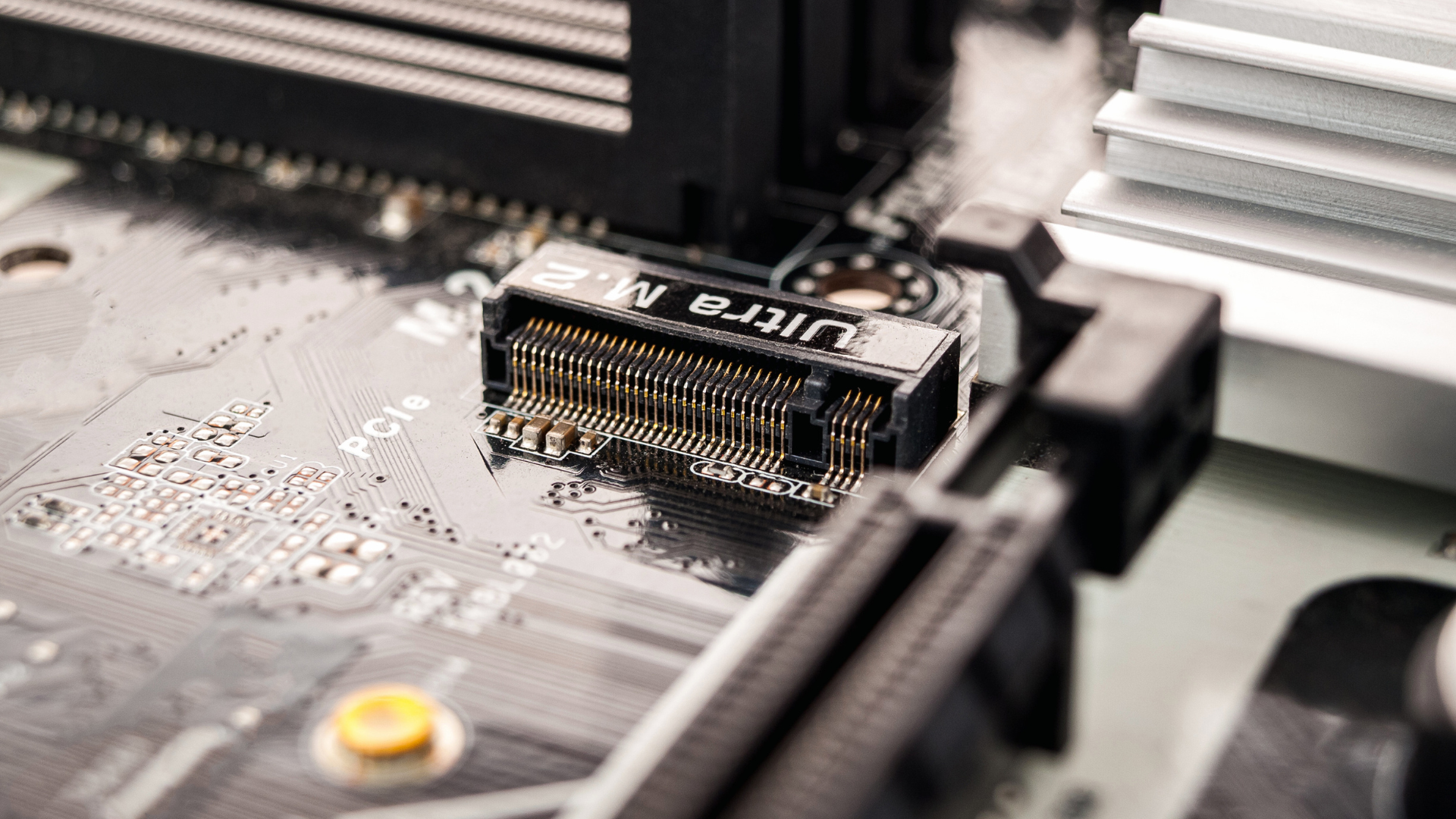
The best M.2 slot for a gaming SSD is usually the CPU-connected slot intended for the primary drive. On many motherboards, that is the connector nearest the processor. But the position of a socket is a clue, not a specification.
The correct choice depends on the motherboard’s wiring, your processor, and the other devices you intend to install. A board can have several identical-looking M.2 sockets with different speed limits. Filling one might also reduce bandwidth to another connector or disable a SATA port.
Before removing a heatsink, find the motherboard’s storage specifications and its bandwidth-sharing notes. Those two pieces of information are more useful than the number printed on the SSD box. Our broader guide to choosing an SSD covers the drive itself; here, we will work out where to put it.
Start With the Motherboard Model and Your Exact CPU
Find the complete motherboard model, including suffixes such as WiFi, II, or a revision number. Similar names do not guarantee identical wiring. Use the manufacturer’s support page to download the matching manual, then search within it for “storage,” “M.2,” “shared,” and “bandwidth.”
If you do not know the board model, our guide to checking your computer specifications is a useful starting point. A prebuilt may use a custom board whose documentation comes from the PC manufacturer instead of the retail motherboard brand.
Next, identify the processor. Storage specifications sometimes contain separate sections for different CPU families. A socket that supports PCIe 5.0 with one processor may run at PCIe 4.0 with another, and some secondary sockets may be unavailable altogether.
This is particularly easy to overlook when a motherboard supports both conventional desktop processors and processors with more capable integrated graphics. Do not assume a CPU upgrade or downgrade preserves every expansion connection simply because the chip fits the socket.
Understand the Four Details That Define an M.2 Slot
1. The protocol it supports
M.2 describes a physical format. NVMe and SATA describe different storage interfaces. An M.2 SATA drive is not automatically compatible with an NVMe-only socket, and a socket wired only for SATA cannot provide an NVMe connection.
The manual should explicitly identify supported drive types. For a modern NVMe gaming SSD, look for PCIe or NVMe support. A physically similar wireless-card connector is not a substitute for a storage socket.
2. The supported drive length
A common desktop SSD size is M.2 2280: approximately 22mm wide and 80mm long. Other sizes include 2230, 2242, 2260, and 22110. The slot needs both electrical compatibility and a mounting point for your drive’s length.
Also check vertical clearance. A factory heatsink can collide with a motherboard cover or graphics card. In thin systems, components on the underside of a double-sided SSD may present another fit issue even when the length is correct. Our 2TB SSD guide for gaming laptops applies those fit and cooling priorities to a focused shortlist.
3. PCIe generation and lane width
A PCIe 4.0 x4 connection uses four lanes at fourth-generation signaling speeds. A Gen4 SSD in a compatible Gen3 x4 socket will negotiate the older link. A Gen5 SSD cannot make a Gen4 socket faster.
Lane width matters separately. A connector limited to x2 offers fewer lanes than an x4 connector at the same generation. Neither label tells you exactly how quickly a game will load, but both affect the maximum bandwidth available to the drive.
4. Where the connection goes
A CPU-connected socket communicates through storage lanes supplied directly by the processor. A chipset-connected socket sends traffic through the chipset and its connection to the CPU. Chipset devices can share that upstream connection with other storage, networking, and USB traffic.
That does not make chipset storage unsuitable for games. A secondary game library is often an excellent use of a chipset-connected socket. The potential difference becomes more relevant when several fast devices move large amounts of data at once.
A Practical Order for Choosing a Slot
| Your situation | Start here | Check before installing |
|---|---|---|
| One primary NVMe drive | The designated CPU-connected storage slot | CPU support, protocol, and heatsink clearance |
| A second game-library drive | An available x4 slot with minimal sharing penalties | GPU, SATA, USB, and expansion-slot footnotes |
| A high-end Gen5 drive | A genuine PCIe 5.0 x4 storage connection | Cooling and any sacrificed connections |
| An older M.2 SATA drive | A socket explicitly supporting SATA M.2 | Whether using it disables a SATA connector |
Treat this as a decision order rather than a universal slot-number list. “M2_1” is a label assigned by the manufacturer. It is not an industry guarantee that the socket has dedicated lanes or supports every SSD.
If your fastest socket would compromise something you use more often, choose the better overall configuration. A game-library drive does not need top billing simply because its packaging advertises a large sequential-read number.
Read the Sharing Footnotes Before Choosing the Fastest Socket
There are two questions to ask: what speed does this SSD get, and what changes elsewhere when I install it?
For a concrete example, MSI documents that the MAG X870 Tomahawk WiFi’s M2_2 connection shares resources with its rear USB4 connectivity. Its M2_3 socket has a separate sharing relationship with PCI_E3. Those are different compromises from reducing the primary graphics connection. The details are in MSI’s storage specifications.
Other boards divide lanes assigned to the graphics connection to provide additional M.2 sockets. Our explanation of whether an M.2 SSD can slow down your graphics card covers how to identify that arrangement and check the resulting link.
The lesson is not to avoid additional drives. It is to map the tradeoffs before installing them. An unused SATA port can be an acceptable sacrifice. Disabling the USB port used for your main external drive might be inconvenient. Reducing bandwidth to a capture card can matter more than a small improvement in SSD benchmark throughput.
Which Drive Should Get the Best Slot?
If you have one SSD, the choice is straightforward: use the best compatible connection that does not create an unwanted tradeoff. With several drives, prioritize actual workloads.
For example, suppose you own a Gen4 system SSD and a second Gen4 SSD for games. Both have room to breathe, and neither is used for simultaneous professional transfers. Putting the operating-system drive in the primary CPU-connected socket and the library drive in a chipset x4 socket is a sensible arrangement.
Now suppose the second drive handles large editing projects all day while the system SSD mostly launches applications. The working-project drive may deserve the fastest connection. Windows does not inherently require your fastest physical socket.
A third scenario is a Gen5 SSD paired with a Gen4 board. You can use the newer drive in a compatible socket, but do not buy a new motherboard just to change its benchmark result. First decide whether PCIe 5.0 storage is useful for your workload.
Cooling Can Matter More Than Slot Number
A socket beneath a large graphics card can sit in a warm pocket of air. Another might have a substantial heatsink and better access to airflow. Assess the complete installation, especially if you regularly install huge games or copy large libraries.
Use the motherboard’s thermal pad and heatsink as instructed. Remove any protective film from the pad, leave the SSD’s own label in place unless its manufacturer explicitly instructs otherwise, and use the mounting hardware intended for that socket.
Do not stack a motherboard heatsink over a drive’s factory cooler. Do not compensate for missing thermal contact by tightening the screw until the SSD bends. A properly seated drive should remain flat without heavy pressure.
Our guide to SSD temperatures and installation slowdowns explains how to distinguish an actual cooling issue from normal SSD behavior.
Verify the Installation Without Turning It Into a Benchmark Project
After installing the drive, confirm that the firmware and operating system identify the expected model and capacity. If the drive is new and blank, it may need initialization and a volume before File Explorer can show it. If it already contains data, do not initialize or format it merely because it is missing from File Explorer.
Next, check the negotiated interface with the manufacturer’s utility or a hardware-monitoring tool. Distinguish the drive’s supported connection from its current connection. A capability field saying “PCIe 4.0 x4” does not prove that the installed link is running at that setting.
Run one short, ordinary workload: install a game, move a library folder through the launcher, or copy a file you already intended to transfer. Check temperatures and any previously connected devices that the sharing notes mentioned. There is little value in repeatedly filling the SSD just to reproduce a marketing maximum.
Frequently Asked Questions
Does the SSD have to go in the top M.2 slot?
No. The top socket is often a good choice for a primary drive, but the manual determines its electrical capabilities. Some systems have a better practical arrangement in a different socket because of lane sharing, cooling, or CPU support.
Can Windows boot from a chipset-connected SSD?
Usually, on a modern system that supports booting from that storage device. Check the board documentation and boot configuration. The fact that a drive is connected through the chipset does not, by itself, stop it from being a boot drive.
Should I move an existing SSD just because another slot is faster?
Only if the move solves a meaningful limitation. A drive currently running at an unexpectedly restricted width deserves investigation. A properly functioning game drive does not need relocation simply because an unused socket has a newer PCIe label.
What should I buy if I have not chosen the drive yet?
Choose capacity and compatibility first, then compare suitable models in our best SSDs for gaming guide. Knowing the socket’s capabilities beforehand prevents paying extra for a feature your system cannot use.
