
PCIe 5.0 SSDs deliver enormous transfer speeds. Whether those speeds improve your gaming PC is a different question.
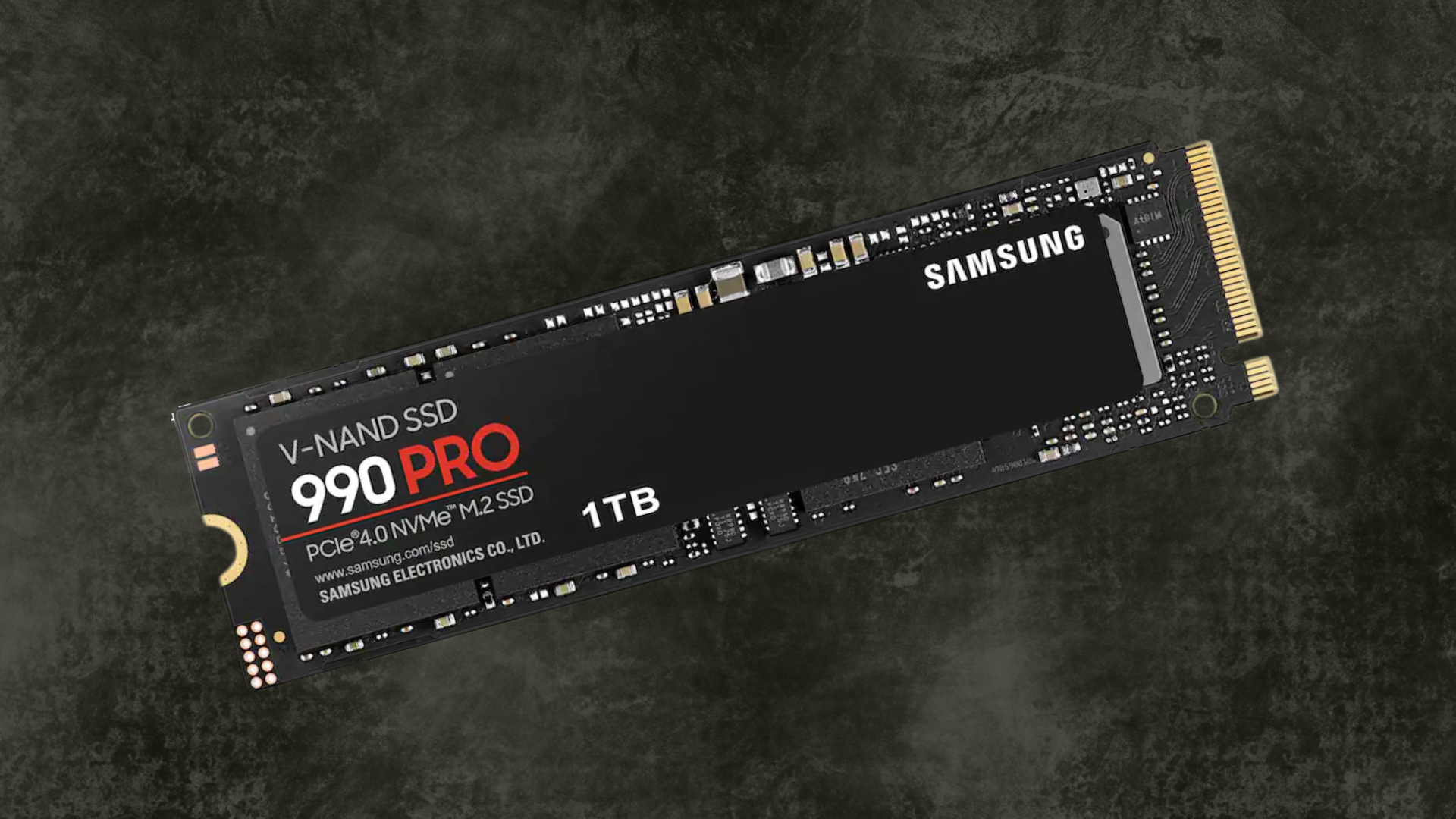
A PCIe 5.0 SSD is worth considering for a gaming PC when its price is close to a comparable Gen4 drive, your system supports it properly, and buying it does not force a more useful compromise. It is much harder to justify as an expensive upgrade from a healthy, adequately sized NVMe SSD.
The reason is straightforward: the sequential speed printed on an SSD box measures one kind of storage workload. Starting a game involves a mixture of reads, decompression, initialization, and sometimes shader compilation or online authentication. A faster drive only accelerates the parts of that process that are actually waiting for storage.
For a gaming-focused build, we would establish the right capacity first, then compare suitable models in our best SSDs for gaming guide. Gen5 is a feature to evaluate after those basics are covered.
What PCIe 5.0 Actually Improves
At the same lane width, PCIe 5.0 provides approximately twice the theoretical link bandwidth of PCIe 4.0. A high-end Gen5 x4 SSD can therefore move a large sequential stream faster than a Gen4 x4 connection allows.
That is a real capability, not a meaningless number. For example, Samsung rates its 4TB 9100 PRO for sequential reads up to 14,800MB/s and writes up to 13,400MB/s. Those are manufacturer maximums under specified conditions, not expected speeds for every installation or file copy. See Samsung’s 4TB specifications.
To benefit from that throughput, the drive needs a compatible connection, an appropriate workload, and adequate cooling. The other end of a transfer also needs to keep up. Copying from an older SATA SSD to a Gen5 drive does not remove the SATA drive’s read limit.
Nor does a Gen5 label guarantee superiority in every smaller operation. Controller design, firmware, NAND configuration, capacity, and the amount of work queued to the drive all matter.
Why Double the Bandwidth Does Not Mean Half the Loading Time
Consider a simplified, hypothetical 20-second loading sequence. Suppose six seconds are spent waiting for storage reads and fourteen seconds are spent on other tasks. If a faster drive somehow cut the storage portion to three seconds, the total would fall to seventeen seconds.
That is a useful improvement, but it is not a ten-second load. And the example is deliberately generous: doubling a drive’s maximum sequential bandwidth does not guarantee that a game’s particular reads finish twice as quickly.
Real loading pipelines also overlap work. The CPU might decompress one batch of assets while the SSD retrieves another. In such a pipeline, changing the drive helps only when storage is holding up the next stage.
This is why a loading-time comparison should specify the game, patch, scene, hardware, and test method. A drive that wins a huge sequential-copy benchmark may produce a much smaller difference when launching your most-played game.
Separate Four Different Claims About Gaming Performance
| Claim | What to measure | What a faster SSD can change |
|---|---|---|
| Games start faster | Repeatable cold and warm loads | The storage-limited part of loading |
| Games run at higher FPS | Actual gameplay and frame times | Usually little when storage is not the limit |
| Traversal feels smoother | A repeatable route with asset streaming | Storage-related stalls in relevant workloads |
| Updates finish sooner | Total download, unpack, and installation time | The portion limited by drive reads or writes |
These outcomes should not be combined into a single claim that a drive is “twice as fast for gaming.” They solve different frustrations.
If a game is slow while the GPU is fully occupied, a storage upgrade is unlikely to be the first purchase to make. If the game stalls while fetching assets from an old hard drive, moving it onto a suitable SSD may be much more useful. Diagnosing the current bottleneck is more valuable than buying the newest interface.
Does DirectStorage Change the Recommendation?
DirectStorage can improve the way supported games request and process assets. Microsoft’s DirectStorage 1.1 work added GPU decompression, reducing reliance on CPU decompression in workloads that use that path. The game still needs to implement the technology, and the rest of the system still matters. Microsoft’s technical explanation describes the distinction.
It does not follow that every game now requires Gen5 storage. DirectStorage is a software interface; PCIe 5.0 is a hardware connection standard. Treating the two as interchangeable leads to poor buying decisions.
For a specific game, check its published requirements and find testing of the actual storage configurations you are considering. Do not substitute a technology demonstration for results from your game library.
Also avoid assuming that a newer drive will fix every hitch in a DirectStorage title. Shader compilation, insufficient memory, driver behavior, and CPU limits can produce stuttering that looks similar to a storage problem.
When Gen5 Makes Sense
You also move large files regularly
A gaming PC used for video work, large project folders, virtual machines, or other storage-heavy tasks has a stronger case for fast storage. The purchase can save time outside games even if loading-time improvements are modest.
Be specific about the workflow. Importing from a relatively slow memory card, downloading through an ordinary home connection, and transferring over a slower USB link do not require the destination SSD’s full Gen5 bandwidth.
Our guide to graphics cards for video editing and gaming makes the same broader point: a mixed-use PC should be built around the applications you actually run.
The premium is small and the platform is already ready
If two trustworthy drives have the same useful capacity, comparable warranty coverage, and suitable physical dimensions, a small price difference can make the newer option reasonable. There is no need to reject Gen5 on principle.
Compare complete installed cost, including a heatsink if necessary. Also confirm that the desired slot provides Gen5 x4 without an expansion compromise you would rather avoid.
You want a premium drive and accept the diminishing returns
An enthusiast build does not have to maximize performance per dollar. Buying a faster drive because you value it is reasonable. Just separate that preference from a claim that it is necessary to make the system good at gaming.
When Capacity Is the Better Upgrade
Suppose the choice is a smaller premium drive that barely holds your current games or a larger competent drive with room for the next year. The extra capacity can eliminate repeated uninstallations, large redownloads, and failed updates.
Those are tangible daily benefits. A few seconds saved on occasional loads may matter less than avoiding a multi-hour download every time friends switch games.
Look at your installed library rather than the number of games you own. Include mods, recordings, launchers, and the temporary space used during updates. Our guide to free space on a gaming SSD explains how to make that capacity estimate practical.
For a large collection, compare our 4TB SSD recommendations for a PC game library. A capacity upgrade should still fit your budget; buying more storage than you are likely to use ties up money that could improve the rest of the PC.
Check the Slot and Cooling Before Ordering
A Gen5-capable processor does not mean every M.2 socket on the motherboard supports Gen5 x4. Some sockets connect through the chipset. Others operate at reduced width under particular population rules.
Our guide to which M.2 slot to use walks through that check. Read the notes for your exact CPU and board revision.
Choose the correct heatsink version as well. A bare drive can use suitable motherboard cooling, while a factory-cooled version needs physical clearance. Do not assume a cooler that fits a desktop or console will fit a gaming laptop.
Thermal behavior is model-specific. Some newer Gen5 controllers are more efficient than earlier designs, but that does not remove the need to follow the drive and system manufacturers’ cooling guidance.
How to Decide Whether Your Existing SSD Needs Replacing
Write down the problem before shopping: capacity, reliability warnings, loading delays, or sustained-transfer speed. If the drive is simply full, buying a faster drive at the same capacity may leave the main problem unsolved.
For loading delays, compare a cold launch and a second launch. A large difference can indicate caching effects. Keep shader-cache state, background downloads, and game settings consistent before drawing conclusions about the SSD.
For transfer complaints, identify the source and destination and watch disk activity, CPU use, and temperatures. The SSD is only one participant. Spending money before identifying the slow stage is how a technically impressive upgrade becomes an underwhelming one.
Frequently Asked Questions
Will a Gen5 SSD work in a Gen4 M.2 socket?
A compatible NVMe drive generally negotiates the slower PCIe connection. Check protocol, dimensions, firmware support, and the specific system documentation. You will not receive Gen5 bandwidth from a Gen4 link.
Is Gen5 storage necessary for 4K gaming?
No. Display resolution alone does not establish a storage-interface requirement. The graphics workload and asset-streaming design of the game are separate considerations. Follow the game’s storage requirements rather than choosing an SSD based only on monitor resolution.
Should I replace a good Gen4 SSD for gaming?
Usually only when you also need more capacity, have a demonstrated storage limitation, or use workloads that benefit from higher throughput. A healthy Gen4 drive with adequate free space is not obsolete because faster sequential-transfer hardware exists.
