
Separate Windows and game drives can make storage easier to manage, but they are not an automatic performance upgrade.
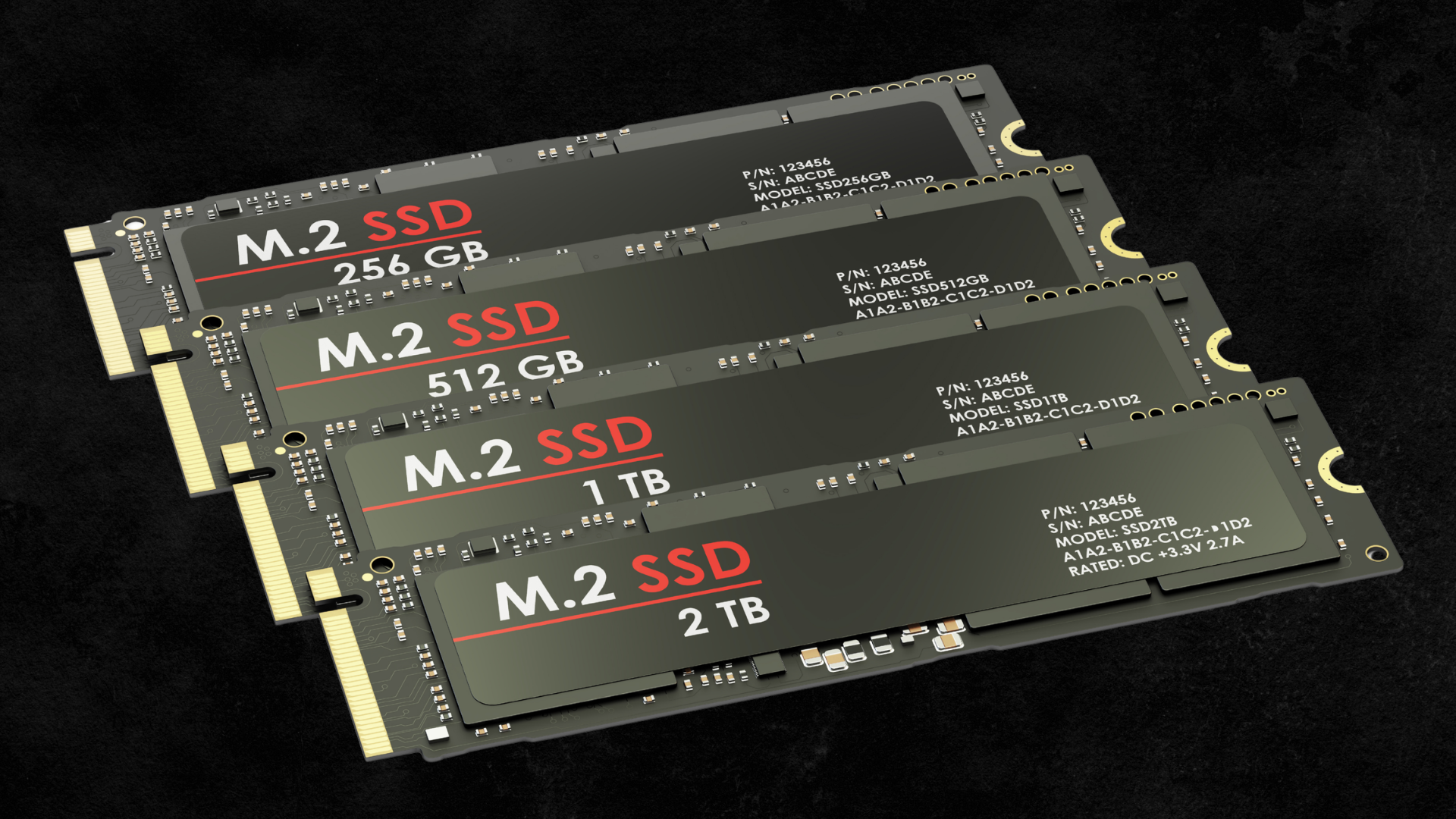
You can install Windows and your games on the same SSD without compromising a well-configured gaming PC. A second physical SSD becomes useful when you need more capacity, want clearer organization, or regularly run storage-heavy tasks alongside games.
For a new build, one adequately sized drive is often simpler than splitting the same budget between a small Windows SSD and a small game SSD. For an existing computer, adding a dedicated library drive can be the easiest way to expand storage without reinstalling the operating system.
Neither arrangement replaces a backup. And creating C: and D: partitions on one SSD does not provide the same physical separation as using two drives. Those distinctions matter more than the familiar advice that “Windows should always have its own SSD.”
One SSD, Two Partitions, and Two SSDs Are Different Setups
With one SSD and one main volume, Windows, applications, and games share a single pool of available capacity. It is easy to manage because unused space can serve whichever program needs it next.
Partitioning that SSD creates separate logical volumes. You might label one Windows and one Games, but both still rely on the same controller, NAND, and physical connection. Partitioning provides organization; it does not create another storage device.
With two physical SSDs, each drive has its own storage hardware. They may still share part of the platform’s upstream bandwidth, depending on their connections, but they can service work independently in a way two partitions on one device cannot.
This distinction is especially useful when diagnosing competing workloads. A game installed on D: is not necessarily using a separate drive from Windows on C:. Check Disk Management’s physical-disk view before assuming it is.
When One Larger SSD Is the Better Choice
For a new gaming build, start by asking how much usable space you need. Buying a tiny system drive to preserve an old two-drive convention can create a problem that a single larger drive would avoid.
Windows storage grows through applications, updates, user profiles, temporary files, caches, and recordings. Even if you install games elsewhere, software may still store substantial data on the system volume.
A single larger SSD avoids having one volume nearly full while another has plenty of unused space. It also leaves an M.2 socket available for a later upgrade and reduces the number of drives you need to cool, monitor, and troubleshoot.
If you are choosing hardware, use our best SSDs for gaming guide after estimating capacity. Do not choose two smaller drives merely because two components sound faster than one.
When a Separate Game SSD Is Worth Adding
Your current system drive still works well
If the existing SSD is healthy and Windows feels responsive, a second drive can add capacity with relatively little disruption. You keep the current installation and move selected games through their launchers.
This is a particularly useful upgrade for a prebuilt that shipped with a modest system SSD. Before buying, check socket availability and any proprietary restrictions using our guide to upgrading a prebuilt gaming PC.
You maintain a large installed library
A dedicated library drive makes it easy to see how much room your games consume. It also keeps their largest growth category away from the operating-system volume.
That is an organizational benefit even when it makes no measurable difference to FPS. If your active collection already exceeds a smaller drive’s practical capacity, our 4TB game-library SSD guide provides a focused shortlist.
You perform substantial storage work during play
Two drives can help separate a heavy file transfer, editing cache, or large recording workload from the game being played. Whether it matters depends on the amount of data and the actual limits of the system.
Ordinary background Windows activity is not a reason by itself to buy another SSD. Start with a workload you can identify. If pausing a large transfer removes the hitching, separating that activity may be useful. If it changes nothing, investigate other limits.
Will a Separate Drive Increase FPS?
Do not buy a second SSD expecting a general FPS boost. Once the game has the data it needs in memory, frame production is primarily governed by the CPU, GPU, game engine, settings, and memory configuration.
Storage can still matter during asset streaming or when the system is under severe memory pressure. But placing a game on another drive does not automatically accelerate those paths. The second drive might be slower, poorly cooled, or just as busy.
A useful comparison keeps the game version, save location, route, and graphics settings consistent. Pause downloads on both drives. If you compare one quiet installation with another that is unpacking an update, you are testing competing work as well as drive placement.
The same caution applies to loading times. A second launch can be faster because data is cached in system memory. You should not credit a drive move for a difference caused by a warm cache.
How the Three Arrangements Compare
| Setup | Main advantage | Main limitation |
|---|---|---|
| One larger SSD | Simple shared capacity and fewer components | All storage work uses one device |
| Two partitions on one SSD | Clear logical organization | No physical independence; fixed space boundaries |
| Separate Windows and game SSDs | Easy expansion and separation of workloads | More hardware; each volume needs spare space |
For an existing PC with a working system drive, the third option often wins because it avoids migration work. For a fresh build, the first option deserves serious consideration. The middle option is a preference about organization, not a performance requirement.
Give the Windows Drive Enough Room
The operating-system drive needs capacity for more than the Windows folder. Applications can put caches, downloaded installers, restore data, and user content there even when the main program is installed elsewhere.
Recordings and screenshots are another common surprise. Changing a game’s installation location does not necessarily change the capture folder used by your recording software.
Instead of adopting a tiny fixed allowance for Windows, inspect your current usage. In Windows storage settings, review applications, temporary files, and user folders. Microsoft’s storage-cleanup guidance explains the relevant categories and built-in tools.
Then allow room for growth and updates. Our guide to how much free space to leave on a gaming SSD explains why both an absolute reserve and a percentage can be useful.
What Happens if You Reinstall Windows?
A separate game SSD can make reinstalling Windows more convenient because the large installation files can remain on the other device. However, the games are not necessarily ready to run the moment the new Windows installation starts.
You may need to reinstall launchers, sign in, point each launcher to its existing library, and verify files. Anti-cheat components, runtime packages, and services may need to be restored. Some launchers handle rediscovery better than others.
Save files can live in Documents, AppData, a game’s folder, or a cloud service. Do not assume that moving the game installation also moves every save, mod configuration, screenshot, or custom setting.
Before a reinstall, back up the data you would regret losing and verify that the backup can be read. If you disconnect secondary drives during a clean Windows installation, follow the system’s service instructions and reconnect them only after the operating system is installed on the intended drive. This can help keep boot files from being placed on an unintended disk.
A Separate Drive Is Not a Backup
Two SSDs in one computer can fail independently, but they still share the same physical system and user access. Accidental deletion, malware, theft, or a serious electrical problem can affect both.
A backup requires another recoverable copy of the important data. Re-downloadable games may not deserve the same backup priority as irreplaceable saves, personal projects, and recordings.
Cloud synchronization is helpful, but check what the game actually synchronizes. A cloud icon is not evidence that every local file is protected. Mods and manually edited configuration files are especially easy to overlook.
How to Add the Second Drive Without Rebuilding the PC
Choose a compatible drive and confirm the intended socket’s lane-sharing rules. A second M.2 drive can affect another connector on some boards, so do the compatibility check before buying.
Once a new blank drive is installed and prepared in Windows, create a library on it through the launcher. Move one game first and confirm that it launches and loads the expected save before transferring the rest.
Our walkthrough for adding a second SSD for Steam games covers the installation-to-library workflow. There is no need to clone Windows when you are simply adding a separate game drive.
Frequently Asked Questions
Should Windows always be on the fastest SSD?
It should be on a reliable drive with adequate capacity and responsive everyday performance. Your highest-throughput SSD may be more useful for large working projects than for the operating system. Judge the workload instead of assigning priority solely by drive letter.
Do games have to be installed on C:?
No. Most PC game launchers support installation on another suitable drive. Some associated files and dependencies can still remain on the system volume, so it needs free space even when the main game files live elsewhere.
Is one 2TB SSD better than two 1TB SSDs?
For a new gaming build, one 2TB drive is often simpler and leaves more expansion flexibility. Two 1TB drives can make sense if you already own one or have a reason to separate workloads. Compare model quality and total cost rather than capacity arithmetic alone.
Can I remove the Windows drive and keep the game drive?
You can keep the game drive’s files, but the computer still needs a working operating system and the correct launchers. If important boot files were placed on the removed drive, even another Windows installation may require boot repair. Plan migration before removing hardware.
