
Leave enough room for your SSD to work comfortably and for your largest games to finish updating.
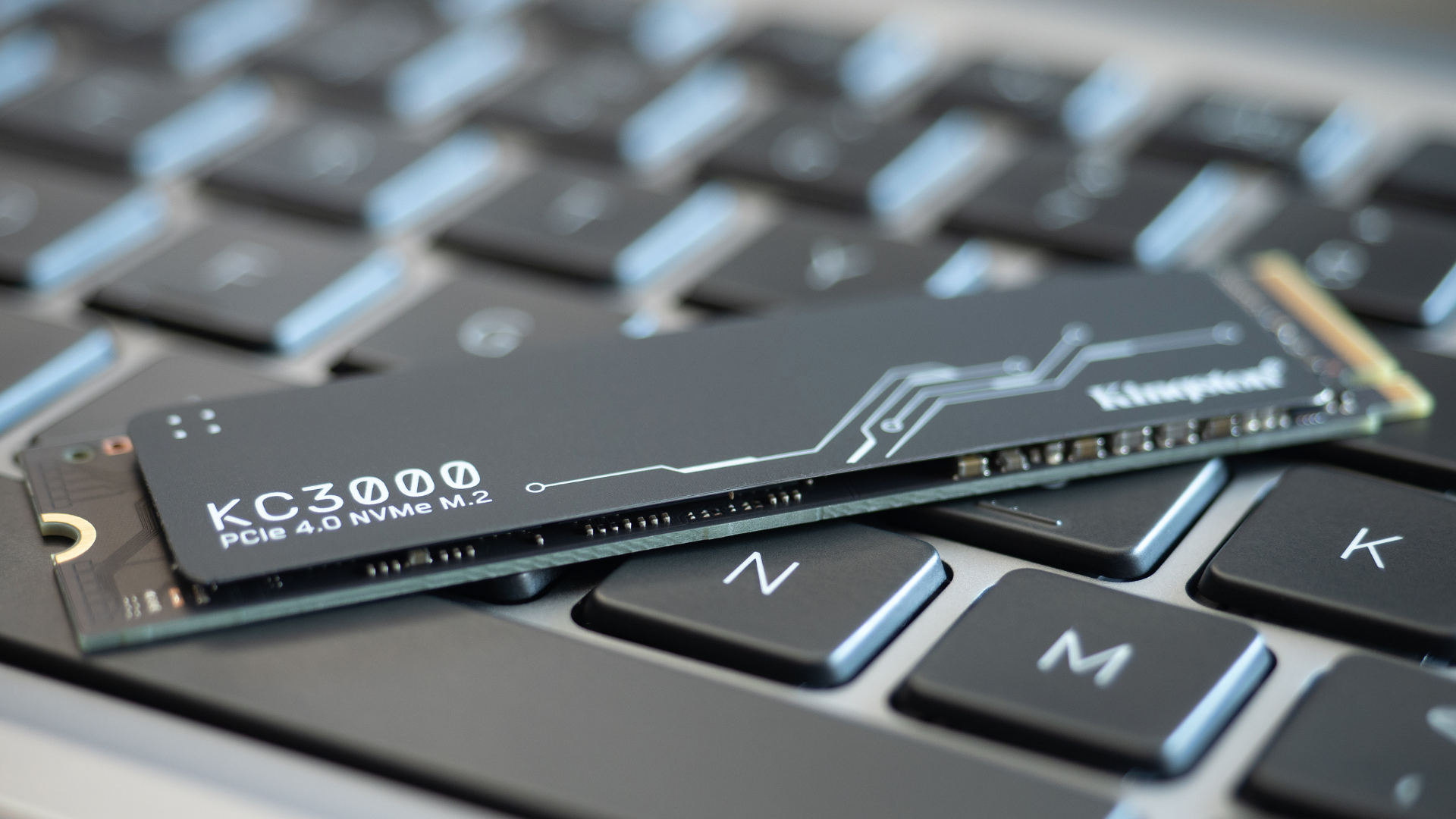
For a typical gaming SSD, keeping roughly 10–20% of the usable capacity free is a sensible starting point. Treat that as a planning allowance, not a manufacturer requirement or a line below which every SSD suddenly becomes slow.
You also need enough absolute free space for your largest installation and update jobs. Ten percent of a small drive may not cover a major game’s temporary update files. Ten percent of a very large drive might be more than your normal workflow requires.
The useful rule is therefore: keep a reasonable operating reserve, then check whether the next large task needs more. A drive’s controller cannot create room for a 100GB installation because you followed a percentage rule.
Why Free Space Matters on an SSD
An SSD manages data in flash memory using operations that do not map directly to deleting and rewriting an ordinary file. The controller tracks valid data, reclaims space, and prepares locations for new writes.
Available spare space gives that management work more flexibility. Under sustained writes, a nearly full drive can have fewer convenient places to put new data and more housekeeping to perform. The effect depends on the controller, firmware, NAND, and workload.
Kingston’s explanation of SSD over-provisioning describes why reserved flash capacity helps maintain performance and endurance. User-visible free space and factory-reserved capacity are related ideas, but they are not identical.
There is also a simpler problem: applications need room to create files. A game can refuse to update because it cannot stage replacement data even when the SSD itself is healthy and capable of perfectly acceptable read performance.
There Is No Universal “80% Full” Performance Cliff
An SSD does not generally switch from fast to slow at exactly 80% occupancy. Two drives at the same fill level can behave differently, and the same drive can behave differently while reading a game versus installing several large games.
Dynamic write-cache size is one reason. Some drives use available flash as a faster temporary write area. As the drive fills, the amount available for that purpose can shrink. Once a large write exceeds the cache, speed may fall even if the drive is not overheating.
Another drive may have a different cache design and a different sustained-write floor. That is why “leave exactly 20% free” is too precise as a technical prescription.
The percentage is useful because it creates breathing room. It is not a substitute for understanding the amount of data you are about to write or the behavior of the particular drive you own.
A Practical Reserve for Common Gaming-SSD Sizes
| Advertised capacity | Approximate capacity before partitions | Rough 10–20% reserve |
|---|---|---|
| 1TB | 931GiB | About 90–185GiB |
| 2TB | 1,863GiB | About 185–370GiB |
| 4TB | 3,725GiB | About 370–745GiB |
These are rounded planning examples, not SSD specifications. Manufacturers typically advertise decimal terabytes, while Windows commonly reports a binary calculation with a “GB” or “TB” label. Partitions and file-system overhead reduce what is available for files slightly further.
Use the capacity and free-space figures shown for the actual volume you are managing. The apparent difference between a 2TB label and roughly 1.82TiB is primarily a unit conversion, not hundreds of gigabytes of hidden manufacturer over-provisioning.
A 4TB drive used mostly to read installed games may not need the top end of the suggested reserve. A smaller system drive that repeatedly handles large updates, recordings, and temporary project files may need more careful management.
Budget for the Next Update, Not Just the Installed Library
A game update can require more free space than the download size suggests. Downloaded data may need unpacking, and existing game files may need rebuilding before the old versions are removed.
For example, imagine a launcher says the next operation needs 70GB of available space. If the drive has 55GB free, a general percentage recommendation does not change that requirement. You need to create more room or move the game to another suitable volume.
Our explanation of why game updates need so much free space covers the difference between download size, installed size, and temporary working space.
Keep a modest margin above a launcher’s stated requirement. Other applications may continue writing while the update runs, and the system volume may need room even when the game’s main installation is on another drive.
A Simple Capacity Budget You Can Actually Use
Make three lists: the games you want installed at the same time, the non-game files you keep locally, and the largest temporary task you regularly perform.
Consider a hypothetical 2TB SSD with about 1,860GiB available after setup. Suppose Windows and applications use 180GiB, your active games use 1,100GiB, and recordings use 200GiB. That leaves approximately 380GiB.
The drive looks comfortable until you add another 160GiB game and keep 120GiB of unused recordings. Free space then falls to about 100GiB. The hardware has not changed, but the room available for updates and new writes has changed substantially.
The obvious fix may be deleting or archiving recordings you no longer need, rather than replacing the SSD immediately. Capacity planning should identify which category is growing before it turns into a shopping recommendation.
If the games you actively play already consume nearly all the space, however, a larger drive is a more durable solution. Compare suitable capacities in our gaming SSD guide.
Does a Full SSD Reduce Gaming FPS?
A nearly full SSD does not automatically lower the average FPS in every game. Reading existing assets and writing a large new installation are different workloads. Your CPU and GPU can remain the primary limits during play.
Problems become more plausible when the game needs to stream data while the drive is busy, when the system is under memory pressure, or when applications cannot create needed files. Those conditions can cause stalls or errors without producing a simple, universal FPS penalty.
First pause downloads and large transfers, create some free space, and repeat the same game section. If the problem remains, investigate other causes rather than assuming every hitch is a storage-capacity issue.
For persistent uneven frame delivery, our article on CPU performance and one-percent lows explains why an SSD is only one possible part of the problem.
Free Space, TRIM, and Over-Provisioning
Deleting a file makes its logical space available to the file system. TRIM lets the operating system tell the SSD which logical data ranges are no longer needed, helping the controller reclaim them efficiently. It does not necessarily erase every affected flash cell immediately.
Keep Windows’ normal drive-optimization maintenance enabled. Avoid repeatedly running old-style defragmentation tools on an SSD or changing maintenance settings based on advice written for spinning hard drives. Kingston provides a useful explanation of TRIM and garbage collection.
Some manufacturer utilities can reserve additional capacity for over-provisioning. That can be useful for particular write-heavy workloads, but it is not the first intervention we would recommend for an ordinary gaming PC with limited space.
For most users, selecting adequate capacity, maintaining a practical free-space reserve, and allowing normal maintenance are easier habits to sustain. Do not carve away a large portion of an already cramped system drive without a specific reason.
How to Recover Space Without Breaking Installations
Start with the tools that understand the files. Use a launcher’s uninstall or move feature for games. Use Windows storage settings to review temporary files. Inspect each cleanup category before confirming removal, particularly Downloads and previous installations you may still need.
Microsoft’s drive-space guidance covers Storage Sense and other built-in cleanup options.
Check recording folders, old installers, duplicated archives, optional texture packs, unused language packs, and mod-manager downloads. A small number of large files can matter more than hundreds of tiny temporary files.
Do not manually delete unfamiliar folders inside Windows, AppData, or a launcher’s working directories. The goal is to remove known, replaceable data while preserving saves and active installations.
If another SSD has room, our guide to adding a second Steam-library SSD explains how to expand and move selected games without cloning the operating system.
Check Each Drive Separately
A computer with 500GB free overall can still have a full system volume. Windows cannot automatically borrow free capacity from a separate game drive whenever C: runs short.
This is one of the tradeoffs in separating Windows and games onto different SSDs. It can simplify organization, but each volume needs its own reserve.
Give the drives clear names and check where launchers, recordings, and downloads actually write. A new library location will not necessarily change the destination for screenshots, temporary files, or a video-capture application.
Frequently Asked Questions
Is 10% free space always enough?
No. It is a starting allowance. A particular update or installation may need more temporary room than that, especially on a small drive. Follow the task’s stated requirements and retain room for ordinary background activity.
Will deleting games immediately restore maximum write speed?
It may help, but the result depends on the drive and workload. The SSD may still be managing cached writes, and another component may be limiting the transfer. Judge the whole operation rather than expecting an instant fixed speed increase.
Should I replace an SSD because it is 90% full?
First remove or relocate data you do not need locally. Upgrade when your active library and normal working reserve no longer fit comfortably. A larger drive should solve a persistent capacity problem, not compensate for forgotten recordings you can easily archive.
