
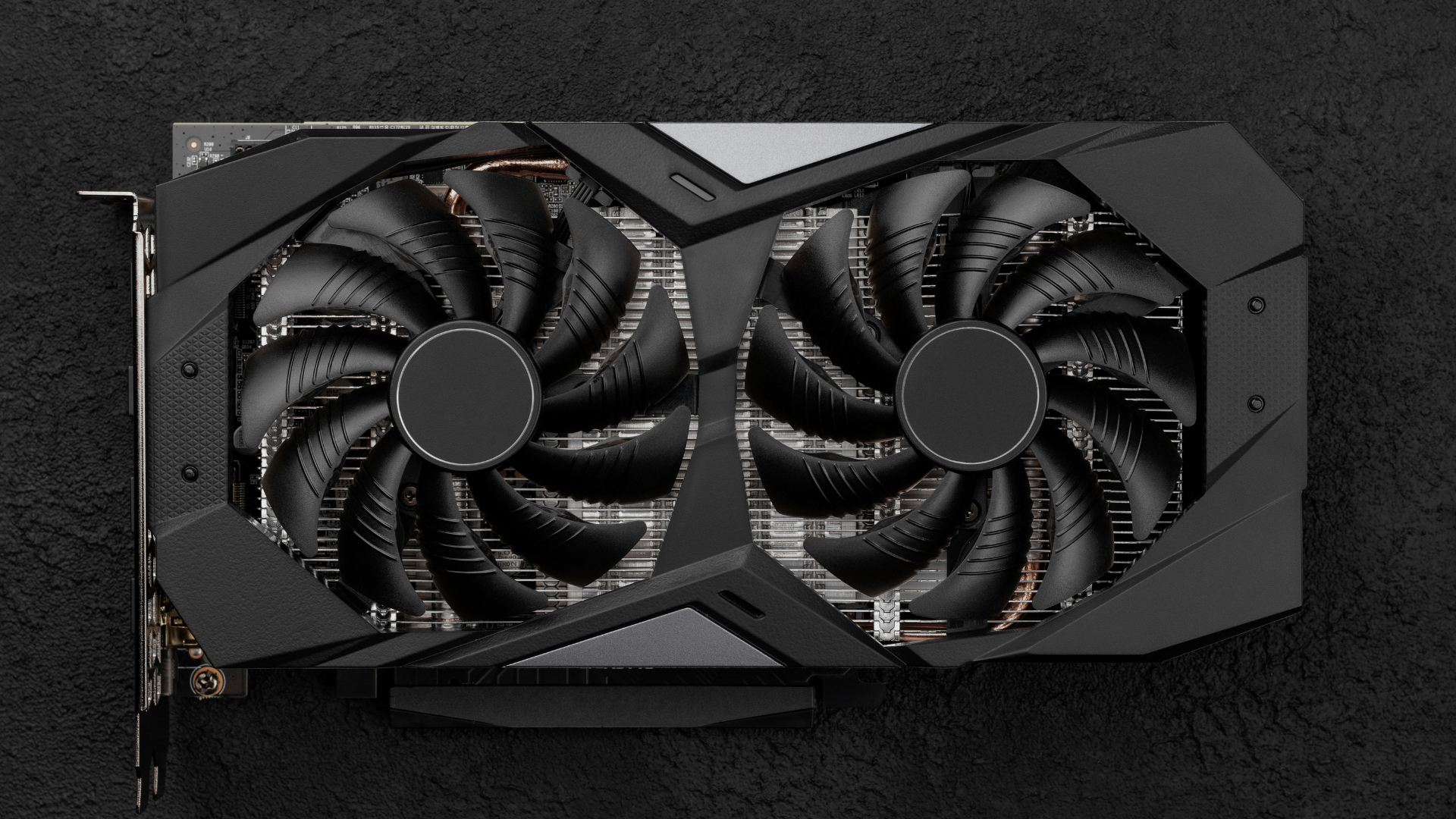
For a gaming-first desktop, a good starting point is to spend 35–50% of the core tower budget on the graphics card. If the parts inside the case total $1,200, that usually means reserving roughly $420–$600 for the GPU.
That percentage is a useful sanity check, not a shopping rule. The right amount is the least you can spend on a card that delivers the experience you want at your monitor’s resolution and refresh rate—without forcing you to cheap out on the CPU, power supply, memory, or everything else the PC needs.
Set the performance target first. Then use current benchmarks and street prices—not a GPU’s name, launch price, or place in a manufacturer’s product stack—to choose the card. Our regularly updated guide to the best graphics cards is the best place to compare specific models once you know your budget.
GPU spending guidelines at a glance
| Type of PC | Sensible GPU starting point | Why it changes |
|---|---|---|
| Gaming-first tower | 35–50% of tower budget | The GPU usually has the largest effect on visual quality and frame rate |
| Competitive esports PC | 30–40% | A strong CPU and fast monitor may matter more than one extra GPU tier |
| Gaming and content creation | 30–45% | CPU, memory, and storage requirements consume more of the budget |
| Complete setup | 25–40% of total setup budget | The monitor, keyboard, mouse, audio, and operating system need their own money |
| Existing-PC upgrade | No useful fixed percentage | Your current CPU, PSU, case, and monitor determine the real all-in cost |
By “core tower budget,” I mean the CPU, CPU cooler, motherboard, memory, storage, case, power supply, and graphics card. If you also need a monitor and peripherals, subtract those costs before calculating the GPU’s share. If you are still deciding what the entire system should cost, start with our guide to gaming PC build costs.
How much should you spend at 1080p, 1440p, or 4K?
The following ranges are practical starting points for a new graphics card at normal retail pricing. They are deliberately broad because GPU prices move constantly, and two games at the same resolution can have very different hardware demands.
| Gaming target | Typical GPU budget | What to expect |
|---|---|---|
| 1080p, 60–120 FPS | About $200–$350 | High settings in many games; the lower end suits esports and lighter titles best |
| 1080p, 144–240+ FPS | About $250–$500 | Often CPU-sensitive; demanding games and high settings push toward the upper end |
| 1440p, 60–100 FPS | About $350–$550 | The current value sweet spot for many single-player gamers |
| 1440p, 120–180+ FPS | About $500–$750 | Upper-midrange territory; CPU performance still matters at very high frame rates |
| 4K, 60–120 FPS | About $700–$1,200+ | Upscaling is often part of the plan; heavy ray tracing can raise the requirement sharply |
These are buying guardrails, not claims that every card in a price band can hit every target. Check benchmarks for the games you actually play. A $300 card that is excellent in competitive games is not automatically a 1440p AAA card, and a premium GPU cannot guarantee 120 FPS at 4K with path tracing in every new release.
If your budget is below the new-card sweet spot, compare the current best budget graphics cards and the used market before buying an extremely cut-down new GPU. If you have not chosen a display yet, our comparison of 1080p, 1440p, and 4K for gaming will help you pick a sensible target.
Resolution is only the first part of the target
“I want to play at 1440p” does not tell you enough to set a GPU budget. You also need to answer four questions:
- Which games do you play most?
- What frame rate do you want, and what dips are you willing to accept?
- Which settings matter to you?
- Will you use ray tracing, upscaling, or frame generation?
A turn-based strategy game at 4K 60 FPS and a competitive shooter at 1440p 240 FPS put pressure on different parts of the system. The first is likely to be GPU-limited. The second may run into a CPU limit long before the graphics card is fully occupied. Resolution, refresh rate, game engine, and settings have to be considered together.
Do not plan around your monitor’s maximum refresh rate as if every game must reach it. A 165Hz display is still useful when a demanding game runs at 90–120 FPS, especially with adaptive sync. Conversely, a frame-rate average that matches the refresh rate can hide rough 1% lows, stutter, or latency. Smoothness is not captured by one large FPS number.
Competitive games and AAA games need different budgets
Esports games are often designed to run well on modest graphics hardware, particularly at competitive settings. At 1080p, the CPU may become the limiting component once the GPU is fast enough. Spending another $200 on the graphics card can produce very little benefit if the processor cannot prepare frames any faster.
Modern AAA games lean harder on shader performance, memory bandwidth, VRAM, and advanced lighting. In those builds, the GPU deserves a larger share of the budget. Even then, “Ultra” should not be your automatic target. The highest preset often spends a disproportionate amount of performance on effects that are difficult to notice while playing. High settings plus a few selective adjustments usually deliver a much better performance-to-image-quality tradeoff.
This is why I would rather define a build as “1440p, 90 FPS, High settings in demanding single-player games” than “a 1440p PC.” The first description is specific enough to test. The second is not.
Budget separately for ray tracing, upscaling, and frame generation
Ray tracing can move a game into an entirely different performance class. If you intend to use it heavily, compare ray-traced benchmarks rather than assuming the card with the best conventional rendering value will also be the best choice for your workload.
Upscaling technologies such as DLSS, FSR, and XeSS can make a less expensive card practical at a higher output resolution. They are valuable tools, but support and image quality vary by game and quality mode. Decide whether you are comfortable using them before you set the budget—not after the card misses your native-resolution target.
Frame generation needs even more careful interpretation. It can make motion look smoother, but it works best when the system already produces a healthy base frame rate. Generated frames do not remove the input latency of a low native frame rate, and a marketing claim based on frame generation should not be compared directly with a native-rendering benchmark.
How much VRAM should your budget buy?
VRAM capacity matters, but it is not a performance rating. A faster 12GB card can easily outperform a slower 16GB card. The goal is to buy enough memory for your resolution, textures, ray-tracing settings, mods, and useful life without giving up too much actual GPU performance to get it.
For a new gaming card, 8GB remains workable for budget-oriented 1080p gaming. A 10–12GB card provides more breathing room for demanding 1080p games and is viable at 1440p, while 16GB is a strong target for demanding 1440p, 4K, high-resolution texture packs, and longer-term headroom. These are guidelines rather than hard cutoffs; our full guide explains how much VRAM you need at 1080p, 1440p, and 4K.
When a game exceeds the card’s comfortable memory capacity, the symptoms may show up in frame-time consistency, texture quality, or asset streaming rather than the average FPS alone. Read benchmarks closely. A clean average can hide the reason one card feels worse than another.
Should the graphics card cost more than the CPU?
In most gaming-first PCs, yes. A capable mainstream CPU can support a considerably more expensive graphics card in GPU-heavy games, particularly at 1440p and 4K. That does not mean the CPU is unimportant; it means you should spend according to the work each component has to do.
There are important exceptions. Competitive 240Hz and 360Hz systems, simulation-heavy games, large strategy games, heavily modded titles, streaming setups, and mixed gaming/workstation PCs may benefit more from a stronger processor. If you are upgrading an older computer, read our guide on whether an old CPU can work with a new GPU before assuming the entire budget belongs on the graphics card.
A “bottleneck percentage” from a generic calculator is not a reliable way to settle this. Bottlenecks change by game, scene, resolution, settings, and frame-rate target. Look at CPU scaling benchmarks and GPU utilization in the workloads you actually use.
Include the monitor in the decision
A graphics card can render frames your display never shows. If you own a 1080p 60Hz monitor, buying a high-end GPU and keeping the old screen may improve settings and consistency, but it will not turn that display into a high-refresh 1440p experience. In many cases, a less expensive card plus a better monitor produces the larger overall upgrade.
The reverse mistake is buying an expensive 4K high-refresh monitor without budgeting for the hardware needed to drive it. You do not have to max out the panel in every game, but the pairing should make sense for the games and settings you prefer.
A monitor also tends to survive several GPU upgrades. Panel quality, adaptive sync, response behavior, HDR performance, size, and ergonomics can matter for longer than the difference between two neighboring graphics-card tiers.
Do not forget the hidden cost of a GPU upgrade
A $600 upgrade budget does not necessarily mean you can buy a $600 card. If the new GPU requires a $100 power supply and your case needs to be replaced, your real graphics-card budget may be closer to $400.
Power supply
Check more than the wattage printed on the label. The PSU must be a trustworthy unit with enough capacity, the correct native connectors, and appropriate power delivery for the complete system. Manufacturer recommendations are a starting point, not a substitute for identifying the exact PSU already in the PC. Use our guide to checking PSU compatibility for a GPU before you spend the whole budget on the card itself.
Case clearance and cooling
Two cards based on the same GPU can have very different coolers. Verify the exact model’s length, height, thickness, occupied slots, and power-connector position. Then compare those dimensions with the case in its final configuration, including front radiators, drive cages, side fans, and cable-bend clearance. Our walkthrough on checking graphics-card case clearance covers the measurements that product filters often miss.
CPU, motherboard, and memory
An older platform may run a modern card perfectly well, but that does not guarantee a balanced result. A CPU-limited upgrade can require a new processor, motherboard, and memory—or it can be perfectly sensible if you play GPU-heavy games at a higher resolution. Price the whole upgrade path before ordering the GPU.
Adapters, support brackets, and other extras
You may also need a support bracket, approved power cable, display cable, extra case fan, or updated riser cable. None is likely to ruin a large budget alone, but together they can turn a seemingly affordable upgrade into the wrong purchase.
Where spending more actually pays off
Move up a GPU tier when the additional money buys a result you can describe. Good reasons include:
- The cheaper card misses your frame-rate target in several important games.
- The faster card lets you move to the resolution or refresh rate you actually want.
- You intend to use demanding ray tracing and the step up provides a meaningful improvement.
- The less expensive option is already close to its VRAM limit in your workload.
- A paid rendering, editing, AI, or compute workload will recover the added cost in time saved.
- The better model materially improves noise, temperatures, size, warranty, or another requirement you care about.
The key word is meaningful. Paying 20% more for roughly 20% more performance may be reasonable if it crosses your target. Paying 40% more for the final 10–15% is an enthusiast choice, not a value recommendation.
Where extra GPU spending is usually wasted
The high end has steep diminishing returns. Flagship cards make sense for buyers who need maximum 4K performance, heavy ray tracing, large VRAM capacity, or professional throughput. They are rarely the sensible default for an ordinary gaming build.
Extra spending is difficult to justify when:
- Your monitor cannot display the resolution or refresh rate you are buying the card to deliver.
- Your games are already limited primarily by the CPU.
- You are sacrificing PSU quality, adequate memory, useful storage, or basic case airflow.
- The upgrade only preserves an Ultra preset that looks nearly identical to High.
- You are paying a large premium for a factory-overclocked version of the same GPU.
- The next tier costs much more without changing the way you will use the PC.
That factory-overclock point is easy to overlook. Partner cards with larger coolers can be quieter and better built, but their gaming performance is usually much closer than their prices suggest. If a premium version of one GPU approaches the price of a well-reviewed card from the next performance tier, buy the faster GPU—or keep the money.
Example GPU allocations for complete PC builds
| Core tower budget | Illustrative GPU allocation | Likely gaming focus |
|---|---|---|
| $700 | $245–$315 | Value-focused 1080p |
| $1,000 | $350–$500 | High-refresh 1080p or capable 1440p |
| $1,500 | $550–$750 | High-refresh 1440p or entry 4K |
| $2,000 | $750–$1,000 | Premium 1440p or strong 4K |
| $2,500+ | $900–$1,250+ | High-refresh 4K, heavy ray tracing, or specialist workloads |
These examples are not live product recommendations. A sale can put the right performance inside a lower allocation, while a distorted market can make the nominal range poor value. Treat the percentage as a way to catch an unbalanced parts list, not as permission to spend up to the maximum.
At the lowest budgets, every non-GPU component has a practical price floor. You still need a safe PSU, enough memory, useful storage, and a case that cools the system. That is why forcing half of a very small tower budget onto the graphics card can create a worse PC. Our full guide on choosing parts for a gaming PC can help you balance the rest of the build.
How to compare graphics cards without fooling yourself
Once you have a price range, compare the two or three best candidates under the conditions you will use. A useful comparison should include:
- Current street price: not MSRP, launch price, or the price of an out-of-stock base model.
- Relevant games: a mix that resembles your library, with special attention to the games you play most.
- The right resolution and settings: 1080p results cannot settle a 4K purchase.
- Average FPS and 1% lows: both speed and consistency matter.
- Native and upscaled results: kept separate so you know what each feature contributes.
- Ray-tracing results: if you plan to enable ray tracing.
- VRAM behavior: including stutter, texture compromises, and performance in memory-heavy games.
- The exact card model: cooler noise, dimensions, power limit, connectors, and warranty vary between versions of the same GPU.
Cost per frame is useful when the cards offer similar features, but it is not the entire decision. Software support, encoder quality, application compatibility, power consumption, acoustics, physical size, and warranty can justify a modest premium. The emphasis belongs on modest.
A repeatable way to set your actual GPU budget
- Write down the target. Include the games, resolution, desired frame-rate range, settings, ray tracing, and whether you will use upscaling.
- Set the complete budget. Separate the tower from the monitor, peripherals, operating system, and other expenses.
- Reserve enough for a sound platform. Price a suitable CPU, motherboard, cooler, memory kit, SSD, case, and quality PSU before giving the remainder to the GPU.
- Shortlist cards from current tests. Look for models that meet the target in more than one trustworthy benchmark suite.
- Calculate the all-in upgrade cost. Add any required PSU, case, cable, cooling, CPU, or monitor changes.
- Compare one tier below and one tier above. Ask what you lose by spending less and what you actually gain by spending more.
- Buy the best value that clears the target. Do not spend to the limit merely because the money is available.
If you want a broader walkthrough of GPU features, compatibility, and brand differences, read our guide on how to choose a graphics card.
Frequently asked questions
Is $300 enough for a graphics card?
Yes, $300 can buy a good 1080p graphics card when pricing is favorable. Expect to adjust settings in the most demanding AAA games, and compare new cards with used options if the retail choices below $300 are weak. Do not judge by VRAM capacity alone.
Is a $500 graphics card enough for 1440p?
Usually, yes. Around $500 is often enough for an excellent 1440p experience with sensible settings, though high-refresh AAA gaming, heavy ray tracing, and the most demanding new releases can justify more. Verify recent 1440p benchmarks for the exact games you care about.
Is it worth spending $1,000 on a graphics card?
Only if you have a use for the extra performance. A $1,000 GPU can make sense for high-refresh 4K, demanding ray tracing, large VRAM requirements, or paid work that benefits from faster GPU compute. For 1080p gaming or a modest monitor, it is usually a poor allocation of the total budget.
Should I spend 50% of my PC budget on the GPU?
It can be reasonable in a gaming-first build, provided the remaining half still buys an appropriate CPU, a quality PSU, enough memory and storage, and adequate cooling. It is less sensible in a mixed-use PC, a very low-budget build, or a complete setup that still needs a monitor and peripherals.
Should I buy one tier higher for future-proofing?
A modest step up can be sensible if it provides both meaningfully more performance and enough VRAM for your planned resolution. Large future-proofing premiums are harder to defend. Newer midrange cards may offer better efficiency and features before you recover the value of an oversized purchase today.
Is a used graphics card a better value?
Often, especially on a tight budget. Compare the used card’s performance and features with new products at the same total cost, then account for the shorter warranty and greater risk. Confirm the exact model, inspect it for damage, test temperatures and stability under load, check every display output you need, and use a buyer-protected payment method.
Does this percentage apply to gaming laptops?
No. A laptop is sold as an integrated system, and its GPU cannot be budgeted independently in the same way. Laptop GPUs with familiar names can also have different power limits and performance, so compare complete laptops using model-specific tests.
Bottom line
For a gaming-focused desktop, start by allocating 35–50% of the core tower budget to the graphics card. Then replace that rough percentage with a real target: your games, resolution, frame rate, settings, ray-tracing preference, and monitor.
Spend more only when the next card delivers a result you will notice and use. Spend less when the cheaper option already meets the target. The best GPU budget is not the largest number your build can absorb; it is the lowest number that gives you the experience you want while leaving the rest of the PC properly balanced.
