
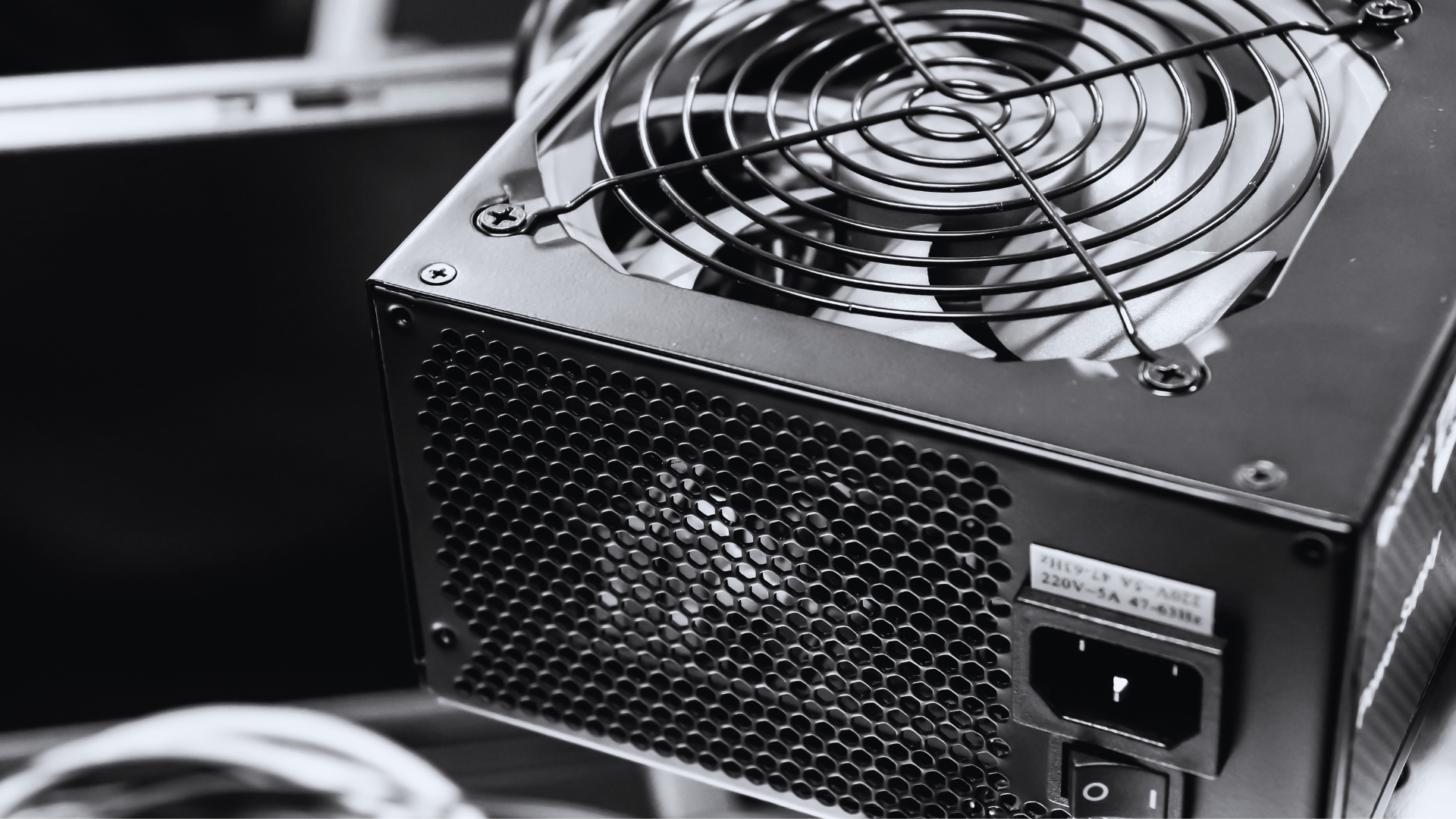
To know whether your power supply can handle a GPU, check the power requirement for the exact graphics card, not just the GPU chip, and compare it with the exact model of PSU in your computer. The PSU must meet the card manufacturer’s recommended system wattage, supply enough power on its 12V output, include the correct cables and connectors, and be a well-built unit in good condition.
If all of those checks pass, you can use the PSU you already have. If you cannot identify the unit, it lacks the right connectors, or its suitability depends on an improvised adapter, replace it before installing an expensive graphics card.
Do this before ordering from a list of the best graphics cards. A PSU replacement can change the real cost of the upgrade, and the card may also need more space and cooling than your current system provides.
The six checks that determine GPU and PSU compatibility
| Check | What to verify | Where to find it |
|---|---|---|
| Exact models | Full PSU and graphics-card model numbers | PSU label and card product page |
| Wattage | PSU meets the card maker’s recommendation for your system | Card specifications and PSU label |
| 12V output | Enough combined 12V capacity for the CPU, GPU, and rest of the PC | PSU label or manual |
| Connectors | Correct number and type of native or approved GPU connections | Card and PSU manuals |
| Quality and age | Exact PSU model is well reviewed, healthy, and reasonably current | Professional reviews, receipt, and warranty |
| Physical fit | Room for the card and a safe cable route beside it | Case specifications and a tape measure |
A wattage match by itself is not a pass. A good modern 650W PSU can be more capable than an old, poorly designed unit advertised as 800W. Work through all six checks before making the call.
1. Identify the exact PSU in your computer
Shut the PC down, switch the power supply off, unplug it from the wall, and hold the case power button for a few seconds. Remove the side panel and find the label on the PSU. Depending on the case, the label may face the back panel and require you to remove the opposite side panel.
Record the manufacturer, full model number, rated wattage, combined 12V output, available GPU cables, and approximate purchase date. Take a clear photo of the entire label; model suffixes and revisions can matter.
Do not open the metal PSU enclosure. Its capacitors can retain dangerous voltage after the unit has been unplugged. You only need to view the external label and cables.
No Windows utility, BIOS screen, or GPU program can reliably tell you the model or wattage of an ordinary PSU. Software can report component sensors and estimate load, but most power supplies do not send their identity to the motherboard. If the label is hidden in a prebuilt, check the invoice, service manual, or manufacturer’s support page instead.
Prebuilt systems need one extra check. An OEM power supply may use a nonstandard shape or proprietary motherboard wiring, which can make replacement difficult even when the GPU is the only planned upgrade. Our guide to identifying proprietary parts in a prebuilt PC explains what to look for.
2. Find the requirements for the exact graphics card
Look up the product page or manual for the specific card you plan to install. “RTX 5070” or “RX 9070 XT” is not specific enough. A reference card and a factory-overclocked partner model can have different power limits, connectors, and PSU recommendations.
Write down these three specifications:
- Board power: The card’s sustained design target, often labeled TBP, TGP, graphics power, or total board power.
- Recommended system power: The PSU capacity recommended for a complete reference system, not the amount the card consumes by itself.
- Power connectors: The exact number and type of auxiliary plugs required by that model.
The recommended system wattage is the best first filter because the card maker has already allowed for a typical CPU and the rest of the platform. It is not universal, though. The fine print may state which CPU was used for the recommendation, and your system may consume more or less. This is why our broader guide on how to choose a graphics card treats PSU compatibility as a model-level check.
3. Estimate the complete system’s peak load
A PSU powers the entire computer, so do not compare its rating with GPU board power alone. Start with this estimate:
GPU board power + CPU peak package power + power for everything else = estimated sustained peak load
For the CPU, use measured all-core package power or the processor’s maximum turbo/socket limit rather than relying only on the marketing TDP. “Everything else” includes the motherboard, memory, storage, fans, lighting, USB-powered devices, capture cards, and liquid-cooling pumps. A straightforward single-GPU gaming system often needs roughly 40–80W beyond the CPU and GPU, but drive-heavy workstations and elaborate liquid-cooled builds can need more.
For example, consider a 300W graphics card, a CPU that can reach 170W, and approximately 70W for the rest of the system:
300W + 170W + 70W = about 540W
That does not mean a 550W PSU is a sensible choice. The estimate is not exact, simultaneous peaks can occur, the PSU gets hotter and louder near full load, and short power excursions may be much higher than the card’s average consumption. If the exact graphics card recommends a quality 750W unit, use 750W as the practical minimum for that configuration unless you have reliable measurements and model-specific guidance supporting something different.
A reputable PSU calculator is useful as a second opinion. Enter every component accurately and compare its result with the GPU manufacturer’s recommendation. Treat the output as an estimate, not a safety certificate. If you are selecting an entire system rather than checking one upgrade, our guide to choosing PC parts covers the other compatibility checks that belong in the same process.
How much PSU headroom do you need?
There is no percentage that works for every computer. As a practical target for a new build, I prefer the estimated sustained worst-case load to fall somewhere around 60–80% of the PSU’s rated capacity. That usually leaves room for boost behavior, aging, warmer operating conditions, and quieter fan speeds without buying a comically oversized unit.
That range is a sizing target, not a rule that automatically disqualifies a PSU. A well-designed unit can deliver its rated output continuously under its specified conditions. Likewise, adding 30% to the rating does not make a low-quality PSU safe. Always satisfy the exact GPU recommendation, connector requirements, and model-quality check first.
4. Check the PSU’s 12V capacity
Modern CPUs and GPUs draw most of their power from 12V. The PSU label lists one or more +12V rails in amps and normally gives a maximum combined 12V wattage.
If the label gives only amps, use:
12V watts = 12 × amps
A 650W PSU rated for 54A on 12V can supply up to 648W on that output. That is what you would expect from a competent modern design. By contrast, an older “650W” unit might provide only 480W on 12V because more of its total rating is assigned to the 3.3V and 5V outputs. It is a poor match for a modern GPU-heavy system even though the number on the front still says 650W.
On a multi-rail PSU, do not add the individual rail limits together. Use the label’s combined +12V maximum. Single-rail and multi-rail designs can both be excellent; rail count alone says nothing about quality. With a multi-rail unit, follow its manual when deciding which sockets and cables should power a high-draw card.
5. Verify every GPU power connector
The PSU must have the correct connection for the exact graphics card, not merely enough total wattage. Current cards draw power from the motherboard slot and, when required, one or more auxiliary power cables.
| Connection | Specified power | What matters in practice |
|---|---|---|
| PCIe motherboard slot | Up to 75W | Cards above slot power also need auxiliary power |
| 6-pin PCIe | Up to 75W | Often supplied as part of a 6+2-pin plug |
| 8-pin PCIe | Up to 150W | Use a PCIe 6+2 cable, not a CPU/EPS 4+4 cable |
| 16-pin 12V-2×6 | Up to 600W | Available power depends on the cable and sense-pin configuration |
Those are connector limits, not an invitation to build your own cable arrangement. The graphics-card and PSU manuals determine the approved configuration.
A conventional GPU cable normally has a 6+2-pin connector. The similar-looking CPU cable is usually 4+4-pin and may be labeled CPU or EPS. They are wired differently. Never force one into the other.
For a card with two or three 8-pin sockets, follow the manufacturers’ cable instructions. A PSU’s pigtail cable is not automatically unsafe when its maker approves that use, but separate cable runs reduce the load on each wire and connector and are the conservative choice for a high-power card.
Most importantly, never reuse modular cables simply because they fit the new PSU. The component ends are standardized, but PSU-side pinouts are not. Even cables from two models made by the same brand can be incompatible. Use the cables packaged with that exact PSU or ones the PSU manufacturer explicitly lists as compatible.
What about 12VHPWR and 12V-2×6?
Both are compact 16-pin connections used on newer graphics cards. The later 12V-2×6 revision changes the mating design so the shorter sense contacts engage only when the main power contacts are inserted farther. For the owner, the installation rules are the same: use the cable or adapter approved for the card and PSU, insert it completely, and inspect the connection before closing the case.
- Push the plug in until it is fully seated and the latch is engaged; there should be no visible gap.
- Keep the connector straight and avoid a hard bend or sideways pull immediately where the cable exits the card.
- Make sure the side panel does not press the cable against the card.
- If an adapter requires three or four 8-pin inputs, connect every required input exactly as the card maker specifies.
- After moving or servicing the PC, recheck that the plug is still fully seated.
If the PSU includes a native, model-approved 16-pin GPU cable, that is generally the cleanest solution. A card-supplied adapter can also be appropriate when the underlying PSU has enough capacity and all required cables are connected correctly.
Should you use a GPU power adapter?
An adapter does not create power. It only changes the connection. The PSU still needs sufficient 12V capacity, the right number of approved source cables, and the electrical quality to handle the card.
Use only an adapter supplied or explicitly approved by the graphics-card or PSU manufacturer. Avoid SATA-to-PCIe adapters, bargain multi-plug adapters, and improvised conversions. SATA and old peripheral connectors were not designed to supply a modern high-power GPU. If the PSU lacks the native connectors the card expects, replacement is usually the correct answer.
6. Judge PSU quality, condition, and age
Wattage tells you capacity, not how well the PSU maintains voltage or protects the system when something goes wrong. Look up a professional review of the exact model and revision. Good PSU testing should cover voltage regulation, ripple, efficiency, noise, protections, operating temperature, and transient response.
Do not judge a PSU by brand alone. Large manufacturers sell multiple platforms at very different quality levels, and product internals can change between revisions. An 80 PLUS or similar efficiency badge is useful, but it measures efficiency under defined test conditions; it is not a complete quality or safety rating.
Age is also a judgment call rather than an automatic expiration date. A premium unit operated in a cool, clean system and still covered by a long warranty may remain an excellent PSU years later. A low-end unit with an unknown history, heavy dust exposure, years of high-temperature use, or no remaining warranty deserves more caution—especially when it is about to power a costly GPU.
Replace the PSU if you find heat-damaged plugs, brittle or discolored wiring, a burning smell, liquid damage, erratic fan behavior, repeated protection shutdowns, or unexplained electrical noise accompanied by instability. Do not continue testing a unit that shows a physical safety problem. For a replacement, see our guide to choosing a power supply and our current recommendations for the best gaming PC power supplies.
Do you need an ATX 3.0 or ATX 3.1 PSU?
Not for every graphics card. A high-quality older ATX PSU can still be suitable when it meets the card maker’s wattage guidance, handles the load well, and has an approved cable or adapter configuration.
ATX 3.x is most valuable when you are buying a new PSU for a modern high-power GPU. These designs are tested around the rapid power excursions permitted for current PCIe cards. ATX 3.0 introduced the original 16-pin 12VHPWR ecosystem; ATX 3.1 incorporates the revised 12V-2×6 connection and updated requirements. Certification does not make every model equally good, but it removes some uncertainty when pairing a new PSU with a demanding current-generation card.
Why transient spikes matter
A graphics card does not draw one fixed amount of power. Its load changes in milliseconds as clock speed, voltage, and workload change. Short excursions can rise well above the average board-power figure without noticeably changing the system’s power consumption over a full second.
A well-designed PSU absorbs those changes while keeping its outputs in specification. A marginal or aging unit may instead trigger over-current or over-power protection, causing the PC to shut down or restart even though a basic GPU-plus-CPU wattage calculation looked acceptable. This is one reason quality and headroom matter as much as the printed wattage.
Confirm that the card and its cable fit the case
Electrical compatibility does not guarantee a successful installation. Check card length, height, thickness, radiator and drive-cage clearance, and the space needed for its power cable. A tall card with a side-mounted 16-pin socket may fit on paper but leave too little room between the connector and a glass side panel.
Measure before ordering and use our guide to checking graphics-card case clearance. Do not force the panel closed against the cable.
Can you test whether the PSU is enough?
A combined CPU-and-GPU stress test can expose an inadequate setup, but it cannot prove that a PSU is safe. A system that completes a 20-minute test has demonstrated stability under that particular workload and temperature—not correct protections, acceptable ripple, safe cabling, or reliable handling of every transient.
A plug-in wall meter is also easy to misread. It measures AC power entering the PSU, including conversion losses, while component specifications refer mainly to DC output. Its sampling may miss short excursions. Wall-power data can be useful when interpreted with the PSU’s efficiency curve, but it is not a substitute for identifying and evaluating the unit.
Common symptoms of an inadequate or failing PSU include:
- sudden restarts or complete shutdowns during gaming;
- a black screen when the GPU load rises;
- instability that appears only under combined CPU and GPU load;
- the PSU clicking off as a protection circuit activates; and
- failure to boot when required GPU power plugs are missing.
Those symptoms are not proof of a PSU problem. Overheating, unstable overclocks, bad drivers, defective memory, loose connections, and a failing graphics card can look similar. If the PSU is unknown or already questionable, do not repeatedly overload it just to reproduce the crash.
A practical keep-or-replace decision
- Can you identify the exact PSU? If not, treat it as an unknown rather than trusting the advertised wattage.
- Does it meet the exact card’s system-power recommendation? If not, replacement is the sensible default.
- Does the 12V output support the complete system with reasonable headroom? Check the label, not just the wattage printed on the box.
- Does it have the approved connectors and cables? Do not solve a missing connection with an improvised adapter.
- Is the exact model well built and still healthy? Quality, temperature history, and condition matter.
- Can the card and cable be installed without pressure or a tight bend? Confirm the physical fit before buying.
If the answer to all six questions is yes, keep the PSU. If one answer is no—and especially if the unit is unknown, low quality, damaged, or missing the proper cables—include a replacement in the GPU upgrade budget.
The card’s PCIe interface generation is a separate issue from PSU capacity. If motherboard compatibility is also a concern, read our comparison of PCIe 4.0 versus PCIe 5.0 for graphics cards. Partner cards built around the same GPU can also use different power limits and connectors, which is one reason graphics-card brand can matter at the model level.
Frequently asked questions
Can a low-wattage PSU damage a GPU?
A properly designed PSU should shut down when an overload trips its protection. A poor-quality, damaged, or incorrectly cabled unit may not fail safely, however, and can potentially damage connected components. PSU protection should be a last line of defense, not something you rely on during normal use.
Can a 500W or 600W PSU handle my GPU?
Sometimes, but wattage alone cannot answer the question. A quality 500W unit may be entirely appropriate for an efficient card and midrange CPU, while a 600W unit may be unsuitable for a more demanding card, a flagship CPU, or a system that requires connectors it does not have. Check the exact card recommendation, full-system load, 12V rating, connectors, and PSU model.
Is the GPU manufacturer’s recommended PSU wattage enough?
Usually, if your system is similar to the reference configuration used for the recommendation and the PSU is a high-quality unit. Use more capacity when your CPU draws substantially more power, you overclock, you run many drives or pumps, or you want meaningful room for a later upgrade. Check the footnotes on the exact card’s specifications.
Will an oversized PSU waste electricity?
No PSU forces its full rated wattage into the PC. The system draws the power it needs, and the PSU pulls that amount from the wall plus conversion losses. Efficiency varies with load, so extreme oversizing can cost more without providing a useful benefit, but reasonable headroom is normal.
Can I reuse the modular cables from my old power supply?
Only when the PSU manufacturer explicitly confirms that the exact cable is compatible with both models. Never assume modular cables are interchangeable based on the plug shape or brand name. A wrong pinout can destroy hardware immediately.
Does undervolting the GPU let me keep a smaller PSU?
Undervolting can reduce power consumption, heat, and noise, but it should not be used to make an unsafe or improperly connected PSU acceptable. Size the power supply for the hardware’s approved stock configuration. Treat any reduction from tuning as a bonus rather than required safety margin.
Bottom line
Your power supply can handle a GPU when the exact unit is reputable and healthy, meets the exact card’s system-wattage guidance, supplies enough 12V power for the whole computer, and has the approved connectors and cables. Leave room for real CPU load and short GPU power excursions, then make sure the cable fits without being crushed by the side panel.
If you cannot verify the model, 12V rating, or cable compatibility, do not gamble an expensive graphics card on it. Replace the unknown PSU with a known-good unit and make the upgrade once.
