
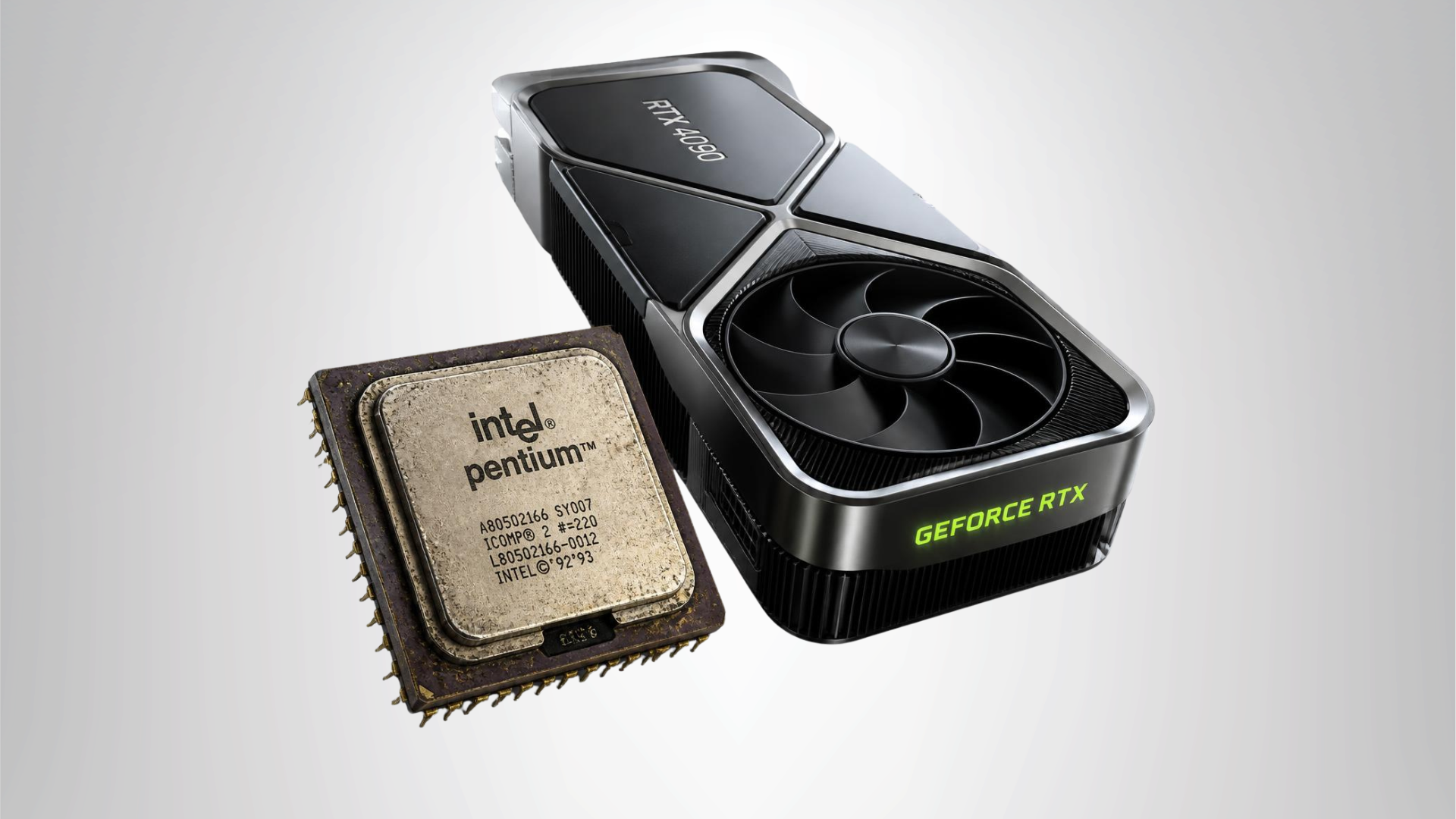
Yes, an old CPU can usually work with a new graphics card. The CPU and GPU do not need to be from the same generation or manufacturer. If the motherboard provides a compatible PCIe slot, the power supply can support the card, the case has enough room, and the system firmware can initialize it, the combination should operate.
However, working is not the same as being balanced. An older processor may limit the frame rate, 1% lows, or GPU utilization in CPU-heavy games. That does not damage the graphics card; it means the GPU sometimes waits for the CPU.
Old CPU/New GPU Compatibility Checklist
| Check | What You Need | Common Problem |
|---|---|---|
| Motherboard slot | Physical PCIe x16 slot | Very old or unusual OEM firmware |
| Power supply | Adequate quality, capacity, and native connectors | Unknown PSU or missing GPU plugs |
| Case clearance | Enough length, height, width, and cable space | Drive cages or narrow side panel |
| Firmware | UEFI/BIOS support and current stable update | Legacy boot limitations on very old platforms |
| CPU performance | Enough throughput for the target FPS | Low GPU use and poor 1% lows |
PCIe Is Designed for Cross-Generation Compatibility
Modern graphics cards use PCI Express, and PCIe generations are generally backward-compatible. A PCIe 4.0 or 5.0 card can normally operate in an older PCIe 3.0 x16 slot.
The link runs at the highest mode supported by both the card and motherboard. Performance loss is often small with a full-width x16 connection, but cards wired for fewer lanes can be more sensitive to an older generation’s bandwidth.
Extremely old boards can have firmware or legacy-boot issues even when the card physically fits. Search the motherboard and GPU model together and update to the latest stable BIOS recommended by the manufacturer before assuming compatibility.
An Old CPU Will Not Damage a New GPU
A slow processor does not electrically harm the graphics card. It simply may not prepare work fast enough to keep the GPU fully occupied.
Electrical risk comes from an inadequate or incorrectly connected power supply, damaged slot, unstable adapter, poor installation, or other hardware fault—not from a performance mismatch.
Understand the CPU Bottleneck
The CPU establishes how quickly the game can process simulation, logic, draw calls, physics, and other frame preparation. The GPU then renders the frame. If the CPU takes longer, the GPU waits.
A bottleneck changes with the game, resolution, settings, and target. The old CPU may limit a competitive game at 1080p low settings but keep up in a graphically demanding 1440p game where the GPU is fully loaded.
Generic bottleneck calculators reduce this moving relationship to one percentage and should not decide the purchase. Learn how to identify a real PC bottleneck with measurements.
Signs the CPU Is Holding Back the New GPU
- GPU utilization stays low during the slow sections of the game.
- One or more CPU cores remain near full utilization.
- Lowering resolution or graphics quality barely raises FPS.
- Average FPS is acceptable but 1% lows are poor.
- The new GPU performs far below comparable systems in CPU-heavy games.
- Frame rate improves substantially after closing background applications.
Total CPU usage can be misleading because it averages all cores. See why one CPU core can hit 100% while the overall reading remains low.
Check BIOS and Resizable BAR Support
A modern GPU can work without Resizable BAR, but supported systems may gain performance by allowing the CPU to map larger portions of video memory. The feature requires compatible GPU firmware, motherboard BIOS, CPU/platform support, and the correct boot configuration.
Do not treat the absence of Resizable BAR as automatic incompatibility. It is a feature consideration. A much older legacy-BIOS platform presents the more serious risk, so research the exact motherboard.
Verify the Power Supply
Check the PSU’s manufacturer, model, rated capacity, age, and native GPU connectors. Wattage alone does not establish quality or suitability.
Account for the CPU, GPU, drives, fans, and transient load behavior. Avoid powering a demanding card through questionable SATA or dual-Molex adapters. If the PSU lacks the correct connector, replacing it is usually safer.
Use our complete guide to checking PSU compatibility for a GPU.
Measure Case Clearance
Measure from the rear expansion slots to the first front obstruction. Compare the available space with the card’s published length and leave room for cables.
Check thickness and height. A three-slot card can block other slots, and a tall card with a side-facing power connector may leave too little space to close the panel safely.
Small OEM cases may also have poor airflow or low-profile expansion slots. A card that physically fits can still run hot if it is pressed against a PSU shroud or solid panel.
Examples of Sensible Pairing Decisions
| Old Platform Situation | Sensible GPU Strategy | Reason |
|---|---|---|
| Recent six-core, 1440p gaming | Modern midrange or upper-midrange GPU | Resolution increases GPU demand and the CPU may still be capable |
| Older four-core, 1080p competitive | Modest GPU or platform upgrade first | High-FPS games can expose the CPU limit quickly |
| Older eight-core workstation, 4K 60Hz | Stronger GPU after PSU/firmware checks | The 60 FPS target may be attainable despite lower per-core speed |
| Proprietary office desktop | Low-power, correctly sized card or new platform | PSU, case, and firmware restrictions may dominate |
These scenarios are examples, not universal pairings. Benchmark the exact CPU and target games.
Should You Upgrade the CPU or GPU First?
Upgrade the GPU first when it is fully utilized, lowering graphics settings raises FPS, and the CPU still meets your target. Upgrade the platform first when the GPU remains underused, one CPU core is saturated, and lowering resolution produces little improvement.
If both are old, compare complete costs. A new platform may require a CPU, motherboard, memory, and cooler. A GPU upgrade may require a PSU and case change. Choose the path that fixes the measured limit without creating a chain of incompatible parts.
Compare current processors in our best CPUs for gaming guide and review how to choose a compatible motherboard if a platform change is necessary.
Frequently Asked Questions
Can PCIe 3.0 use a modern GPU?
Usually, yes. PCIe is generally backward-compatible. The card will operate at the older link speed, and performance impact depends on its lane configuration and workload.
Will an old CPU damage a new GPU?
No. A performance bottleneck does not damage the card. Use a suitable PSU, correct cables, compatible slot, and adequate cooling.
Should the CPU or GPU be upgraded first?
Upgrade the component that limits your actual games. High GPU utilization points toward a GPU limit; low GPU use with saturated CPU cores points toward a CPU/platform limit.
Why is GPU utilization low after the upgrade?
The CPU, frame-rate cap, V-Sync, game engine, drivers, power settings, or background software may be limiting performance. See our guide to diagnosing CPU behavior in games.
Bottom Line
An old CPU and new GPU can work together when the motherboard, firmware, PSU, and case support the card. The older processor will not damage it.
Measure performance before assuming the pairing is bad. If the new GPU reaches high utilization at your chosen resolution and the frame rate meets your goal, the combination is doing its job. Upgrade the platform when CPU performance—not a calculator—shows that it is the next meaningful limit.
