
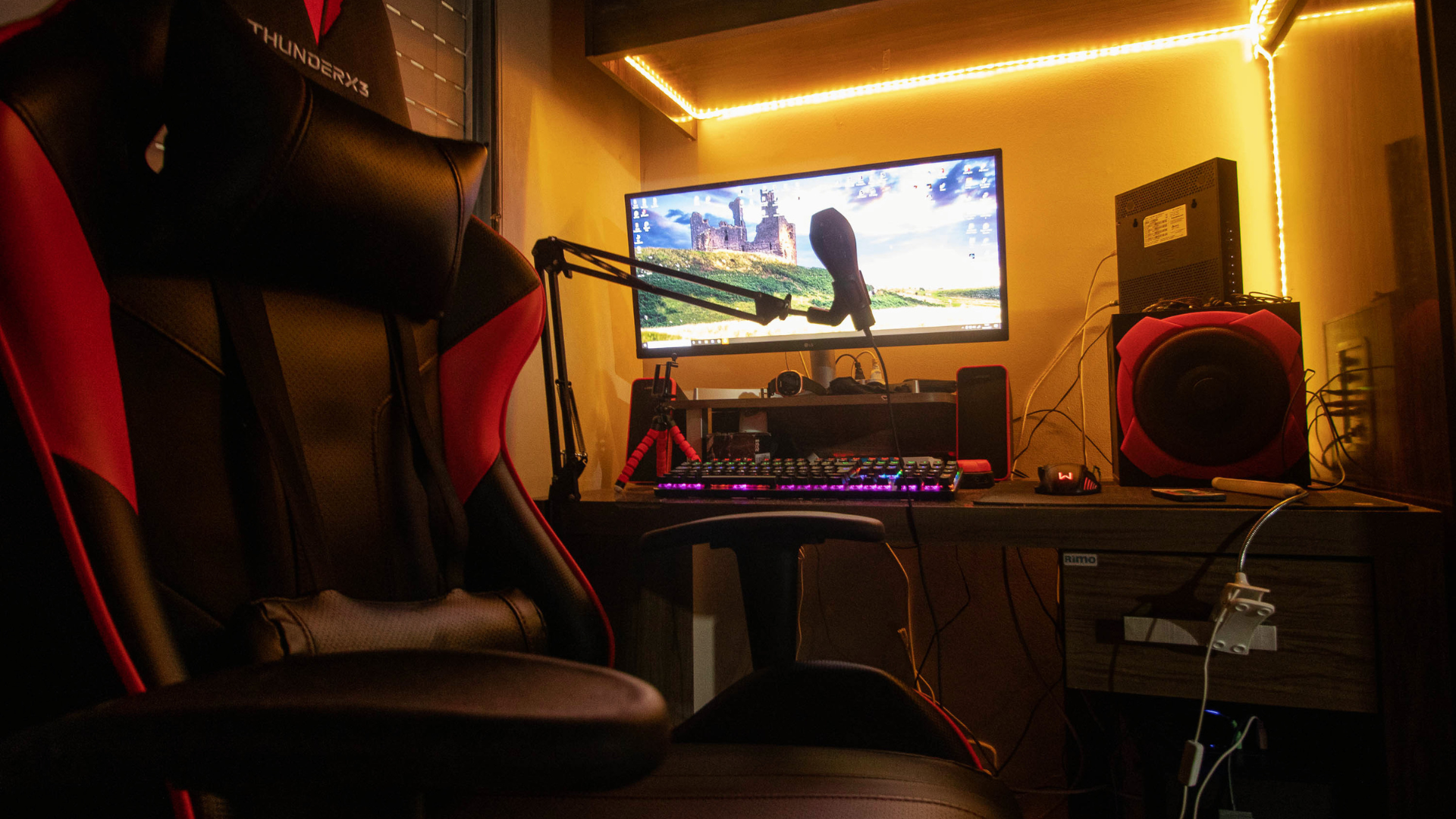
The best prebuilt gaming PC for streaming under $1,000 pairs a recent six-core-or-better processor with a modern graphics card that has a capable hardware video encoder. It should also include dual-channel memory, a 1TB SSD, adequate cooling, and standard parts that allow future RAM, storage, and GPU upgrades.
A single-PC stream adds encoding, browser sources, alerts, chat, audio processing, recording, and background applications to the gaming workload. You do not need a workstation CPU to start, but a poorly balanced PC can create dropped frames, game stutter, or noisy cooling during a long broadcast.
Streaming PC Requirements at a Glance
| Component | Minimum Target | Preferred Under $1,000 |
|---|---|---|
| CPU | Recent 6-core, 12-thread processor | Fast 6-core or efficient 8-core CPU |
| GPU | Modern dedicated GPU with hardware encoding | Current midrange GPU with a recent AV1/H.264 encoder |
| RAM | 16GB dual-channel | 32GB for streaming, recording, and multitasking |
| Storage | 1TB NVMe SSD | 1TB boot/game drive plus expansion space for recordings |
| Networking | Stable broadband and Ethernet or strong Wi-Fi | Wired Ethernet with upload headroom |
| Cooling | Clear intake and exhaust path | Ventilated case with multiple controllable fans |
These targets complement the broader $1,000 gaming PC spec requirements. Streaming shifts the preferred configuration toward more memory, encoder support, and storage expansion.
What Streaming Adds to the Workload
The game must still render its frames while streaming software captures the image, composites overlays, mixes audio, and compresses the final output. Recording at the same time writes another high-bitrate file to storage. A browser, chat application, music player, camera utility, and control software may all remain open.
The workload changes with the game. A CPU-heavy competitive title may leave little processor headroom for software encoding, while a demanding ray-traced game may saturate the GPU. Limit the game’s frame rate when necessary so the encoder and composition process have resources available.
GPU Encoding Versus CPU Encoding
Modern graphics cards include dedicated media engines that encode video with a much smaller effect on game performance than a CPU-based software preset. NVIDIA commonly refers to its encoder as NVENC, Intel offers Quick Sync and Arc media engines, and AMD GPUs include their own hardware encoding support.
Hardware encoding is the easiest recommendation for a $1,000 single-PC setup. It lets the budget prioritize gaming performance while still producing a strong stream. Encoder quality and supported formats vary by GPU generation, so identify the exact graphics card rather than relying only on the brand.
CPU encoding can offer more tuning options and can make sense with a high-core-count processor, but slower presets consume substantial CPU resources. At this budget, spending heavily on the CPU and accepting a weak GPU often produces a worse gaming-and-streaming system.
Which CPU Should a Streaming Prebuilt Have?
A recent six-core, twelve-thread CPU is a practical minimum. It can handle the game, streaming application, chat, and normal background tasks when the GPU performs the encode.
An efficient eight-core CPU gives additional room for CPU-heavy games, complex scenes, recording tools, and editing after the stream. More cores are useful, but gaming performance and platform cost still matter. Our guide to CPUs for gaming and streaming covers the tradeoff in more detail.
Check the full processor model. A high-tier name from an old generation can be slower and less efficient than a recent mainstream CPU. Cooling should also sustain the chip without excessive fan noise near an open microphone.
Which Graphics Card Is Best for Streaming?
Choose the GPU first for the games and resolution you plan to play, then verify its encoder features. A current mainstream graphics card is enough for 1080p streaming when it also meets the game’s performance target.
NVIDIA is popular with streamers because of broad software support and mature NVENC integration. Current AMD and Intel GPUs can also provide hardware encoding, including AV1 on supported generations. Platform support matters: a streaming service may accept H.264 while a recording or video platform can benefit from newer formats.
Do not buy a slow GPU solely because its encoder is good. The game still needs enough graphics performance. Use our best graphics cards guide to compare the exact model.
Do You Need 32GB of RAM?
Sixteen gigabytes can support a basic stream, but it leaves less margin for a demanding game, browser sources, a large browser session, camera effects, editing software, and simultaneous recording.
Thirty-two gigabytes is the preferred target for a new streaming PC when it does not force a major GPU downgrade. Make sure the memory runs in dual-channel mode. One 16GB or 32GB module can reduce bandwidth and CPU-limited performance.
Check the motherboard’s slot count and maximum capacity. A system with two 8GB modules and two open slots is easier to expand than a board with only two occupied slots.
Plan Storage for Recordings
A 1TB NVMe SSD is a practical minimum. Games, Windows, applications, temporary files, and recordings can consume space quickly. Low free space can also make file management difficult during a long session.
Look for a second M.2 slot or accessible SATA connections. Adding a dedicated recording drive later keeps large video files separate from the operating-system drive and makes upgrades easier.
Recording bitrate and duration determine file size. Create a routine for moving completed footage to archival storage and keep backups of irreplaceable projects.
Network Requirements Matter
Streaming depends on sustained upload speed, not only the download number advertised by the internet provider. Run tests at the time of day you plan to stream and leave headroom for network variation and other users.
Wired Ethernet is the safest option. If Wi-Fi is necessary, use a modern adapter with external antennas, place the router well, and test for packet loss. The fastest gaming PC cannot compensate for an unstable upload connection.
Choose a streaming bitrate appropriate for the service, resolution, frame rate, and available upload. Higher is not always better if it creates dropped network frames or makes the stream inaccessible to viewers with slower connections.
Recommended System Tiers
Entry Streaming Configuration
A recent six-core CPU, mainstream current GPU with hardware encoding, 16GB dual-channel RAM, and 1TB SSD can handle 1080p gaming and a straightforward stream. Plan a memory upgrade if you add complex scenes or heavier multitasking.
Preferred Balanced Configuration
A fast six-core or efficient eight-core CPU, stronger mainstream GPU, 32GB RAM, and 1TB SSD is the sweet spot. It supports high-refresh 1080p or moderate 1440p gaming while encoding and recording.
Creator-Focused Configuration
If editing matters as much as live streaming, favor 32GB RAM, more CPU cores, strong media-engine support, and expandable storage. At a strict $1,000 budget, you may need to reduce the GPU tier; compare that choice carefully with a future upgrade.
OBS Configuration Expectations
Use the hardware encoder supported by the GPU, start with the streaming service’s recommended settings, and run a private test. Check rendering lag, encoding lag, dropped network frames, audio sync, and recording quality separately.
Do not copy a high-end creator’s settings without considering your hardware and upload speed. A stable 1080p stream is better than an unstable higher-resolution output. Cap the game’s FPS if GPU utilization remains at 99–100% and the streaming software reports rendering lag.
Keep overlays and browser sources purposeful. Every animated widget and camera effect adds some processing, memory, or GPU work.
Upgrade Path for a Budget Streaming PC
- Increase RAM to 32GB if capacity is regularly exhausted.
- Add recording storage before the main SSD becomes crowded.
- Improve case airflow if temperatures or noise rise during long sessions.
- Upgrade the GPU when gaming performance—not encoding—is the limit.
- Upgrade the CPU/platform when CPU-heavy games and production tasks remain constrained.
- Add a capture device only when you need a camera input, console capture, or second-PC workflow.
Favor standard components when selecting the original system. That keeps each of these upgrades practical.
Frequently Asked Questions
Can a $1,000 PC game and stream at the same time?
Yes. A balanced modern system can play and stream at 1080p, particularly when the GPU’s hardware encoder handles compression. Game settings, resolution, and stream complexity still affect performance.
Is GPU encoding better than CPU encoding?
For a single-PC gaming stream at this budget, GPU encoding is usually the better balance because it preserves more CPU headroom. CPU encoding can be useful with a high-core-count processor and carefully selected presets.
Do streamers need 32GB of RAM?
Not always, but 32GB is a strong target for gaming, streaming, browser sources, recording, and multitasking. Sixteen gigabytes remains workable for a simpler setup.
How much FPS will streaming cost?
The effect depends on the game, encoder, settings, and which component is already saturated. Modern hardware encoding usually has a smaller effect than CPU encoding. Compare with the expected FPS from a $1,000 gaming PC and test your exact setup.
Bottom Line
The best streaming prebuilt under $1,000 is a balanced gaming PC with a modern hardware encoder, recent six-core-or-better CPU, dual-channel memory, a 1TB SSD, and a documented upgrade path.
Choose the system for the games and resolution you actually use, then add enough memory, storage, cooling, and network stability to support the stream. You can compare current options in our guide to the best prebuilt gaming PCs under $1,000.
