
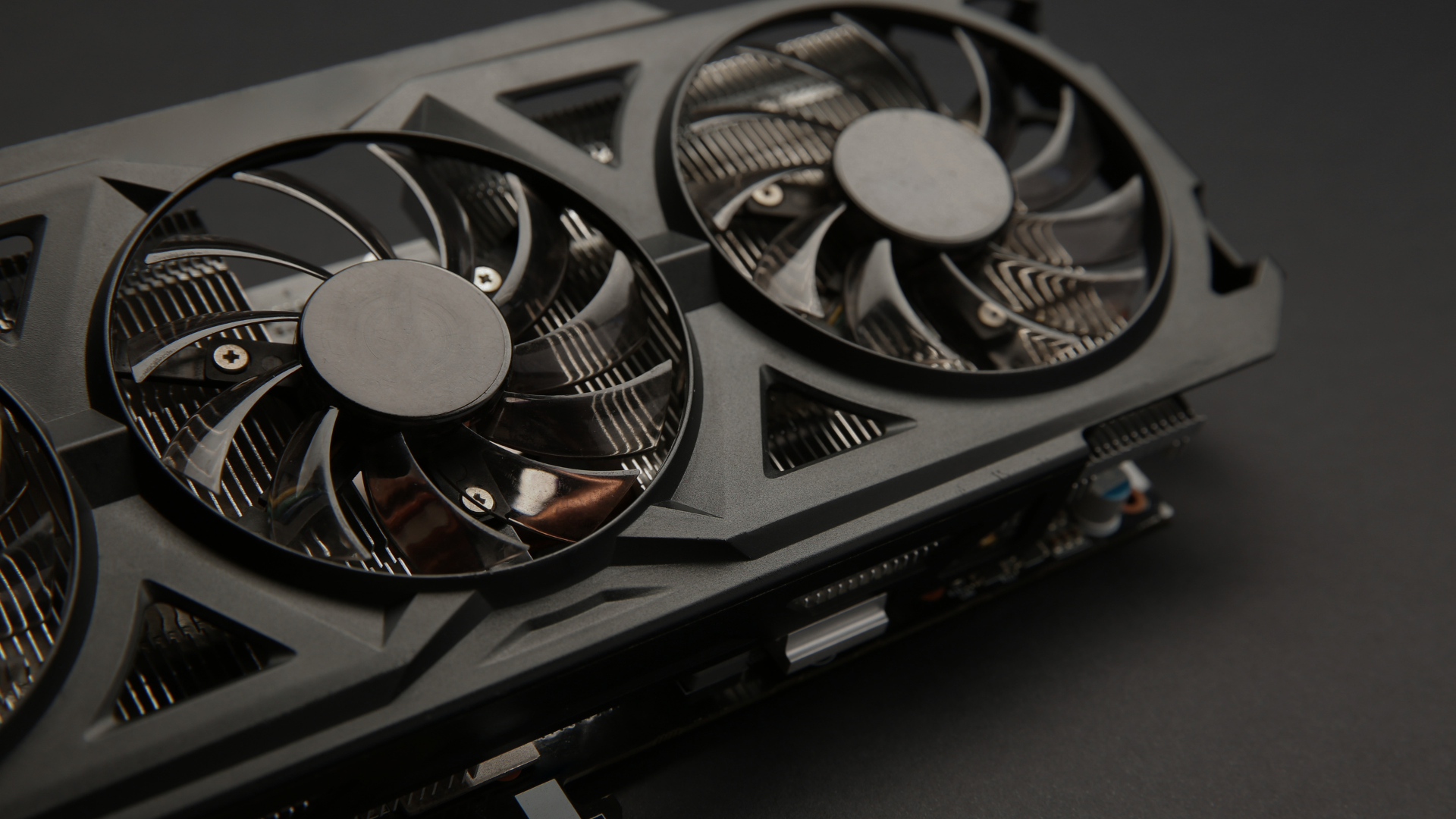
The right GPU for 1440p 144Hz gaming depends on what you expect to see at 144 frames per second. Competitive games at reduced settings can reach that target on a mainstream graphics card. New AAA games at High settings call for an upper-midrange card if you want to spend most of your time between roughly 90 and 144 FPS. Holding close to 144 FPS with Ultra settings, heavy ray tracing, or path tracing is a high-end workload—and even the fastest cards may need upscaling or carefully chosen settings in the most demanding games.
For most people, the sweet spot is a GPU in the Radeon RX 9070, RX 9070 XT, GeForce RTX 5070, or RTX 5070 Ti performance range, depending on price and whether ray tracing matters. The Radeon RX 9060 XT 16GB, GeForce RTX 5060 Ti 16GB, and Intel Arc B580 can also make sense for esports, lighter games, or buyers comfortable with optimized settings. Those names are reference points, not permanent rankings: compare current prices and recent benchmarks before choosing from the best graphics cards.
The key is to buy for the games you play, not for the “144Hz” label on the monitor. A stable 110 FPS with strong 1% lows and adaptive sync usually feels better than an average of 144 FPS interrupted by obvious stutter.
The short answer: choose the performance target first
| Your actual goal | Current GPUs to benchmark | What to expect |
|---|---|---|
| Esports at competitive settings | Arc B580, RX 9060 XT 16GB, RTX 5060 Ti 16GB | 144 FPS or more is realistic in many titles; the CPU often becomes the limit first. |
| Mixed gaming at High settings | RX 9070, RTX 5070 | A strong 90–144 FPS experience; the heaviest games may need upscaling or a few settings reduced. |
| Demanding AAA games near 144 FPS | RX 9070 XT, RTX 5070 Ti | High-refresh 1440p with fewer compromises, although 144 FPS is still not guaranteed in every game. |
| Heavy ray tracing or path tracing | RTX 5070 Ti or faster; compare RX 9070 XT in your games | Plan to use high-quality upscaling and, when appropriate, frame generation. |
Do not treat adjacent models as automatically better or worse purchases. A discounted higher-tier card may cost little more than a premium version of the tier below it, while an overpriced card can lose its value advantage overnight. Decide on the performance class first, then compare the street prices of the exact cards you can buy.
What 1440p at 144Hz actually asks of a GPU
A 2560 × 1440 image contains about 3.69 million pixels—roughly 78% more than 1920 × 1080. At 144Hz, the display begins a new refresh every 6.94 milliseconds. That combination is demanding, but it does not mean the graphics card must deliver exactly 144 new frames every second.
| Frame rate | Time per frame | How it fits a 144Hz display |
|---|---|---|
| 60 FPS | 16.67ms | Playable, but well below the motion clarity and responsiveness the monitor can show. |
| 90 FPS | 11.11ms | A smooth target for demanding single-player games, especially with adaptive sync. |
| 120 FPS | 8.33ms | Close to the full high-refresh experience and an excellent practical target. |
| 144 FPS | 6.94ms | Fully feeds the display, assuming frame delivery is consistent. |
A monitor with variable refresh rate can match its refresh cycle to a changing frame rate inside its supported range. That is why 90–140 FPS can still look fluid rather than broken or juddery. If you are unsure how the two major ecosystems differ, see our comparison of G-Sync and FreeSync.
Average FPS is only part of the story. The 1% low summarizes the slowest one percent of frames and gives you a useful indication of consistency. A benchmark averaging 150 FPS with a 70 FPS 1% low may feel less stable than one averaging 135 FPS with a 110 FPS 1% low. Frame-time graphs reveal the isolated spikes that both numbers can hide.
Start with your games, not a generic GPU tier
Competitive games: prioritize the CPU and 1% lows
Valorant, Counter-Strike 2, Rainbow Six Siege, Rocket League, and Overwatch 2 can run at very high frame rates without an elite GPU, particularly at competitive settings. Once the graphics workload is light enough, the processor, memory subsystem, or game engine often sets the ceiling.
Fortnite deserves special treatment because its render modes behave like different games. Performance Mode can be CPU-limited at high frame rates, while DirectX 12 with Nanite, Lumen, and high visual settings can place an enormous load on the graphics card. Always match a benchmark to the mode you intend to use.
If esports is your priority, spend enough on the GPU to clear your target, but do not sacrifice a capable CPU to move up another graphics-card tier. A strong 1% low matters more than an average inflated by quiet sections of a benchmark.
AAA games: High is usually the smarter preset
Graphically demanding single-player games rarely maintain 144 FPS at their maximum preset without help. That is normal. Ultra presets are designed to expose every feature an engine offers, not to deliver the best balance of image quality and performance.
Start at High and compare individual settings. Ultra shadows, volumetrics, reflections, crowd density, hair simulation, and draw distance can consume a surprising amount of performance for a difference you may not notice during play. Texture quality is a separate decision: it may have a small effect on average FPS while still requiring substantial VRAM.
For this type of gaming, a stable 90–120 FPS with excellent image quality is often a better result than forcing the counter toward 144. Adaptive sync handles the variation, and a sensible frame cap can improve consistency, power consumption, heat, and noise.
Ray tracing changes the ranking
Ray-traced shadows, reflections, and global illumination do not carry one universal performance cost. A modest hybrid implementation may be easy to run; full path tracing can transform the workload. Compare the exact ray-tracing mode you plan to use rather than relying on a broad “RT on” result.
NVIDIA is generally the safer choice when demanding ray tracing, DLSS support, or CUDA-based creator applications are central to the purchase. AMD can provide more traditional rasterized performance or VRAM for the money, and its current cards are much more capable at ray tracing than earlier Radeon generations. The correct answer depends on game support and the real price difference, not the logo on the card.
How to read GPU benchmarks without being misled
A benchmark is only useful when its workload resembles yours. Before accepting an FPS number, verify all of the following:
- Exact GPU and memory version: An 8GB and 16GB card with the same product name may not behave the same way at 1440p.
- Resolution and preset: “1440p High” cannot be compared directly with “1440p Ultra,” and custom settings may differ substantially between reviewers.
- Native or upscaled rendering: Keep native, Quality-mode upscaling, Performance-mode upscaling, and frame-generated results in separate columns.
- Ray tracing: Confirm whether it is off, partially enabled, maxed out, or replaced by a path-tracing mode.
- Average and low-percentile performance: Check average FPS, 1% lows, and ideally the frame-time graph. Our guide to what affects 1% lows explains why the processor is sometimes responsible.
- Test system: A slower CPU can compress the difference between GPUs, especially in esports games. Driver, game version, memory configuration, and test scene matter too.
- More than one review: No ten-game average represents your library. Compare at least two reputable test suites and inspect the results for the games you play most.
Do not compare CUDA-core counts, stream-processor counts, clock speeds, memory-bus widths, or theoretical throughput across different architectures as if any one specification predicts gaming performance. They do not. Use measured game results first; use specifications to explain those results and identify feature or capacity differences.
How much VRAM do you need for 1440p?
For a new GPU intended to run modern games at 1440p, 12GB is a practical floor and 16GB is the more comfortable target. That does not make every 12GB card a bad purchase or every 16GB card a good one. A faster 12GB GPU can outperform a slower 16GB model until a game genuinely exceeds the smaller card’s usable memory.
Eight-gigabyte cards can still run esports titles, older games, and many new releases with appropriate textures. They are harder to recommend as a fresh 1440p purchase when a reasonably priced 12GB or 16GB alternative exists. The penalty for insufficient VRAM is not always a lower average: it can appear as texture pop-in, reduced texture quality, hitching during traversal, or a collapse in 1% lows.
Texture packs, mods, high-resolution assets, ray-tracing acceleration structures, and some creator workloads all increase memory pressure. Upscaling can reduce portions of the rendering workload, but it does not make high-resolution texture data disappear. Also remember that allocated memory is not the same as required memory; a game may fill spare VRAM as a cache without actually needing all of it.
Capacity is only one part of the memory system. Bandwidth, cache, compression, bus width, and the speed of the GPU itself matter. Read our full guide to how much VRAM you need for gaming before paying more for capacity alone.
Upscaling and frame generation are useful—but they are not the same as native FPS
DLSS, FSR, and XeSS can render a game below 2560 × 1440 and reconstruct a 1440p output. A good Quality mode can be difficult to distinguish from native rendering during normal play, while more aggressive modes use a lower base resolution and are more likely to lose fine detail or introduce instability. Results vary by game and version, so evaluate the implementation rather than the brand name alone.
Frame generation inserts synthesized frames between conventionally rendered frames. It can make motion look smoother and help a game use more of a 144Hz display, but the generated frames do not advance game logic or sample a new player input. Responsiveness therefore follows the underlying rendered frame rate far more closely than the final FPS counter suggests.
As a rule, frame generation works best when the game already has a stable base frame rate—roughly 60 FPS or higher is a sensible starting point. Turning 35 rendered FPS into a much larger displayed number may improve visual fluidity, but it does not make the controls feel like a native high-frame-rate experience. Latency-reduction technologies such as Reflex and Anti-Lag can help, but they do not erase a weak base frame rate.
For competitive games, prioritize real rendered frames and low latency. For visually demanding single-player games, high-quality upscaling and frame generation can be excellent tools. Just make sure the benchmark labels them honestly.
Your CPU sets the maximum useful frame rate
The GPU draws each frame, but the CPU must first process input, simulation, animation, physics, game logic, and draw calls. If the processor cannot prepare more than 110 frames per second in a particular scene, a faster graphics card will not turn that scene into 144 FPS.
This is why the phrase “1440p is GPU-bound” is incomplete. Raising resolution increases graphics work, but it does not reduce the CPU work required to produce each frame. Competitive settings, busy multiplayer matches, simulation games, strategy games, and dense open worlds can remain CPU-limited at 1440p.
A current six-core processor can support many 1440p 144Hz builds; a fast eight-core gaming CPU provides more headroom for high-end GPUs, CPU-heavy games, streaming, and demanding 1% lows. Architecture, cache, memory latency, and effective clock speed matter more than the Core i7 or Ryzen 7 label. Our guide to choosing a CPU for 1440p gaming covers the balance in detail.
Generic bottleneck calculators cannot model this relationship. Instead, find a benchmark using a similar CPU and look for the same game, settings, and scene. If you are upgrading an existing PC, lower the render resolution while monitoring GPU utilization. Little or no FPS improvement, combined with an underused GPU and one or more heavily loaded CPU threads, points toward a CPU-side limit.
Check the card—not just the GPU name
Once you choose a GPU chip, compare the actual graphics cards built around it. Most partner models using the same GPU perform within a narrow range at stock settings, but they can differ meaningfully in price, cooler noise, temperatures, dimensions, power limits, warranty, and customer support.
A premium cooler is worthwhile when you value low noise or need a particular size. It is poor value when its price approaches the next GPU tier. Compare reviews of the exact model; a review of one card does not tell you how another card’s cooler or fan profile behaves.
For a used card, verify the remaining warranty, physical condition, display outputs, and seller protections. Ask for a stress test showing temperature, clock behavior, fan operation, and visual stability. A previous generation card can be a smart purchase, but price its older feature set, efficiency, and warranty into the comparison.
Power, case clearance, and display support
A graphics-card upgrade can fail for reasons that have nothing to do with benchmark performance. Confirm these details before ordering:
- Case clearance: Check card length, height, and thickness with front fans or a radiator installed. Leave room for the power connector and its required cable bend. Use our walkthrough for checking graphics-card case clearance.
- Power supply: Follow the recommendation for the exact card, not merely the GPU family. Confirm PSU quality, age, total capacity, and the required native connectors. Our guide explains how to choose a power supply.
- Power cables: Fully seat every connector. Do not reuse modular cables from another PSU unless the manufacturer explicitly lists them as compatible, and do not substitute SATA or Molex adapters for proper GPU power.
- Motherboard: Modern graphics cards generally work in older PCIe x16 slots, but lane-limited cards can lose some performance on older PCIe generations. Intel Arc cards in particular should be paired with a system that supports Resizable BAR.
- Display connection: Make sure both the GPU output and monitor input support 2560 × 1440 at 144Hz with the features you want. Connect the monitor to the graphics card, not the motherboard. See our guide to DisplayPort and HDMI for gaming.
The GPU price may therefore be only part of the upgrade cost. A larger case, newer power supply, or CPU-platform change can alter which card makes sense. As a broad starting point, a gaming-focused build can put roughly one-third to one-half of its core hardware budget into the graphics card, but our guide to setting a graphics-card budget will help you account for the complete system.
A repeatable way to choose your GPU
- List your five most-played games. Add one demanding game you expect to buy during the next year.
- Define the real target for each game. Record the preset, ray-tracing setting, minimum acceptable FPS, and whether you will use upscaling or frame generation.
- Set a complete upgrade budget. Include any power-supply, case, CPU, or platform changes—not only the graphics card.
- Shortlist two GPU tiers. Choose the class that appears to meet the target and the next faster class for comparison.
- Collect current benchmarks. Compare average FPS, 1% lows, frame times, VRAM behavior, power, and noise in your games. Keep native, upscaled, ray-traced, and frame-generated results separate.
- Compare street price per useful frame. Use the settings you will actually play, not a broad average that gives equal weight to irrelevant games.
- Check the exact card. Verify dimensions, cooler quality, display outputs, connectors, warranty, and return policy.
- Buy the least expensive option that clears the target with headroom. A 10–20% cushion is useful for demanding scenes and future games, but paying for performance you will never display is not.
For a broader component-level checklist, read how to choose a graphics card. If you already own the GPU and are trying to reach the target without replacing it, start with our guide to increasing FPS in games.
Frequently asked questions
Do you need 144 FPS for a 144Hz monitor?
No. A 144Hz monitor can display up to 144 refreshes per second, but games do not have to run at exactly 144 FPS. Variable refresh rate makes fluctuating performance inside the monitor’s supported range look much smoother. For demanding single-player games, 90–120 FPS is an excellent target; competitive players may want 144 FPS or more for lower latency.
Is 12GB of VRAM enough for 1440p?
Yes, 12GB is enough for most current 1440p gaming when settings are chosen sensibly. Sixteen gigabytes offers more headroom for high-resolution textures, mods, ray tracing, and future releases. Buy the faster overall GPU unless your games or workloads have a demonstrated need for the extra capacity.
Is an 8GB GPU bad for 1440p?
Not automatically. An 8GB card can still run esports games, older titles, and many demanding releases with lower texture settings. It is simply a less comfortable new purchase for 1440p than it once was, particularly when a 12GB or 16GB alternative is available at a similar price.
Should you use native 1440p or upscaling?
Use native rendering as a clean performance baseline, then compare it with the game’s highest-quality upscaling mode. Good Quality-mode upscaling can recover substantial performance with a small visual tradeoff. Do not judge a card solely by a result that uses aggressive upscaling or frame generation unless you are happy to use those settings.
Is frame generation good for a 144Hz monitor?
It can be. Frame generation can make motion look smoother and help a demanding game use more of the display’s refresh range. It is most convincing when the base frame rate is already stable and responsive. It is less useful for competitive play, where real rendered frames and low latency matter more.
Should you buy AMD or NVIDIA for 1440p 144Hz?
Choose from measured performance, features, and current price. AMD is often competitive in rasterized performance and VRAM per dollar. NVIDIA is generally stronger when demanding ray tracing, DLSS, CUDA, or specific creator applications matter. Neither brand is the right answer at every price.
Can a GPU be too powerful for 1440p?
Yes, in the sense that the extra performance may not improve your experience enough to justify its cost. A flagship GPU can be limited by the CPU in high-frame-rate games, and performance beyond the monitor’s refresh rate has diminishing visual benefit. It may still make sense for heavy ray tracing, future monitor upgrades, professional workloads, or buyers who simply want maximum headroom.
Bottom line
For 1440p 144Hz gaming, buy around your slowest acceptable frame rate—not the monitor’s maximum refresh rate. Mainstream cards are enough for esports and optimized settings. The RX 9070 and RTX 5070 class is a strong starting point for mixed 1440p gaming, while the RX 9070 XT and RTX 5070 Ti class provides more convincing high-refresh performance in demanding AAA games. Heavy ray tracing can justify moving higher.
Then verify the details that determine whether the purchase is actually good: 1% lows, native versus upscaled results, VRAM behavior, CPU headroom, card noise, case clearance, power connectors, and current street price. The best GPU is not the one with the largest benchmark number. It is the least expensive card that delivers the image quality, responsiveness, and consistency you want in the games you actually play.
