
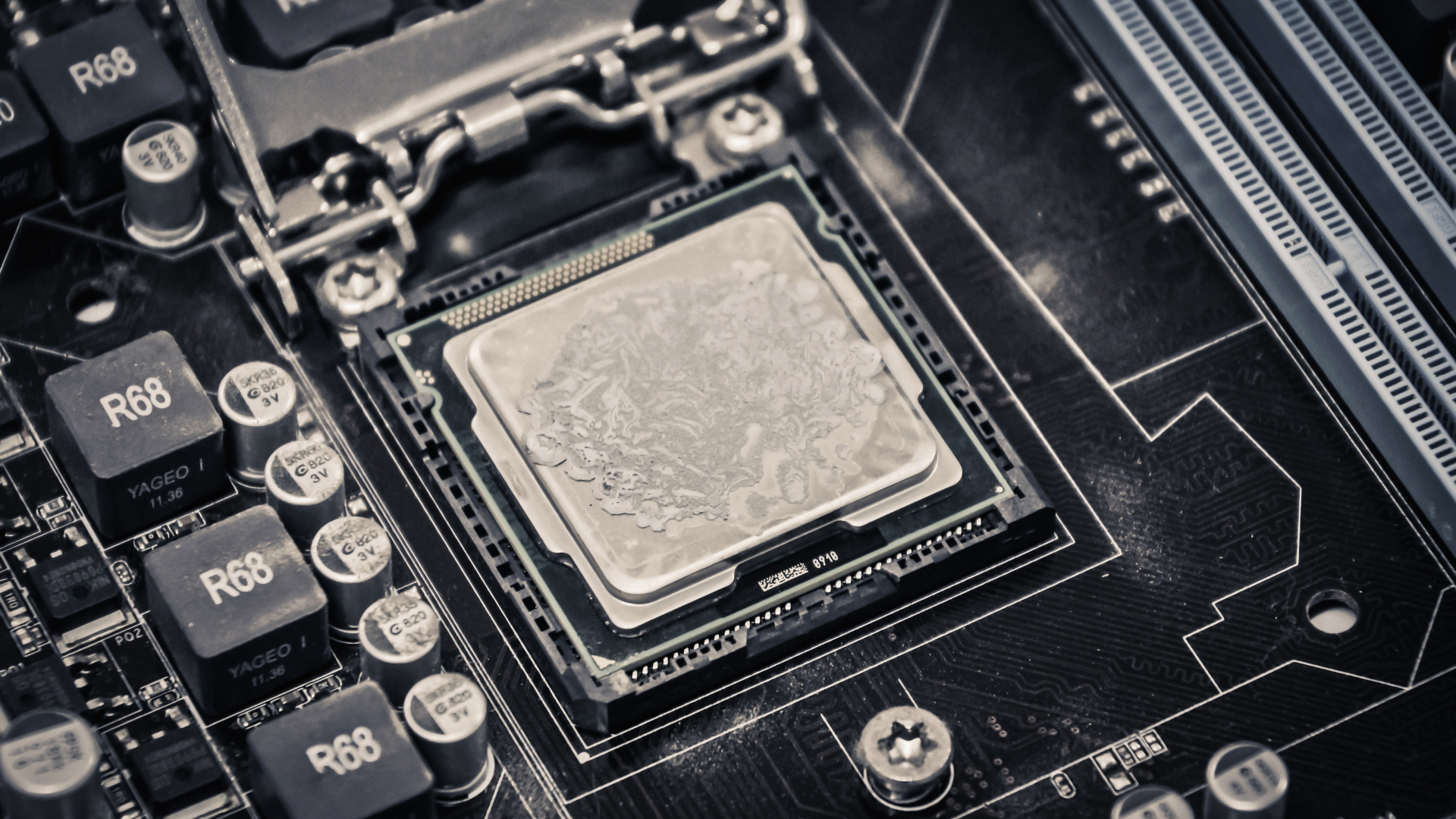
 A temperature spike when you open a browser or launch a game does not automatically mean your CPU cooler is struggling.
Open a program, hear the fans surge, and watch the CPU temperature jump. A moment later, everything settles down. It is an unsettling pattern when you have just built a PC, but the speed of the temperature change is not enough to diagnose overheating.
The useful distinction is between a short burst of heat that follows useful work and a temperature that stays high after the work finishes. Modern processors can accelerate a few cores very quickly. The silicon responds faster than a large heatsink or an AIO’s coolant, so a brief temperature jump can happen even with a good cooling system.
Before replacing anything, check the duration of the spike, the accompanying power draw, and the processor’s behavior afterward. A sensible diagnosis can save you from buying a larger cooler that leaves the original fan noise almost unchanged.
Why opening a small program can produce a large spike
Launching an application involves more than displaying its window. The processor may unpack files, verify components, initialize plugins, scan extensions, and prepare graphics resources. Much of that work can happen in a short burst rather than as an even load across every core.
Total CPU utilization can therefore be misleading. On a many-core processor, a small overall percentage can conceal one or two busy cores. Those cores may run at high boost clocks while most of the chip remains lightly loaded. Temperature monitoring may emphasize the hottest part of the processor rather than an average across its entire surface.
AMD describes temperature, power, and current as factors in Precision Boost 2 operation. A light workload can have room to boost aggressively. That makes a quick temperature increase plausible without implying a failed cooler.
Consider a hypothetical desktop that rises from 39°C to 63°C while opening a browser, then returns to the low forties. Those numbers are an illustration, not a universal acceptable range. What matters is that the rise follows work and the temperature recovers. Compare that with a machine that keeps climbing while the desktop sits idle: the second pattern deserves a different investigation.
Record a short timeline instead of one maximum
A monitoring program’s maximum column preserves the highest reading until you reset it. It does not tell you whether the processor spent a fraction of a second or twenty minutes at that temperature. Staring at that column can make an ordinary launch event look like a persistent problem.
Use a graph or sensor log. Our guide to CPU temperature monitoring tools covers suitable utilities. Start with one program rather than several overlapping dashboards, and record the same sensors throughout the comparison.
- CPU package temperature, plus the hottest-core reading if available.
- CPU package power and utilization.
- Effective clock readings and thermal-throttling indicators, where supported.
- CPU fan speed; pump and coolant readings if your AIO exposes them.
- The action that triggered the event and how quickly the temperature recovered.
Let the PC finish its startup tasks before establishing a baseline. Then launch the program, close it, and repeat after temperatures settle. The second launch may be easier because files are cached, so record that difference rather than assuming inconsistent results mean the sensor is defective.
Separate normal bursts from warning signs
| Observed pattern | Likely direction | Next check |
|---|---|---|
| Brief rise, quick recovery | Short workload or boost activity | Check fan response and background tasks |
| High temperature at sustained low power | Possible contact or circulation problem | Inspect the cooling system |
| Heat increases through a long game | Case or coolant warming | Compare airflow and steady-state behavior |
| Throttling, shutdowns, or worsening behavior | Cooling or configuration fault possible | Stop heavy testing and diagnose |
These patterns narrow the investigation; none identifies a failed part by itself. CPU temperature limits differ by model, and firmware can influence observed behavior. Read the specification for your exact processor rather than borrowing a limit from a different generation. Our CPU temperature guide explains the broader context.
A thermal-throttling flag also needs a timestamp. A flag recorded during a previous stress test is not evidence that opening a browser caused throttling. Reset the monitoring session and reproduce the relevant task.
Find out whether the computer is actually idle
An empty desktop is not an idle workload. Game launchers can patch files, cloud clients can synchronize folders, and security software can inspect new downloads. Windows startup tasks may continue well after the desktop appears.
Open Task Manager and sort processes by CPU use while the event occurs. Also check disk and network activity. A process can complete its work between refreshes, so combine this view with the temperature timeline rather than expecting a perfectly synchronized screenshot.
Pause an identifiable download or close an unnecessary launcher, then repeat. Do not disable security features or essential services merely to produce a lower idle number. The goal is to distinguish expected work from a process that is repeatedly consuming resources without a useful reason.
Monitoring and RGB utilities can contribute to background activity too. Temporarily close redundant utilities one at a time. Keep the program that controls an essential cooling function running unless the device has a verified onboard fallback.
If the noise is the problem, adjust the response
A fan curve can make harmless spikes sound dramatic. Suppose the fan controller crosses several speed points during a two-second launch event. The fan accelerates after the heat burst has largely passed, then immediately slows down. Repeating this cycle creates more noticeable noise than a slightly higher, steady fan speed.
Start with the motherboard’s standard cooling profile. If supported, introduce a modest response delay or hysteresis in the low and middle temperature range. Preserve a prompt response at high temperatures. Our guide to stopping CPU fans from ramping up and down explains how to tune that behavior without hiding a sustained heat problem.
For an AIO, radiator fans may work well from coolant temperature when the cooler and controller support that sensor. Coolant changes more slowly than the CPU hotspot. Pump configuration is a separate question: follow the cooler’s instructions rather than assigning the pump the same start-stop curve as the fans.
When to inspect the cooler
Inspect the hardware if the behavior began immediately after installation, the temperature does not recover, or the CPU approaches its limit at unexpectedly low power. Shut the PC down and disconnect power before touching internal connections.
Check the cooler’s protective-film removal, correct mounting hardware, even attachment, fan connection, and unobstructed airflow. If you remove the cooler, clean and renew the thermal interface according to the manufacturer’s instructions before reinstalling it. Repeatedly lifting and reseating a pasted cooler without cleaning it makes comparisons less useful.
With liquid cooling, verify the pump’s actual power connection as well as its reported speed. A glowing pump cap is not proof of circulation. Conversely, a missing RPM reading may be a monitoring connection problem. Use our AIO pump diagnosis guide to separate those possibilities.
Do not start an extended stress test on a system that rapidly overheats while doing little work. You already have enough evidence to investigate the mount, wiring, and cooling hardware.
Why a bigger cooler may not remove the spikes
A larger heatsink or radiator can improve sustained cooling and reduce the fan speed needed for a given workload. It cannot make heat move instantly from a tiny active region of silicon through the CPU package and into the cooler.
That is why replacing a competent cooler may improve temperatures during a long render but leave short application-launch spikes visible. Some processors also use improved thermal headroom to sustain more performance, which can make the temperature improvement smaller than expected.
Choose an upgrade to solve a demonstrated limitation: sustained thermal throttling, inadequate noise performance, a defective unit, or a cooler that no longer matches the CPU’s workload. Our CPU cooler recommendations are useful once you know which of those problems you need to solve.
A repeatable five-minute check
First, allow startup activity to settle and reset the sensor log. Record a minute of desktop behavior. Second, open the application that concerns you and note the exact time. Third, leave the application open without interacting for a minute. Fourth, repeat a normal action inside it, such as loading the same document or webpage.
Finally, compare the peaks with power, clock, and fan behavior. A temperature peak paired with a power burst and quick recovery supports the short-workload explanation. High temperatures that persist after power falls point toward a different issue. If background activity never settles, investigate the busy process before judging the cooler.
Save the result. A baseline from a healthy system is more valuable than an isolated screenshot months later, especially after a firmware update, cooler change, or move to a warmer room.
Frequently Asked Questions
Can a CPU temperature jump ten degrees almost instantly?
Yes. The sensor measures conditions inside the processor, where heat density and workload can change quickly. The jump’s duration, power level, recovery, and relationship to the exact CPU’s thermal limit matter more than the rate of change alone.
Should I disable boost to stop temperature spikes?
Disabling boost can reduce temperature and performance together, but it is a poor first diagnostic step. Establish whether the behavior is normal, check background activity, and adjust an overly reactive fan curve before sacrificing performance.
Does a cool radiator prove the temperature reading is wrong?
No. A short CPU burst may not noticeably warm the radiator. Persistent high CPU temperature with poor heat transfer is more concerning and can indicate contact or circulation trouble. Touch alone is not a reliable diagnostic measurement.
What result means I can stop troubleshooting?
If normal work produces brief spikes followed by recovery, your games perform normally, sustained temperatures match the processor’s intended behavior, and the cooling system has no fault symptoms, there may be nothing to repair. Tune noise if necessary, then use the computer.
