
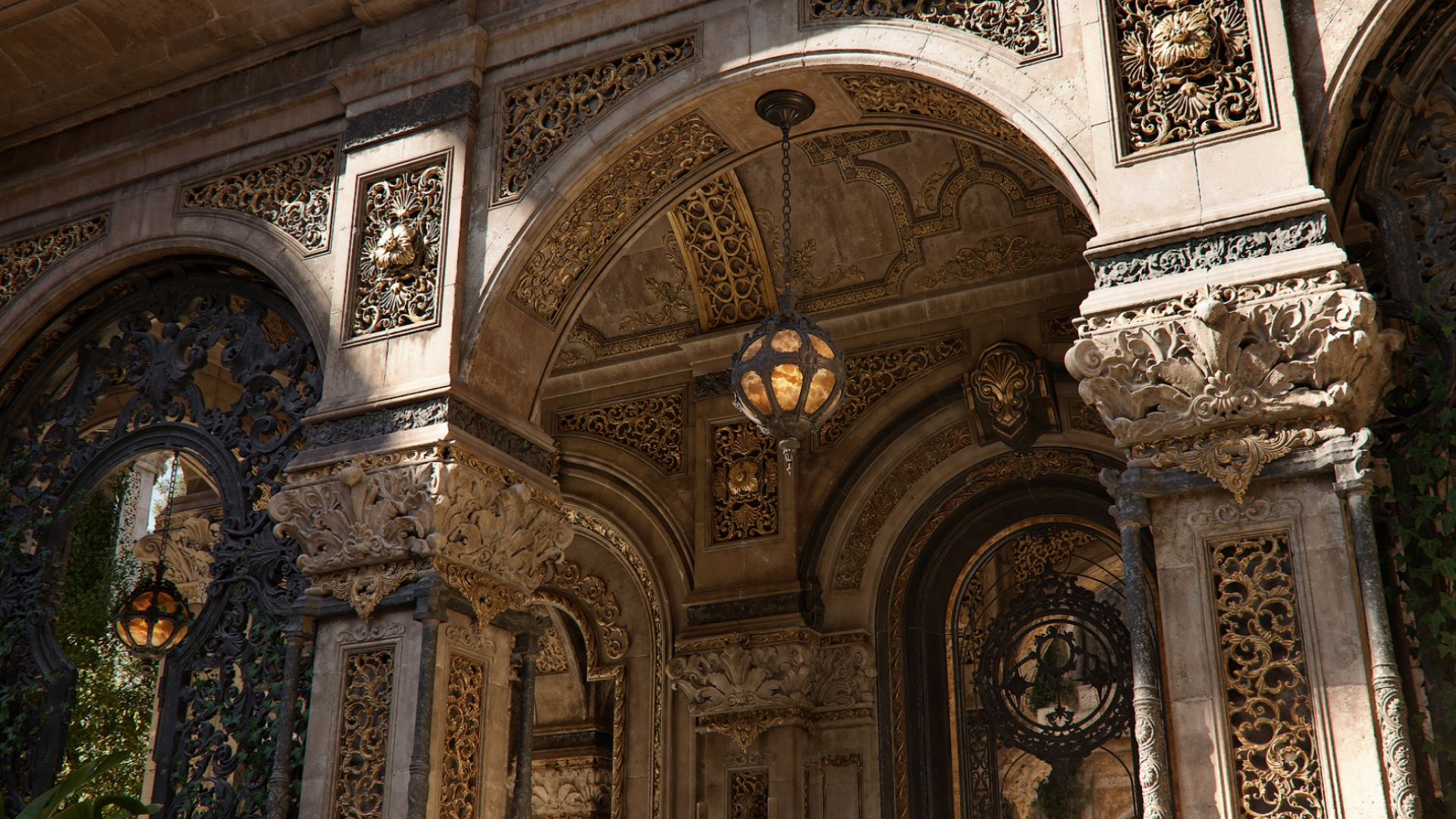
Yes, ray tracing can be worth using on a midrange graphics card—but it should be the last setting you add, not the first feature you shop for.
A good midrange GPU should deliver the resolution, frame rate, and texture quality you want before ray tracing enters the discussion. Once that baseline is secure, well-implemented ray-traced reflections or global illumination can make the right game look noticeably better. If enabling them forces you into blurry upscaling, uneven frame times, or sluggish controls, the trade is no longer doing you any favors.
That is the important distinction: ray tracing is not simply “worth it” or “not worth it.” The answer changes with the effect, the game, your resolution, your refresh-rate target, and the quality of the game’s reconstruction. On a midrange card, selective ray tracing is often sensible. Maxing every ray-tracing option—especially full path tracing—usually is not.
The short answer
- It is usually worth trying in slower-paced single-player games when one or two ray-traced effects make an obvious visual difference and you can maintain a responsive base frame rate.
- It is usually not worth enabling in competitive games, when the effect is hard to see during play, or when it causes stutter, poor 1% lows, or an uncomfortable input response.
- It can be worth paying extra for if ray-traced games make up a meaningful part of your library and the faster card also satisfies your rasterized-performance and VRAM needs.
- Path tracing is a separate class of workload. A midrange card may run it with upscaling and frame generation, but that does not automatically make it the best way to play.
The practical sweet spot is usually a story-driven game at 1440p, a 60–100 FPS target, quality-mode upscaling, and a carefully chosen medium or high ray-tracing setting. The weakest case is a fast competitive game at 144Hz or above, where clarity, consistent frame delivery, and low latency matter more than more accurate reflections.
First, separate the three decisions
People often collapse three different questions into one:
- Should I enable ray tracing on the GPU I already own? This is a settings decision. Test the visual improvement and performance cost in the game.
- Should I pay more for a GPU with stronger ray-tracing performance? This is a purchase decision. Compare the exact cards in your games, with the same rendering and reconstruction settings.
- Should I use a path-traced mode? This is an enthusiast-quality decision. Path tracing is much more demanding than a conventional hybrid ray-tracing preset.
A “yes” to one does not require a “yes” to the others. You might buy a card for its excellent all-around performance and still use ray-traced reflections in two games. You might also buy the stronger ray-tracing card and leave the feature off in a competitive shooter. If you are still weighing the fundamentals, start with how to choose a graphics card before comparing optional features.
What ray tracing actually changes
Rasterization turns 3D geometry into screen pixels very efficiently. Developers then combine it with shadow maps, screen-space reflections, baked lighting, probes, and other techniques to approximate how light behaves. Good rasterized lighting can look excellent; “rasterized” does not mean crude or obsolete.
Ray tracing answers selected visibility and lighting questions by tracing rays through a representation of the scene. Can this point see the light? What does this reflective surface see? Where did this indirect light come from? Because a real-time GPU cannot trace an unlimited number of rays, games use a limited sample count and reconstruct or denoise the result over space and time.
That last step matters. What you see is not raw ray tracing. It is the product of ray samples, denoising or ray reconstruction, temporal data, the game’s material system, and its art direction. Two games with a setting called “RT High” can look—and perform—nothing alike.
| Effect | Where it tends to matter | Midrange approach |
|---|---|---|
| Shadows | More natural contact, softness, and off-screen occlusion; often subtle in motion | Enable only if the cost is small or the game’s raster shadows are distracting |
| Ambient occlusion | More convincing contact shading around objects and corners | Useful when clearly visible, but rarely worth a large frame-time penalty |
| Reflections | Wet streets, glass, polished interiors, water, and objects outside the camera view | Often the best first RT effect to test; medium settings can capture most of the benefit |
| Global illumination | Indirect light, color bounce, interiors, and dynamic time-of-day lighting | Potentially transformative, but commonly needs quality upscaling and careful tuning |
| Path tracing | A more unified simulation of direct and indirect lighting, reflections, and shadows | Treat as an experimental or showcase mode unless the base experience remains comfortable |
Preset names hide further differences. A higher setting may increase ray distance, rays per pixel, bounce count, the number of objects included in the ray-traced scene, effect resolution, or several of these at once. This is why a medium setting can look nearly identical to ultra in normal play while running substantially better.
Judge the cost in milliseconds, not just FPS
Average FPS is easy to understand, but frame time shows the cost of ray tracing more clearly. A game running at 100 FPS has 10 milliseconds to produce each frame. If ray tracing lowers it to 70 FPS, frame time rises to roughly 14.3ms. The effect did not merely “cost 30 FPS”; it added about 4.3ms of work to every frame.
| Frame rate | Frame time | What it means |
|---|---|---|
| 60 FPS | 16.7ms | A common minimum target for responsive single-player gaming |
| 90 FPS | 11.1ms | A strong balance of fluidity and visual quality on a variable-refresh display |
| 120 FPS | 8.3ms | Leaves much less time for expensive lighting effects |
| 240 FPS | 4.2ms | A competitive target that leaves little room for ray tracing |
Also watch the slow frames. An average of 72 FPS can feel good when delivery is even and unpleasant when traversal stutter or memory pressure repeatedly spikes the frame time. Record average FPS, 1% lows, and a frame-time graph. A ray-tracing mode is worth keeping only when its worst moments remain acceptable, not merely when the benchmark average clears a chosen number.
Resolution and refresh rate change the answer
The same graphics card can be excellent for ray tracing at one target and unsuitable at another.
| Target | Likely trade-off | Recommendation |
|---|---|---|
| 1080p at 60–90 FPS | The GPU may have headroom, but low-input-resolution upscaling can soften the image | Try native resolution first, then selected effects |
| 1440p at 60–100 FPS | Quality upscaling has enough source information to work well in many games | The most convincing midrange use case |
| 4K at around 60 FPS | Pixel cost is high; upscaling and reduced RT settings are usually necessary | Be selective and protect the rendered frame rate |
| 144–240Hz competitive play | The tighter frame-time budget makes RT difficult to justify | Favor visibility, consistent lows, and latency; leave RT off |
These are starting points, not hardware laws. A lightweight ray-traced shadow option may work at high refresh, while a demanding global-illumination mode can overwhelm the same GPU at 1080p. If 1440p at very high refresh is your real goal, use our guide to graphics cards for 1440p 240Hz and consider ray tracing a secondary feature.
Upscaling is part of the calculation
DLSS, FSR, and XeSS render much of the scene from a lower internal resolution and reconstruct the final image using current-frame information, motion vectors, and data from earlier frames. This reduces pixel-shading work and, depending on the implementation, can reduce the cost of ray-traced effects enough to move them from impractical to playable.
Quality mode at 1440p or 4K is generally the sensible place to start. Balanced and Performance modes trade away more source information; that can expose shimmer, disocclusion artifacts, thin-detail instability, ghosting, or a soft image. At 1080p, those compromises tend to be easier to see because the reconstruction begins with fewer pixels.
Do not assume native rendering is always visually superior, either. A good temporal upscaler can produce cleaner anti-aliasing than a game’s native solution. The only reliable comparison is the one in front of you: same scene, same camera motion, same sharpening, and the same ray-tracing settings.
When comparing two graphics cards, keep the reconstruction mode equivalent. A chart that pits native rendering on one card against Performance-mode upscaling on another tells you very little about their relative ray-tracing capability.
Frame generation improves smoothness, not the base game
Frame generation inserts one or more synthesized frames between traditionally rendered frames. It can make camera motion look much smoother and is especially useful when ray tracing has left enough real frames for interpolation to work from.
What it cannot do is update game logic, sample input, or create a newly simulated game state for every generated frame. If the GPU renders the game at 45 FPS and frame generation displays a much larger number, the controls still will not feel like a game natively rendered at that displayed rate. Latency-reduction technology helps, but it does not turn generated frames into rendered frames.
As a practical rule, judge the game with frame generation off first. If the rendered rate—with upscaling allowed—is roughly 50–60 FPS or higher and already feels responsive, frame generation can be an excellent finishing tool. Below that range, results become increasingly dependent on the game, input method, display, and your tolerance for artifacts. Slow mouse response will remain slow even when an FPS counter looks impressive.
Generated frames can also struggle with rapidly changing UI elements, particles, fine geometry, and sudden camera movement. Test actual combat and traversal, not just a quiet view in the opening area. For a fuller explanation of the response chain, see our guide to input lag.
Ray reconstruction is different again
Ray reconstruction is not another name for upscaling or frame generation. Real-time ray tracing begins with a sparse, noisy signal, so a game needs a denoiser or reconstruction stage to turn those samples into stable lighting. Neural ray-reconstruction systems replace some conventional hand-tuned denoising work and may preserve reflections, fine detail, or lighting in motion more convincingly.
That can improve the value of ray tracing without changing the underlying truth: image quality remains implementation-dependent. Look for ghosting, lighting that smears behind moving objects, unstable reflections, and over-softened textures. The best mode is the one that holds together while you play, not the one with the most advanced label.
VRAM can be the limit before RT compute is
Ray tracing needs additional scene data, including acceleration structures used to find ray and geometry intersections. Denoisers, reconstruction, upscaling, higher resolutions, and frame generation may require more buffers as well. Combine those demands with high-resolution textures and a midrange card can run short of memory even when its ray-tracing hardware is fast enough on paper.
Typical warning signs include repeatable traversal stutter, a sharp collapse in 1% lows, texture pop-in, or problems that improve after reducing textures or ray-tracing quality. A monitoring tool showing nearly full VRAM is not proof by itself: many games allocate spare memory as a cache. Treat the reading as evidence only when it matches the behavior on screen.
Upscaling may reduce some rendering-buffer requirements, but it does not shrink the game’s texture assets. That is why Performance-mode upscaling cannot rescue every memory-limited card. Our guide to how much VRAM you need for gaming covers capacity by resolution and explains the difference between allocated and required memory.
AMD, NVIDIA, and Intel: compare the complete experience
Ray-tracing throughput varies by architecture, not just by brand. So do upscaling quality, frame-generation support, latency tools, driver behavior, and game optimization. NVIDIA has often set the performance target in the heaviest ray-traced workloads, but that does not make every GeForce card the right value. AMD and Intel cards may offer more rasterized performance or memory at the same price, and the balance can shift with each GPU generation and game patch.
Use benchmarks for the exact games you care about. Check all of the following:
- Native rasterized performance
- Ray-traced performance with frame generation disabled
- Average FPS, 1% lows, and frame-time consistency
- The supported upscaler and its image quality at your resolution
- VRAM capacity and memory behavior at your intended texture settings
- Power draw, cooler noise, price, and warranty
Board partners can change cooling, acoustics, dimensions, power limits, and warranty, but they do not change which fundamental features the GPU supports. Read our breakdown of whether graphics-card brand matters before paying a large premium for a factory-overclocked model.
How to find the best ray-tracing settings for your card
You do not need a laboratory to make a sound decision. You do need to change one variable at a time.
- Choose a real target. Decide whether you care about 60, 90, 120, or more FPS, and whether a variable-refresh display makes dips below that target tolerable.
- Build a clean baseline. Turn ray tracing and frame generation off. Set textures to a level your VRAM can handle, then choose the raster settings you actually want to keep.
- Select the output strategy. Test native resolution and Quality-mode upscaling. Judge fine detail and motion, not a still screenshot.
- Add one ray-traced effect. Start with the effect that changes the image most—often reflections or global illumination—rather than selecting the maximum RT preset.
- Measure a demanding section. Use a repeatable route with combat, heavy lighting, or dense geometry. Record average FPS, 1% lows, frame times, and VRAM allocation across at least three runs.
- Reduce RT quality before image quality. Medium RT often preserves the character of the effect better than dropping the whole game to an aggressive upscaling mode.
- Add frame generation last. Keep it only if the base response already feels good and the generated output remains visually stable.
If performance is still below target after ray tracing is off, solve that problem first. Our guide on how to increase FPS in games covers the wider set of settings and system checks.
Should a budget buyer prioritize ray tracing or VRAM?
Start with rasterized performance and enough VRAM for your resolution. Those affect almost every game you own; ray tracing affects only supported games, and the quality of those implementations varies.
Once two cards clear that baseline, stronger ray tracing becomes a legitimate tiebreaker. It deserves more weight if you mainly play visually ambitious single-player releases, keep a GPU for several years, and are comfortable using quality upscaling. It deserves less weight if you mostly play esports, older games, simulators that are CPU-limited, or titles without useful RT modes.
Do not buy a slower card solely because it has more memory, but do not ignore a meaningful capacity difference solely because another card wins a short ray-tracing benchmark. Compare the entire package and current pricing in our best budget graphics cards guide.
When paying extra for better ray tracing makes sense
The premium is justified when all four statements are true:
- The games you plan to play have ray-traced modes that materially improve their presentation.
- The faster card can sustain an acceptable rendered frame rate before frame generation is enabled.
- It has enough VRAM for your resolution, textures, and expected ownership period.
- The price difference does not force a compromise that matters more, such as a weaker CPU, lower-quality power supply, or worse monitor.
If one of those is false, spend the money on broader performance or the rest of the system. For up-to-date choices across price tiers, see our best graphics cards roundup.
Mixed-use PCs need a slightly different calculation. Video editing, 3D work, AI tools, encoding, and application-specific acceleration can outweigh gaming ray tracing. If that describes your workload, compare our recommendations for graphics cards for video editing and gaming.
A practical decision matrix
| Decision | Keep it when… | Reject it when… |
|---|---|---|
| Enable selected RT | The improvement is obvious and the base response remains comfortable | You only notice the effect in paused comparisons |
| Use upscaling | Quality mode is stable and returns enough GPU headroom | The image becomes soft, shimmery, or unstable in motion |
| Use frame generation | The rendered rate is already responsive and you want smoother presentation | It is masking poor base performance or produces distracting artifacts |
| Pay an RT premium | Your library benefits and the card is otherwise competitive | It sacrifices raster performance, memory, or system balance you will use more often |
Frequently asked questions
Is ray tracing worth it at 1080p?
Sometimes. A midrange GPU has fewer pixels to render at 1080p, which can leave room for selected ray-traced effects. The catch is upscaling: aggressive modes have a low internal resolution at 1080p and can noticeably reduce clarity. Try native 1080p or the highest-quality reconstruction mode before lowering the input resolution further.
Is ray tracing worth it at 1440p?
1440p is often the best case for ray tracing on a midrange card. The output is sharp, quality upscaling can look convincing, and selected effects may fit within a 60–100 FPS target. The answer still depends on the game and the GPU, so test frame times rather than relying on the preset name.
How much FPS does ray tracing cost?
There is no useful universal percentage. A single shadow effect may have a modest cost, while global illumination or path tracing can more than double GPU frame time. Resolution, scene complexity, RT quality, architecture, upscaling, and the game’s implementation all change the result.
Does frame generation make ray tracing worth it?
It can make a good base experience smoother; it cannot make an unresponsive base experience truly responsive. Evaluate the rendered frame rate with frame generation disabled, then turn it on and inspect latency, UI behavior, and fast motion.
Is path tracing worth using on a midrange GPU?
Usually as a showcase or optional visual mode, not as the default. It can look exceptional in games built around it, but the workload often requires substantial upscaling, frame generation, reduced settings, or a lower frame-rate target. If those compromises are more visible than the lighting improvement, use the game’s hybrid RT mode instead.
Is 8GB of VRAM enough for ray tracing?
It can be enough in some games, particularly at 1080p with sensible textures. It is not a guarantee. Ray tracing adds memory pressure, and newer games may require reduced textures or RT quality to avoid stutter. Judge the card by tested behavior in the games and resolution you intend to use, not capacity alone.
Should I buy NVIDIA just for ray tracing?
Not automatically. Compare the exact NVIDIA, AMD, and Intel cards at your budget in the games you play. Strong ray tracing is valuable only if the card also delivers enough rasterized performance, VRAM, image quality, and overall value for the rest of your library.
Bottom line
Ray tracing is worth it on a midrange graphics card when it survives a simple test: you can see the improvement while playing, and you do not resent what you gave up to get it.
Protect the fundamentals first—rasterized performance, stable frame times, adequate VRAM, clear image reconstruction, and responsive controls. Then add the ray-traced effect that contributes most to the game’s lighting and stop before the remaining settings cost more than they show. On midrange hardware, restraint is not settling. It is how you get the best-looking version of the game that still feels good to play.
