
A fast start followed by a slow installation can come from write caching, heat, decompression, or the source of the download.
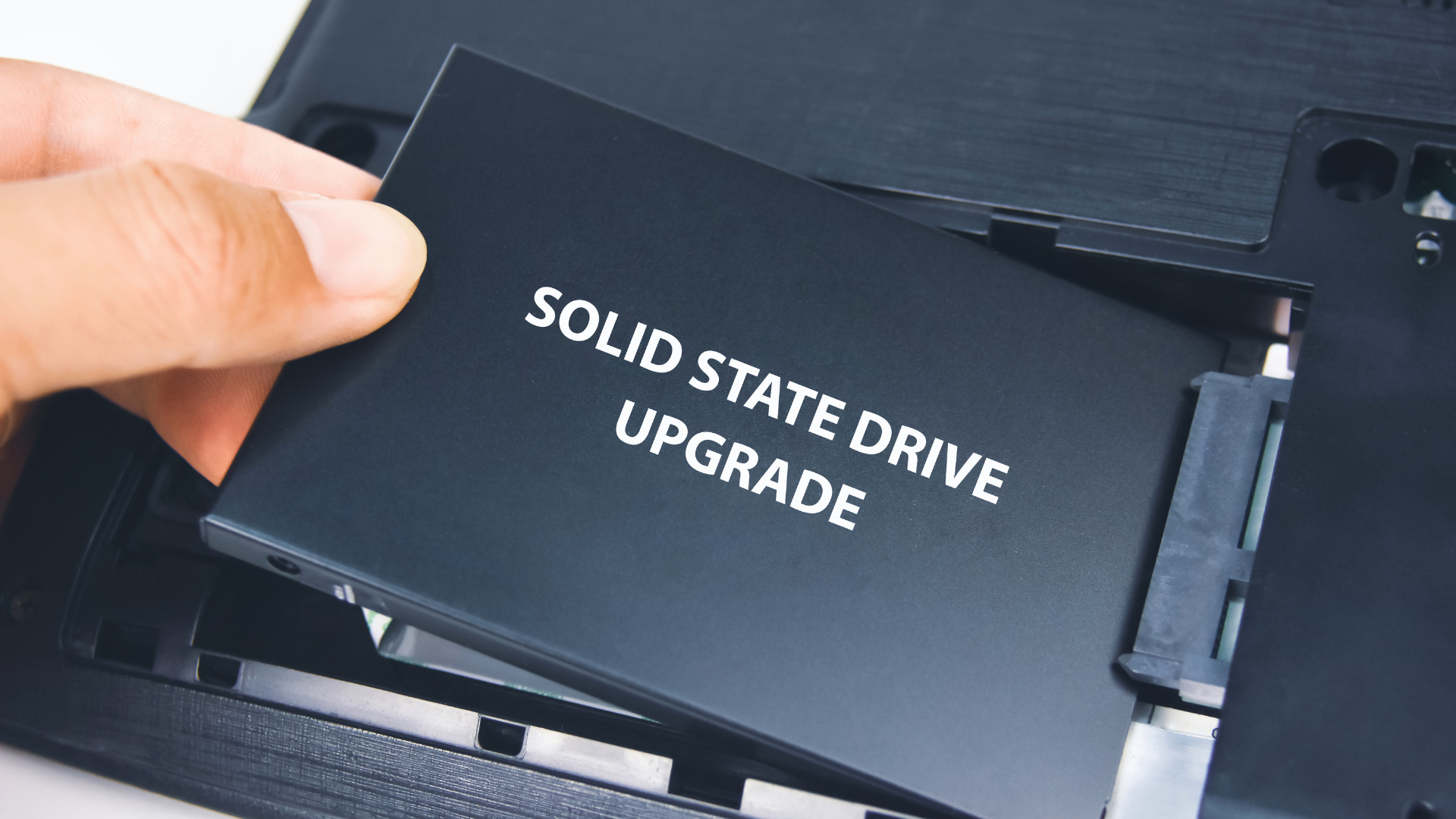
An SSD that slows down during a large game installation is not necessarily defective. Many drives accept short bursts of writes much faster than they can sustain a long uninterrupted transfer. A game launcher also depends on the network, CPU, source files, and available working space.
The first useful question is where the slowdown occurs. Does the download rate collapse while the disk is quiet? Does disk activity remain high at a low transfer rate? Does performance fall as drive temperature climbs? Each pattern points toward a different explanation.
Do not buy a heatsink or replace the SSD until you have separated those possibilities. The aim is to improve the slow stage of the installation, not the most impressive number in a storage benchmark.
Start by Separating Downloading From Installing
A launcher can report network throughput, disk throughput, progress through downloaded data, and progress through installed data. Those measurements are related, but they are not interchangeable.
Internet connections are also commonly advertised in megabits per second, while transfer tools often show megabytes per second. Before overhead, 800Mb/s corresponds to 100MB/s. A download near that rate cannot continuously feed an SSD at several thousand megabytes per second.
Compression adds another wrinkle. A relatively small downloaded stream can expand into a larger amount of installed data, so disk traffic can exceed network traffic. The CPU may need to unpack that stream before the drive receives the next batch.
If the launcher pauses downloading while local disk or CPU activity continues, the PC may simply be processing the data it already received. A zero on the network graph is not automatically a failure.
Cause 1: The SSD Has Used Its Fast Write Cache
Many consumer SSDs use part of their flash as a faster temporary write area. That cache can make small transfers feel extremely quick. A sufficiently large uninterrupted write can exceed it, after which incoming data is handled at a lower sustained rate.
The controller also needs to move previously cached data into its longer-term layout. Free capacity, recent writes, firmware, and the particular drive design affect how this behaves.
Research into SLC-cache behavior demonstrates why a bandwidth drop can occur after the cache fills. Its measured examples are specific to the tested configurations; they are not speed predictions for every consumer SSD.
The recognizable pattern is a quick beginning followed by a lower write plateau during a large job, without a matching thermal warning. Performance may be better again after the drive has had powered idle time to complete internal work.
A larger heatsink will not turn the underlying NAND into faster flash. If cache exhaustion is the cause, the practical fixes are more suitable capacity, fewer competing writes, or a drive chosen for the sustained workload you actually perform.
Cause 2: The Drive Is Reducing Speed to Manage Heat
SSDs contain controllers and flash that generate heat. Under a long workload, the controller may reduce performance to stay within its operating conditions. That behavior is commonly called thermal throttling.
Do not diagnose it from one temperature number. Utilities can expose a composite reading and separate controller or flash sensors, and the relevant limits differ by drive. Consult the manufacturer’s guidance for the model instead of applying a universal temperature threshold.
SSD manufacturer ATP describes how thermal management can adjust performance. The exact response is controller- and firmware-specific.
A stronger clue is a repeatable relationship: temperature rises, throughput drops at a similar point, and performance improves under the same workload when cooling is improved. A health utility that reports thermal throttling provides additional evidence.
When a heatsink helps
Use the motherboard’s appropriate M.2 heatsink if one is provided, following its mounting and thermal-pad instructions. Check that any protective film has been removed and that the pad actually contacts the intended surface without bending the drive.
Do not put a motherboard heatsink over an SSD’s factory cooler. Do not remove the SSD’s own label unless the manufacturer specifically tells you to. For laptops, use the system’s specified thermal arrangement rather than adding a bulky desktop accessory.
If the SSD sits beneath a hot graphics card in stagnant air, improving case airflow can help the whole area. Our guide to improving airflow in a prebuilt covers useful checks that do not require replacing every fan.
Cause 3: The CPU Is Busy Unpacking or Patching
A game installation is more than a file copy. The launcher may decompress archives, process changed data, calculate checksums, and construct new files. Some stages can be limited by one or a few CPU threads.
That means total CPU usage can look moderate while a critical thread is fully occupied. Watch the per-core or logical-processor view where available. A faster SSD cannot remove a CPU limit in the stage that prepares its next writes.
Our explanation of one CPU core reaching full utilization helps interpret the same misleading average in another context.
To reduce competing work, pause another launcher’s update and avoid heavy compression, rendering, or background transfers during the installation. This is a practical comparison, not a recommendation to disable essential system services.
Cause 4: The Source Cannot Feed the SSD Faster
If you are moving a game from another drive, the source’s read behavior matters. Copying from a hard drive, slow external enclosure, or network share can leave a much faster destination SSD waiting.
Even two fast SSDs can be constrained by the path between them. Several chipset-connected devices may share an upstream connection. An external enclosure can impose its own USB limit, and using the wrong port or cable can reduce it further.
Identify the entire path: source drive, enclosure if any, connection, destination slot, and competing devices. Our guide to M.2 slot selection explains the motherboard side.
Repeatedly copying files within the same SSD is also different from writing data supplied by another fast device. The one drive must handle both reads and writes, along with its internal management work.
Cause 5: Space Is Running Short
A nearly full drive can have less room for dynamic caching and internal housekeeping. Separately, the launcher may not have enough temporary capacity to finish the job.
Those are distinct problems. One can reduce sustained performance; the other can stop installation entirely. Our SSD free-space guide covers how to maintain a practical reserve.
For updates, check the launcher’s installation requirement rather than only the download size. Our explanation of temporary space during game updates shows why the numbers can differ substantially.
Free room using known, supported cleanup methods. Do not delete a patch’s working directory while the launcher is actively using it. A cleanup that breaks the installation can cost more time than it saves.
Match the Pattern to the Next Check
| Observed pattern | Possible limit | Next check |
|---|---|---|
| Fast start, then a steady lower write rate | Write cache exhausted | Drive model, free capacity, and recent sustained writes |
| Rate drops as temperature climbs | Thermal management | Sensor type, model limits, and heatsink contact |
| Disk waits while a CPU thread is busy | Decompression or patch processing | CPU activity and competing workloads |
| Transfer never exceeds source speed | Network or source drive | Read rate and connection limits at the source |
These are diagnostic clues, not proof. More than one limit can appear during a single installation. A network-limited download can become a CPU-limited unpack and then a cache-limited write.
A Short Troubleshooting Pass
Record the drive model, its free capacity, and the operation that feels slow. Pause other large transfers. Open the launcher’s progress view and a hardware-monitoring utility, then watch a normal installation you already need to perform.
Note when the rate changes and what the network, CPU, drive activity, and temperature are doing at that moment. You do not need to fill the SSD with repeated stress tests to gather useful evidence.
Make one relevant change and compare again. Create free space if capacity is tight. Correct a clearly improper heatsink installation if cooling is the issue. Move the source to a faster connection if an enclosure is the limit.
Check the SSD maker’s support page for a firmware issue that matches your symptom. For example, Crucial’s T500 support notes include changes concerning behavior when the SLC cache is full. That is a reason to consult model-specific release notes, not to install unrelated firmware or update blindly.
When Replacing the SSD Is Reasonable
A replacement makes sense when the drive no longer provides enough capacity, its sustained performance is inadequate for work you do regularly, or it develops faults that cannot be resolved through the manufacturer’s supported process.
Repeated disconnects, increasing media errors, or unexplained corruption are different from an ordinary post-cache slowdown. Protect important files before further troubleshooting if the drive shows those symptoms.
When shopping, compare the exact capacity you will buy. Different capacities in one product family can have different cache sizes and sustained behavior. Use our SSD guide to build a shortlist, then look for tests relevant to your long transfers rather than judging only peak sequential speed.
Frequently Asked Questions
Is 100% disk usage proof that the SSD is too slow?
No. Active time does not translate directly into a fixed MB/s figure. Many small operations, background work, or long response times can keep a drive busy at a modest throughput. Interpret it alongside the actual task.
Will a PCIe 5.0 SSD fix slow game downloads?
Only if the destination drive is the limiting stage and the replacement improves that workload. A network or decompression limit remains even with a much faster storage interface.
Does DRAM guarantee fast sustained writes?
No. Onboard DRAM often assists mapping and metadata work, but it is not a guarantee that long writes remain at the advertised maximum. NAND behavior, SLC caching, firmware, capacity, and cooling all matter.
