
A small game download can require a large amount of working space. Understanding the update process makes the error easier to fix.
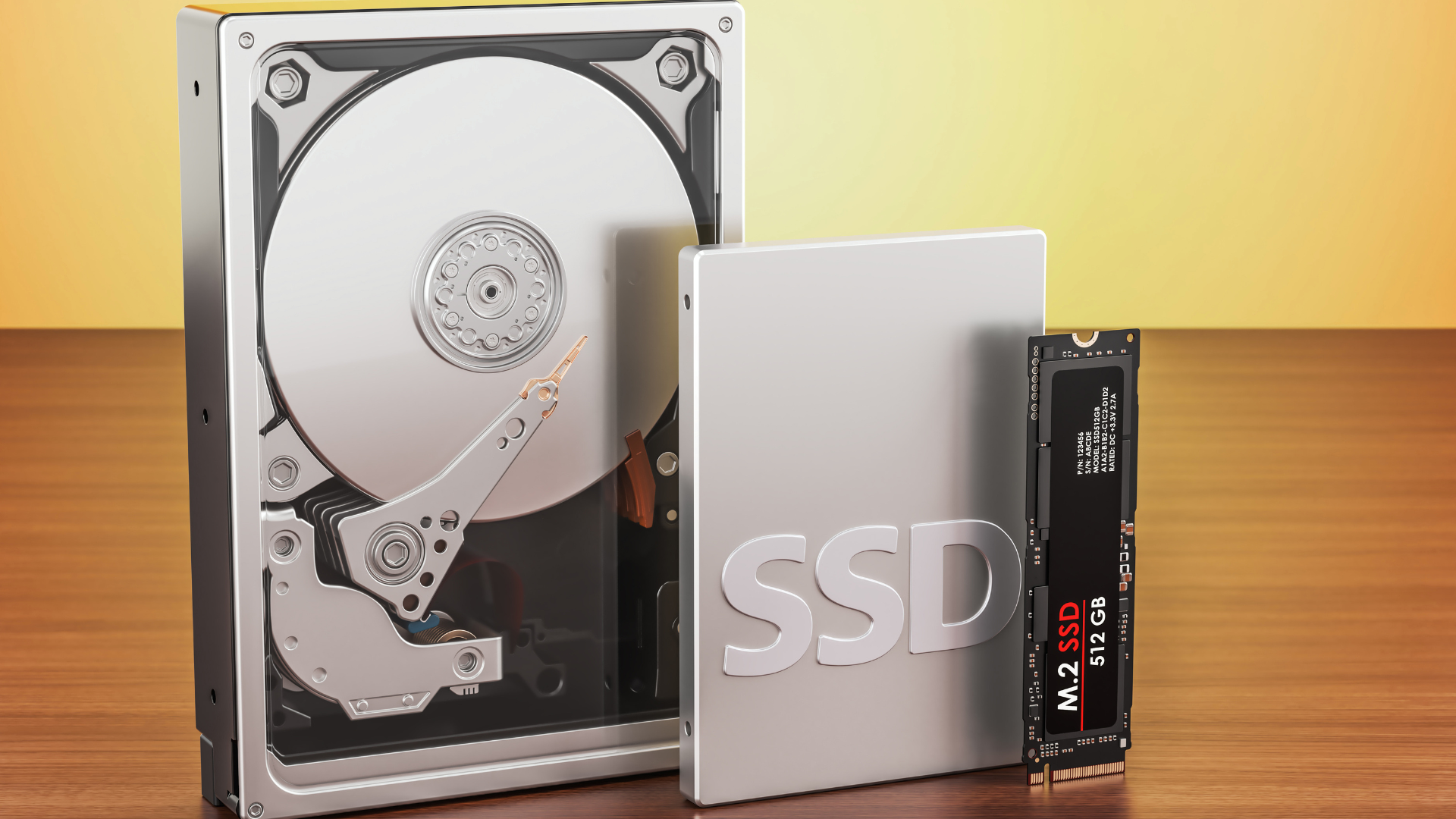
A game update can need far more free space than its download size because the launcher may have to unpack new data, rebuild large existing files, and keep the old versions until the replacements are ready.
The number beside “download” describes what arrives over the internet. It does not necessarily describe how much data the PC must read, rewrite, or hold temporarily. A small change inside a large archive can create a much larger disk operation.
Before deleting anything, identify the drive containing the game, the amount of space the launcher says it needs, and whether the update is still downloading or has moved on to installation. Those details determine the next useful step.
The Three Sizes That Matter
Download size
This is the data transferred to your PC for the update. Compression and differential patching can reduce that amount. A patch may download only changed portions instead of a complete replacement for the game.
A fast download is helpful, but it does not guarantee a fast update. Once the files arrive, the computer still has work to do.
Installed size
This is the space occupied by the game’s usable files after installation. It includes whichever components you have installed: perhaps the base game, expansions, optional texture packs, languages, or workshop content.
The installed size may grow after an update, stay almost unchanged, or shrink. None of those outcomes tells you the maximum space needed while the update is in progress.
Temporary working space
This is the extra room used while the launcher downloads, expands, verifies, and assembles the new installation. At some point, old and replacement data may exist at the same time.
A successful update can release much of that room afterward. Until then, the launcher needs enough space to finish the intermediate steps safely.
Why a Tiny Change Can Rewrite a Huge File
Games often group assets into large pack files. Changing a small piece inside one of those files can require building a replacement container rather than inserting a tiny standalone file beside it.
Valve documents that SteamPipe builds updated pack files alongside the old versions before committing the update. Its example shows why even a very small change inside a large pack can require substantial copying. See the SteamPipe update documentation.
The practical consequence is that a 2GB network download might touch tens of gigabytes on disk. The launcher’s disk-activity figure is therefore not necessarily contradicting its download figure. They can be measuring different work.
The exact behavior depends on how the developer packages assets and how the launcher applies updates. Do not assume every title needs a second full copy of the entire game, but do not assume the patch’s download size is the complete requirement either.
A Worked Example of Temporary Space
Imagine a hypothetical game update that downloads 2GB of compressed changes and rebuilds a 40GB asset file. If the launcher retains the downloaded patch while writing the replacement, it might need roughly 42GB of extra room during that stage, plus other overhead.
After replacing the old asset file and cleaning up the patch, the installed game might grow by only 1GB. All three observations can be true: a 2GB download, more than 40GB of temporary demand, and a 1GB increase after completion.
This is an illustrative workflow, not a prediction for a particular title. Launchers can stream, stage, or clean up data differently. Use the application’s own requirement when it provides one.
If you have only 15GB free, repeatedly restarting the same operation will not create the missing working space. You need to free capacity on the relevant volume, change the installation location through a supported method, or remove the game and reinstall it after protecting local data.
Read the Error Before Choosing a Fix
| What you see | What it may mean | First useful check |
|---|---|---|
| Not enough disk space | The target volume lacks required working room | Game location and free space on that volume |
| Download at zero; disk still busy | The launcher is unpacking, patching, or verifying | Disk activity and update-stage label |
| Disk write error | Capacity, permissions, file locks, or a drive problem | The exact error and whether other files can be written |
| Update repeatedly restarts | Incomplete data or another unresolved failure | Launcher logs, storage health, and available space |
A disk-write error is not interchangeable with a capacity error. If the drive has ample free space, do not keep deleting files without checking other causes.
Similarly, a stopped network graph does not prove the update has stalled. Many launchers alternate between fetching data and processing it locally. Watch the operation for evidence of progress before interrupting it.
Free Space on the Correct Drive
Open the game’s installation location from the launcher and identify the volume. Then check that volume’s properties in Windows. If you have several drives with similar names, match the actual path rather than guessing from the drive’s size.
Also check the system drive. Even when a game is installed elsewhere, the launcher or other supporting software may use Windows temporary locations. Having space on D: does not ensure C: has enough room for its own work.
Our guide to separate Windows and game SSDs explains why two drives need separate capacity management.
To remove data, start with things you understand: unused games, optional content managed by the launcher, old recordings, and duplicate download archives. Move important personal files only after confirming the destination has a readable copy.
For Windows cleanup, review the categories offered by Microsoft’s built-in storage tools. Avoid manually deleting active patch folders or unfamiliar system directories to force an update through.
Why the Update Is Still Slow After You Create Room
Free space makes the job possible; it does not ensure the job is fast. The launcher may be reading old data, decompressing new data, writing replacements, and verifying the results.
A drive can show high active time at a modest transfer rate because the workload involves many operations or substantial latency. A CPU can limit decompression while the SSD waits. Security software can add file-inspection work, and another launcher can compete for the same drive.
Pause unrelated downloads and transfers and repeat the observation. Do not disable security protections as a blanket performance tweak. If a particular file is blocked or quarantined, investigate the alert through the security software’s normal process.
If writes start quickly and then drop during a large job, read our guide to SSD slowdowns during large game installations. Write-cache exhaustion and thermal throttling require different responses.
Should You Uninstall and Download the Entire Game Again?
Sometimes a clean installation can be less frustrating than repeatedly patching a damaged or unusually slow existing installation. But it is a tradeoff, not the first step for every update.
A fresh download may be much larger, consume a data allowance, and still need temporary installation space. It can also remove locally modified files. Before uninstalling, confirm the location of saves, mods, screenshots, and settings you want to keep.
Where the launcher supports it, try its file-verification or repair option first after resolving the stated space problem. Verification can also require replacement downloads, so keep room available for that operation.
If the game lives on a cramped drive, moving it to a larger suitable drive may address the recurring problem more effectively. Our walkthrough for adding a second SSD for Steam games covers that option.
Plan Capacity Around Your Largest Regular Update
Do not size the drive so the current library barely fits. Think about the games you keep installed together and how often their updates ask for additional room.
Our gaming-SSD free-space guide uses a rough operating reserve alongside the actual needs of the next large task. That is more useful than a universal promise that a certain percentage will handle every update.
If you routinely delete one game to update another you still play, the active library may have outgrown the drive. At that point, compare appropriate capacities in our SSD buying guide.
A faster but equally cramped replacement may not fix the problem. Capacity and update throughput are separate buying decisions. Spending extra on a newer PCIe generation is less helpful if you still cannot stage the files.
Frequently Asked Questions
Why does a 5GB update say it needs 80GB?
The 5GB can be the compressed or differential download, while 80GB is the room needed to rebuild and stage affected files. Check the launcher’s wording. Those numbers can describe different stages rather than an error in the calculation.
Will the update permanently use all that extra space?
Not necessarily. Temporary patch and replacement data can be removed after the update commits. The final installed size depends on the content changes. If space remains unexpectedly occupied after completion, use the launcher’s supported cleanup or repair process.
Can I put temporary update files on another drive?
Only when the launcher or application supports that configuration. Do not assume moving Windows’ temporary folder changes the game’s patch-staging location. Moving the whole game through its launcher is often easier to understand and maintain.
Does this mean the SSD is failing?
A space requirement by itself does not indicate failure. Repeated write errors, disappearing drives, corrupted files, or health warnings deserve investigation after protecting important data. Distinguish those symptoms from an ordinary capacity shortage.
Should I interrupt an update if the download stops?
First check whether disk or CPU work continues and whether the launcher says it is installing or verifying. If it is making progress, let it finish. Use the launcher’s pause or cancel controls when necessary instead of abruptly powering down the PC.
