
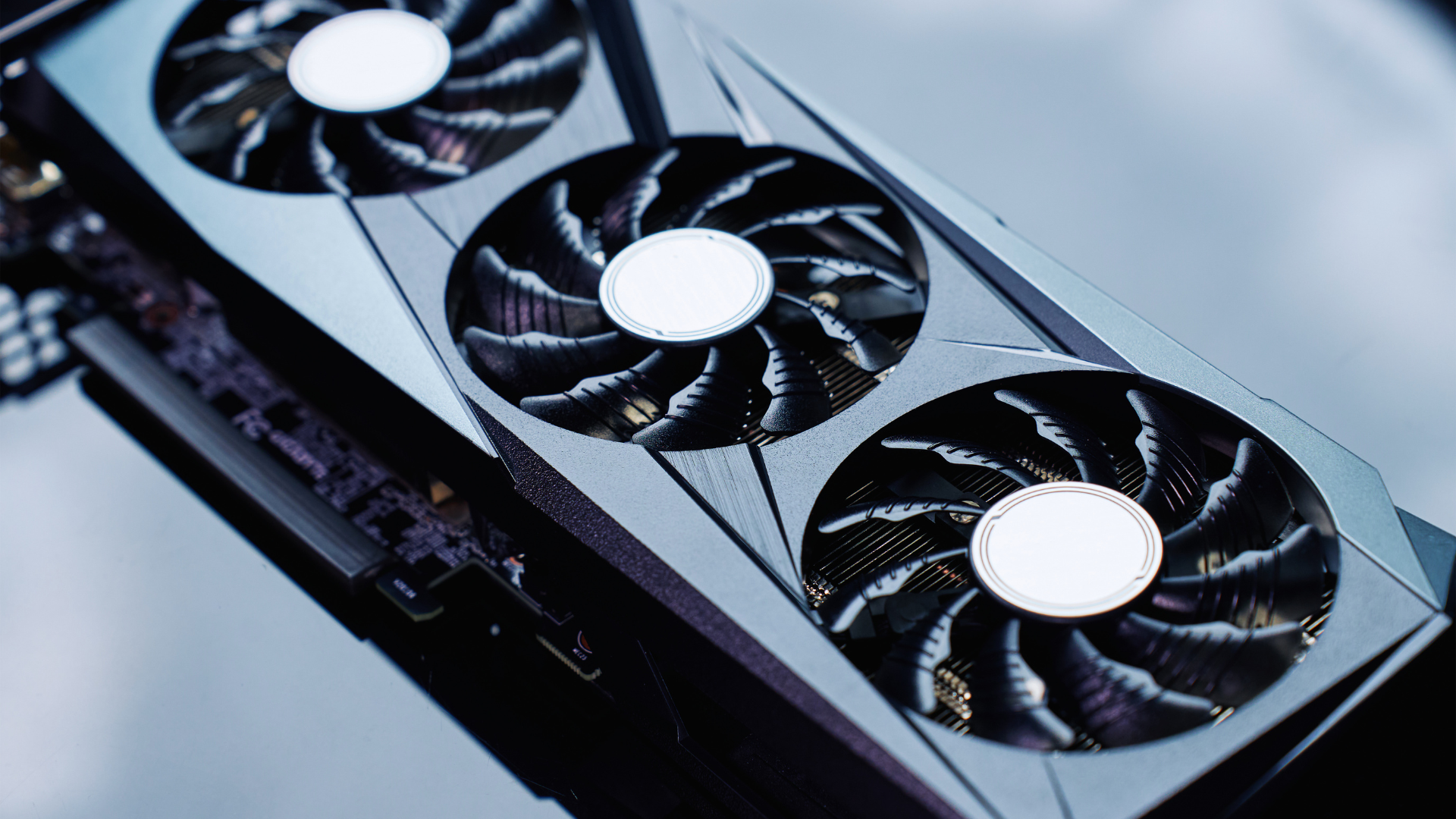
NVIDIA’s video decode support matrix has a row for the GeForce RTX 2080 Ti, the top card in the GeForce RTX 20 series, and both of its AV1 columns read NO. The row for the RTX 3050, the lowest-numbered desktop card of the generation that followed, reads YES in both.
That gap explains a complaint that sounds backwards. A PC that runs new games at high frame rates can still drop frames on a live stream in a browser tab because video relies on different parts of the machine than games do.
What determines a smooth live picture is a short chain: the decoder on the graphics card, the route the browser opens to it, the monitor’s refresh rate, the network link, and whatever else is competing for the same hardware. The checks below follow that chain, from free settings to the one upgrade that’s sometimes worth paying for.
Gaming Speed Doesn’t Decide Which Codecs a Card Can Decode
Microsoft’s DirectX team describes a GPU as a set of engines: independent units of silicon that can run in parallel. Games load the 3D engine, but video can bypass it. The team notes that playing a video may not use the 3D engine at all in some cases and that a driver can hand a clip to a dedicated video decode engine.
Each decode engine supports a specific set of formats, which the vendors publish. H.264 is close to universal: every GeForce in NVIDIA’s matrix that has a decoder, going back to the Maxwell generation, handles it. VP9 is patchier. The GTX 950 and 960 decode it in hardware, while the higher-numbered GTX 970, 980, and 980 Ti from the same Maxwell family don’t.
AV1, the newest of the three codecs, mostly splits cards by generation, with one awkward exception from AMD:
| Card or graphics | Family | AV1 hardware decode | Listed by |
| GeForce GTX 1660 Super | Turing | No | NVIDIA decode matrix |
| GeForce RTX 2080 Ti | Turing | No | NVIDIA decode matrix |
| GeForce RTX 3050 | Ampere | Yes | NVIDIA decode matrix |
| Radeon RX 6500 XT | Radeon RX 6000 | No | AMD spec page |
| Radeon RX 6600 | Radeon RX 6000 | Yes | AMD spec page |
| Intel UHD Graphics 630 | 9th Gen Core | No | Intel media reference |
| Intel Iris Xe Graphics | 11th Gen Core | Yes | Intel media reference |
| Intel Arc A-series | Arc discrete | Yes | Intel media reference |
On the NVIDIA side, the line is clean: the matrix shows AV1 decode on every GeForce RTX 30, 40, and 50 card it lists and on none of the Turing cards. Mozilla’s list looked much the same in May 2022, when Firefox 100 switched on hardware AV1 decoding for Windows with “Intel Gen 11+, AMD RDNA 2 Excluding Navi 24, GeForce 30” graphics. Its release notes added that Windows users might also need Microsoft’s AV1 Video Extension from the Microsoft Store.
A card without that block can still play AV1, but the browser decodes it in software on the CPU, where it competes for resources with a running game or a second stream in another tab.
Browsers Fall Back to the CPU Without Telling You
Hardware decoding only happens when the browser agrees to use it, and ordinary events can stop that from happening. One is a switch somebody flipped on purpose. YouTube’s help page for a green video player tells Chrome users to open Settings, then Advanced, then System, and turn hardware acceleration off. That’s a fair fix for one glitch, but the switch stays off afterward, and video in that browser continues to decode on the CPU until someone remembers to turn it back on.
Chrome can also decline to use hardware acceleration on its own. Chromium’s developer documentation says that when the about:gpu page reports the GPU as disabled and hardware acceleration as unavailable, the GPU may simply be unsupported. A command-line flag can override Chrome’s GPU blocklist, but YouTube’s help page suggests a safer step: update the graphics driver, which it says may correct many of these problems.
Format choice adds another layer. The W3C’s Media Capabilities specification lets a site ask the browser, before it picks a stream, whether a format will decode smoothly and power-efficiently on the machine. It also tells browsers not to mark hardware decoding as power efficient by default because software codecs can be just as efficient, particularly with low-resolution video. So, a small webcam feed decoded on the CPU is rarely the problem, while a 1440p stream at 60 frames per second asks the software path to rebuild roughly eight times as many pixels each second as a 720p feed at 30 fps.
A Tab With No App Behind It Inherits All of This
Those settings matter most for services that exist only in a browser tab. An installed app can ship with its own player, while a web page gets whatever route the browser has to your decoder.
Video calls are the everyday case. Chrome’s developers wrote that starting with Chrome 113, any WebRTC app could use a much faster AV1 encoder, and that Google Meet had tested AV1 on connections as slow as 40 kbps. Every AV1 frame a call sends still has to be decoded at the other end by whatever GPU, or CPU, the other person’s browser can reach. On a GTX 1660, that means software decoding.
Live-dealer tables are another type of stream people run in a browser on a desktop PC: a real dealer at a real table, streamed as each round plays out. Several sweepstakes platforms have no downloadable app at all and run entirely in the browser, so on a PC, the tab itself is the player.
The sweepstakes casino reviews at Legal Sports Report track that detail platform by platform, noting whether a site has a downloadable app or works in the browser and whether its lobby carries live dealer games. These platforms are for adults and are restricted in some states.
A 144 Hz Monitor Can’t Split a 60 fps Stream Evenly
Decoded frames then meet the monitor’s refresh clock, and a gaming monitor’s clock can be the wrong one for live video. RTINGS explains the resulting judder using film on TVs. A 60 Hz set showing 24 fps footage holds frames alternately for two refreshes and three refreshes, so some stay on screen for 33 ms and others for 50 ms, making motion appear jerky. A 120 Hz panel avoids this because 24 divides evenly into 120 five times.
Run the same calculation on a PC. One refresh at 144 Hz lasts 6.94 ms, and a 60 fps stream would need 2.4 refreshes per frame. A fixed-refresh display can’t show a fraction of a refresh, so out of every five frames, three are held for two refreshes (13.9 ms) and two are held for three (20.8 ms). A 30 fps stream lands at 4.8 refreshes per frame, resulting in a mix of four and five, while 165 Hz turns 60 fps into 2.75. Oddly, 144 Hz handles 24 fps film evenly at six refreshes per frame.
The unevenness is milder than a TV’s 33-to-50 ms judder, and RTINGS says most people won’t notice judder at all. It is most visible during motion that should look smooth, such as a slow camera pan.
The dependable fix is free. Windows lists every refresh rate the monitor offers under Settings, System, Display, Advanced display. Pick 120 Hz or 240 Hz if the panel offers either, since both divide evenly by 30 and 60, and switch back before a gaming session if you want the extra frames.
Variable refresh rate sounds like the better answer because G-Sync and FreeSync adjust the monitor’s refresh rate on the fly to match the GPU’s frame rate. Microsoft’s refresh-rate guidance frames VRR around games, though, noting that many popular titles use it automatically. For a stream in a browser window, a fixed 120 Hz is the safer choice.
Wi-Fi 7 Needs the Right Card and Windows Build to Deliver
Live video cares about when packets arrive, not just how many arrive, and the Wi-Fi Alliance’s pitch for recent generations reflects that. It credits Wi-Fi 6’s OFDMA with sharing channels efficiently to lower latency. It sells Wi-Fi 7, introduced in 2024, on lower latency and greater reliability, and it pitches the generation after that on deterministic, low latency across a wide range of signal conditions. For now, a cable takes the radio connection out of the equation, and for a desktop within reach of the router, it’s still the first choice.
The newer standard’s feature aimed at improving consistency is multi-link operation, or MLO, which the Alliance says balances traffic across links for higher throughput and better reliability. Getting it on a Windows PC takes more than a new router. PCWorld reported in July 2025 that, according to Microsoft, only Windows 11 version 24H2 and later officially support Wi-Fi 7, and that Intel’s driver download for its BE200, BE201, and BE202 modules ties their Wi-Fi 7 features to that same version.
On older Windows 11 builds, PCWorld explained that a laptop with an Intel adapter connects to a Wi-Fi 7 router over 6 GHz at 160 MHz rather than 320 MHz and can’t use MLO, leaving it behaving more like Wi-Fi 6E. Windows 10 doesn’t support the standard at all. To check a machine, run netsh wlan show drivers in a terminal. 802.11be, the standard’s formal name, should appear under Supported Radio Types.
The Browser Already Counts Your Dropped Frames
Before blaming any single component, let the browser report where the frames went. For WebRTC streams such as calls, Chrome shows live statistics at chrome://webrtc-internals, and the page captures the most useful information when it’s opened before the session starts. The W3C’s WebRTC statistics specification defines what those counters mean.
The framesDropped counter tallies frames the receiving browser discarded, either before decoding or because they missed their display deadline. A second counter, freezeCount, logs a freeze whenever the gap between two rendered frames reaches three times the recent average frame duration or that average plus 150 ms, whichever is larger. At 30 fps, that’s a gap of roughly 183 ms. Dividing totalDecodeTime by framesDecoded gives the average decode time per frame, and once that creeps toward the frame interval — 16.7 ms at 60 fps — the decoder is running out of room.
Task Manager covers the rest. It shows four GPU engines by default, and Microsoft’s DirectX team explains that any graph can be switched to another engine, so select Video Decode and start the stream. Activity there means the hardware decoder is working. A flat line while CPU usage climbs points to software decoding, though the same explainer warns that a driver may decode some formats on the compute engine, so check that graph as well.
Upgrade the Decoder Before Anything Bigger
Hardware only enters the picture once the free fixes are done and the counters still point to the decoder.
The table then makes the call. A GTX 1660 Super or an RTX 2080 Ti decodes H.264 and VP9 in hardware but leaves AV1 to the CPU. The RX 6500 XT, which AMD lists with H.264 decode, has no AV1 decoder either. For an H.264 stream, all three already have the decoder they need.
The question to ask before spending anything is narrow: Does the Video Decode graph move when the stream plays? If it does and frames still drop, the refresh rate and network connection are the next suspects. If it stays flat on a card marked No in that table while an AV1 stream plays, the fix is a newer decoder rather than a faster card. The RTX 3050 and RX 6600 rows show that it doesn’t take a high-end card to get one.
