
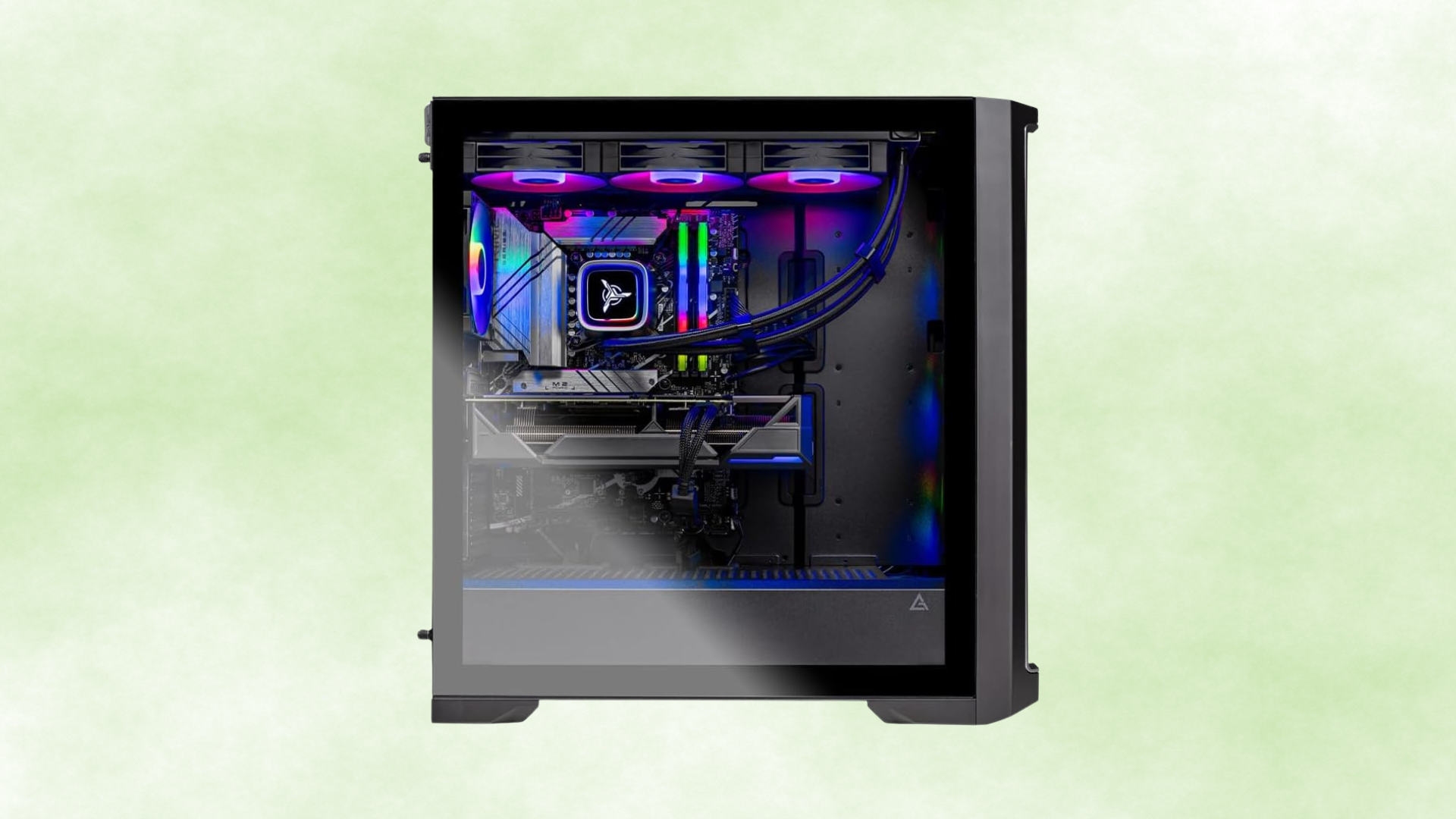
A good prebuilt gaming PC is more than a fast processor and graphics card. The memory configuration, power supply, motherboard, cooling, storage, warranty, and upgradeability all affect whether the computer is a good purchase.
Unfortunately, product pages do not give every component equal attention. A seller may put the CPU and GPU in the title, list the amount of RGB lighting in the description, and reduce the power supply to a single wattage figure. That makes two systems at the same price difficult to compare.
This guide gives you a repeatable way to evaluate a prebuilt gaming PC before buying. You can use it for a budget desktop, a $1,000 midrange system, or a high-end machine. The performance target changes, but the questions remain largely the same.
Prebuilt Gaming PC Buying Checklist
Before placing an order, make sure you can answer each of these questions:
- What are the exact CPU and graphics card models?
- Does the GPU suit my monitor’s resolution and refresh rate?
- How much VRAM does the graphics card have?
- Is the memory installed in dual-channel mode?
- Is the SSD large enough, and can I add another drive?
- What are the power supply’s brand, model, wattage, and connectors?
- Can the case draw in cool air and exhaust hot air?
- Are the motherboard, power supply, and case standard or proprietary?
- What can I upgrade without replacing several other parts?
- How long is the warranty, and who pays return shipping?
- What is the return window and restocking policy?
- Do independent reviews confirm the advertised performance?
If several answers are missing, do not assume the best. Ask the seller or choose a system whose specifications are documented clearly.
Start With Your Games, Monitor, and Performance Goal
The same prebuilt can be excellent for one buyer and disappointing for another. A PC intended for a 1080p 144Hz monitor needs a different balance than one intended for a 4K television. A competitive player may prioritize CPU performance and high 1% lows, while a single-player gamer may prefer a stronger graphics card and more VRAM.
Write down the monitor resolution, refresh rate, and three to five games you play most. Then choose a realistic performance target, such as:
- 1080p at 60 FPS with high settings;
- 1080p at 144 FPS in competitive games;
- 1440p at 60–100 FPS with high settings; or
- 4K at 60 FPS with optimized settings and upscaling.
This turns “Is this a good gaming PC?” into a question you can answer. If you are shopping near the $1,000 mark, our guide to expected FPS from a $1,000 gaming PC provides a useful starting point.
Verify the Exact Graphics Card
The graphics card usually has the greatest effect on gaming performance, so its full model name must be clear. “GeForce RTX graphics,” “Radeon graphics,” and “8GB gaming GPU” are descriptions, not useful specifications.
Watch for naming details that identify a different performance tier. A desktop GPU and similarly named laptop GPU are not interchangeable, and cards in the same product family can have different VRAM capacities or specifications. If a listing uses a photo of one card but names another in the text, rely on neither until the seller confirms the configuration.
Compare independent benchmarks of the exact GPU at your resolution. Look at several games, not only the one result highlighted by the manufacturer. Our list of the best graphics cards for gaming can help you understand where a GPU sits relative to other current options.
Check VRAM in Context
Video memory affects the textures, assets, and rendering workloads a graphics card can hold locally. Too little VRAM can cause stutter or force you to reduce texture quality, especially at higher resolutions.
More VRAM does not automatically mean more performance. The GPU itself must be fast enough to use the capacity. Compare both the model and memory amount, then consult our explanation of how much VRAM you need at each resolution.
Read the Complete CPU Model, Not the Tier
Labels such as “Core i7” and “Ryzen 7” indicate a product tier within a generation. They do not tell you the chip’s age or exact performance. A newer mid-tier processor can outperform an older high-tier model in gaming while consuming less power.
Search for the full model number and compare it with current alternatives. For most gaming-first prebuilts, a modern six-core processor is a sensible baseline. More cores can be valuable for streaming, video editing, 3D rendering, software development, and other parallel workloads, but they should not force the system to use a much weaker GPU.
Also determine whether the processor is a full desktop part and whether the motherboard allows it to operate normally. Compact or budget OEM systems may apply conservative power limits. Independent reviews that include sustained workloads and temperature testing can reveal behavior the specification sheet does not.
Our gaming CPU guide gives you a current comparison point for the exact model in a prebuilt.
Inspect the RAM Configuration
A listing that says “16GB RAM” is incomplete. You need to know whether that means one 16GB module or two 8GB modules.
Two matched modules normally enable dual-channel operation and provide more memory bandwidth. A single module can reduce performance in CPU-sensitive games, making the CPU and graphics card look slower than they are. At this budget, 16GB in dual-channel mode is the minimum I would target, while 32GB is preferable for heavy multitasking, mods, streaming, and longer-term use.
Check the memory generation, rated speed, and number of motherboard slots. If the system has only two slots and both are occupied, a future capacity upgrade requires replacing the existing kit. If the board has four slots, you may have more options, although using a matched kit is still the safest approach.
Some prebuilt motherboards do not support XMP or EXPO memory profiles. High-speed memory may therefore run at a lower standard speed. Look for a review or manual that shows which memory controls the BIOS exposes.
Evaluate the Storage, Not Just the Word “SSD”
A gaming PC should use an SSD as its primary drive. At around $1,000, a 1TB NVMe SSD is a practical baseline. A 500GB drive can work, but large game installations will consume it quickly.
Do not pay a large premium for a flagship SSD in a gaming-first machine if that choice reduces GPU performance or capacity. Drive speed affects startup, installation, file transfers, and loading behavior more than it affects frame rates.
Check expansion options. An open M.2 slot is the cleanest way to add another NVMe drive. SATA connectors and 2.5-inch mounting locations are also useful. If the product page does not show the motherboard model, an interior photo or service manual may reveal the available slots.
Demand Details About the Power Supply
The power supply is not an exciting marketing feature, but it affects reliability, noise, safety, and future GPU upgrades. A listing should ideally identify its manufacturer and model—not only “600W” or “80 PLUS Gold.”
An efficiency certification is useful, but it does not evaluate every aspect of electrical performance or component quality. Look for professional testing or choose a unit from a well-established product line. Confirm that its capacity is appropriate for the CPU and GPU and that it includes the necessary connectors without questionable adapters.
If you cannot identify the PSU before purchase, count that uncertainty against the system. A cheap unknown power supply can erase the apparent savings if you need to replace it immediately. Our guide to the best gaming PC power supplies explains what to look for beyond wattage.
Check the Case and Cooling Layout
Look at the case from the front, side, and rear. Cool air needs a path in, and hot air needs a path out. A mesh front panel or large unobstructed intake vents are positive signs. Fans mounted behind a solid glass or plastic panel with narrow side gaps may struggle to feed a high-power GPU.
A conventional layout with front or bottom intake and rear or top exhaust is easy to understand and maintain. The exact fan count matters less than the airflow path, but one small exhaust fan in an otherwise sealed case is not an encouraging setup.
Then evaluate the CPU cooler. A mainstream CPU can work well with a decent air cooler; liquid cooling is not automatically better. A small radiator or decorative cooler in a poorly ventilated case may run hotter and louder than a simple tower cooler in a mesh case.
Independent temperature and noise tests are valuable here. Product photos show what the cooling system looks like, not how it performs after 30 minutes of gaming.
Look for Standard, Upgradeable Components
A prebuilt that uses standard components is easier to repair and improve. Check whether the motherboard follows a common form factor, the power supply uses normal dimensions and connectors, and the case accepts full-size replacement parts.
Proprietary components are not automatically unreliable, but they can create a chain of dependencies. A custom motherboard power connector may stop you from replacing the PSU; the custom PSU may then prevent a graphics-card upgrade. An unusual front-panel connector can make a motherboard swap impractical without also replacing the case.
If future upgrades matter, read our guide on what you can upgrade in a prebuilt gaming PC. A product manual and clear interior photos are often more informative than a long marketing description.
Compare the Price With a Similar Custom Build
A prebuilt does not have to match the raw parts cost of a self-built PC. The price also covers assembly, operating-system setup, system-level support, warranty handling, packaging, and the convenience of receiving a ready-to-use computer.
Still, a comparable parts list helps reveal where the manufacturer spent or saved money. Use the same CPU and GPU first, then choose similar memory capacity, storage, motherboard features, PSU quality, case airflow, and cooling. Do not compare a well-documented retail PSU with an unknown OEM unit as though they have equal value.
Our current $1,000 gaming PC build is a useful benchmark for systems in that price range, while our overview of gaming PC build costs can help at other budgets.
Examine the Warranty and Return Policy
Read the warranty before buying, especially for a PC shipped by a marketplace seller rather than the manufacturer. Confirm the coverage length for parts and labor, whether on-site or depot service is offered, and who pays shipping if the system needs repair.
Then check the retailer’s return window, restocking fee, and dead-on-arrival policy. A computer can pass quality control and still arrive with a loose graphics card, damaged case, or failed component. A straightforward return policy reduces the risk of buying a prebuilt online.
Find out whether normal upgrades are allowed and whether the original parts need to be reinstalled for service. Even when upgrades are permitted, damage caused during an installation generally will not be covered. Keep the original packaging at least until the return period ends; shipping a desktop safely without its fitted foam can be difficult.
Use Reviews Carefully
User reviews are helpful for spotting repeated quality-control, support, noise, or shipping problems. They are less reliable for comparing technical performance when reviewers use different games, settings, monitors, and expectations.
Professional reviews should test the exact configuration whenever possible. A review of the same case with a different GPU, cooler, and PSU cannot confirm the performance of the model you are buying. Check publication dates as well, because manufacturers sometimes change internal components while keeping the same product name.
When reading benchmarks, record the resolution, graphics preset, ray-tracing setting, upscaling mode, and test CPU. Compare average frame rates and 1% lows. A high average can still feel uneven if the slower frames are inconsistent.
Common Prebuilt Red Flags
- The exact CPU or GPU is omitted.
- A high-tier but old CPU is used to make the system sound current.
- The machine has one memory module or only 8GB of RAM.
- The primary drive is 500GB or smaller at a midrange price.
- The PSU is completely unidentified.
- The intake fans are pressed against a solid front panel.
- Interior photos are unavailable and the service manual cannot be found.
- The seller highlights RGB, included peripherals, or “Wi-Fi gaming” instead of core parts.
- The warranty is handled by an unfamiliar third-party seller with unclear contact information.
- The sale price is compared with an unrealistic list price to create false urgency.
One compromise does not necessarily ruin a PC. A small SSD is easy to fix; a proprietary platform with a weak PSU and poor airflow is much harder. Rank the shortcomings by how expensive they will be to correct.
How I Would Score a Prebuilt Gaming PC
| Category | Share of Decision | What Earns a Strong Score |
|---|---|---|
| Gaming performance | 35% | Balanced CPU/GPU performance at your resolution |
| Supporting components | 20% | Dual-channel RAM, adequate SSD, documented PSU |
| Cooling and noise | 15% | Ventilated case, reasonable temperatures, tolerable noise |
| Upgradeability | 15% | Standard parts, open slots, PSU and space headroom |
| Warranty and support | 10% | Clear coverage, responsive support, practical shipping terms |
| Appearance and extras | 5% | A design you like without sacrificing the categories above |
You can adjust the weights for your priorities, but separating the categories prevents one impressive component from dominating the decision. It also makes two similarly priced systems much easier to compare.
Frequently Asked Questions
What is the most important part of a prebuilt gaming PC?
For most gaming-focused buyers, the graphics card has the largest effect on performance. It still needs a capable processor, dual-channel memory, adequate power, and sufficient cooling. A strong GPU does not make the rest of the computer irrelevant.
How much RAM should a prebuilt gaming PC have?
Sixteen gigabytes in dual-channel mode is a practical minimum, while 32GB is a better target for demanding games, mods, streaming, and heavy multitasking. Verify the module configuration rather than looking only at total capacity.
Is it safe to buy a prebuilt with an unknown power supply?
It introduces avoidable uncertainty. Ask for the PSU brand and model or look for a professional teardown of the exact system. If you plan to replace the unit, confirm first that the case and motherboard use standard dimensions and connectors.
How much more should a prebuilt cost than the parts?
There is no universal percentage. Assembly, Windows licensing, warranty service, support, sales, and component availability all affect the premium. Compare the complete configuration and decide what the convenience and support are worth to you.
How long should a prebuilt gaming PC last?
A balanced midrange system can provide roughly three to five years of strong gaming performance and remain useful longer with settings adjustments or targeted upgrades. See our full guide to how long a $1,000 gaming PC should last.
Bottom Line
To evaluate a prebuilt gaming PC, begin with performance in your games at your monitor’s resolution. Then inspect the details that marketing pages minimize: memory layout, SSD capacity, PSU identity, cooling, standard components, upgrade headroom, warranty terms, and return policy.
A good prebuilt does not need the best part in every category. It needs a sensible balance, transparent specifications, and no hidden compromise expensive enough to erase the convenience of buying it assembled. If the seller will not give you enough information to make that judgment, that is useful information by itself.
