
An M.2 upgrade can change your GPU’s PCIe connection. Here is how to tell whether it will happen on your motherboard.
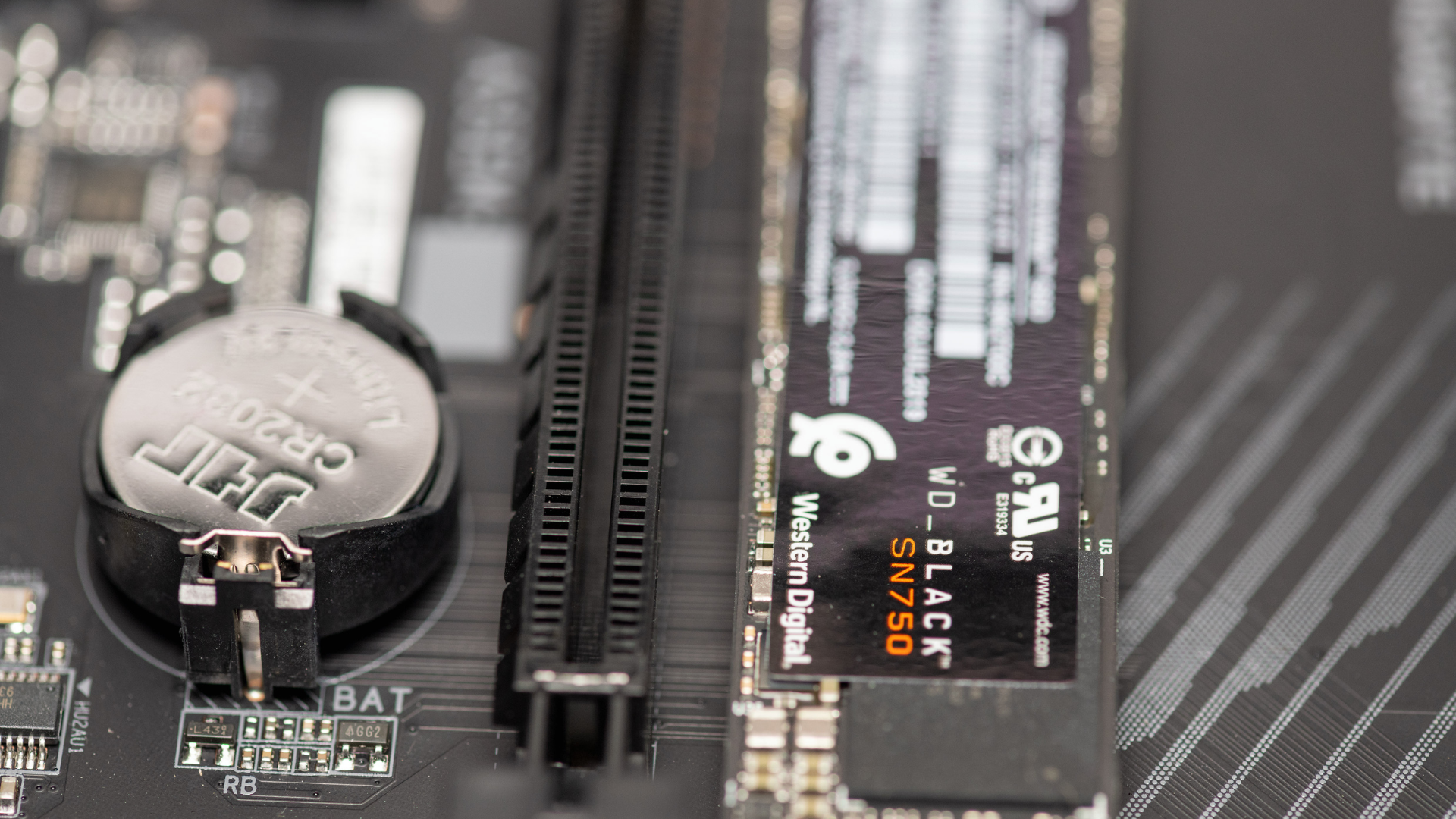
Adding an M.2 SSD can reduce the number of PCIe lanes available to a graphics card on some motherboards. It does not happen on every board, and it does not mean an SSD automatically cuts gaming performance in half.
The important distinction is between sharing physical lane resources and sharing an upstream connection. One arrangement can change the GPU from x16 to x8. Another leaves the graphics connection alone while several chipset devices share bandwidth elsewhere.
You can usually identify the arrangement before buying anything. Find the motherboard’s expansion and storage footnotes, match them to your processor, and check the particular M.2 socket you intend to use. This guide focuses on that interaction; our guide to choosing an M.2 slot for a gaming SSD covers the broader installation decision.
Why an SSD Can Affect a Graphics Connection
A processor and chipset provide a finite set of connections. Motherboard designers decide how those resources reach graphics slots, storage sockets, USB controllers, networking, and other hardware.
A motherboard may dedicate one set of CPU lanes to the main graphics slot and another set to a primary SSD. In that configuration, installing a drive in the dedicated storage socket need not alter the graphics connection at all.
To offer more high-speed storage sockets, another design can route some graphics-related lane resources to M.2 connectors. Occupying a shared socket then changes the supported configuration. The board may run the graphics slot at x8 while making additional lanes available for storage.
This is a deliberate hardware tradeoff. It is not the SSD stealing bandwidth unpredictably each time it loads a file. Depending on the board, merely populating the relevant socket is enough to trigger the narrower graphics connection.
Three Sharing Arrangements That Are Easy to Confuse
| Arrangement | What changes | Likely concern |
|---|---|---|
| M.2 shares resources with the main GPU slot | The GPU can negotiate fewer lanes | Available graphics-link bandwidth |
| M.2 connects through the chipset | Several devices share the chipset’s upstream link | Simultaneous transfers between devices |
| M.2 shares with another connector | A SATA port, secondary slot, or USB feature changes | Availability or speed of that specific device |
These arrangements can coexist on the same motherboard. One M.2 socket might use dedicated CPU storage lanes, another might share with the GPU, and a third might affect a lower expansion slot.
That is why “this board has four M.2 slots” does not answer the compatibility question. You need the conditions attached to those slots.
A Real Example: Read the Footnote, Not Just the Feature List
ASUS lists a sharing relationship between M.2_2, M.2_3, and the primary PCIEX16(G5) connection on the original ROG Strix X870E-E Gaming WiFi. Its specifications describe an x8 graphics configuration when the shared storage sockets are populated. The CPU family also affects which storage sockets are supported. See ASUS’ exact specifications rather than transferring this rule to a similarly named revision.
By comparison, MSI documents different sharing on the MAG X870 Tomahawk WiFi: M2_2 interacts with USB4 resources, while M2_3 interacts with a secondary expansion slot. See MSI’s storage footnotes.
The useful takeaway is that the chipset name alone is insufficient. Two boards in a similar class can make different expansion tradeoffs. Our X870E motherboard guide is a starting point for selecting a board, but the final drive layout should always be checked against the chosen model’s documentation.
Does x8 Mean Half the FPS?
No. At the same PCIe generation, x8 offers half as many lanes as x16, but a graphics card does not continuously need the maximum theoretical transfer capacity of its connection.
Much of the data used to render frames is already in the card’s VRAM. The GPU performs its rendering work locally. Reducing the host connection therefore does not halve shader resources, memory bandwidth inside the GPU, or the graphics chip’s clock speed.
The effect depends on the GPU, game, resolution, memory use, and negotiated PCIe generation. A workload that moves substantial data across the bus can be more sensitive than one whose working data fits comfortably in local graphics memory.
This is also why an x8 result on one card does not predict the same result on every other card. Some GPUs are designed with an x8 host interface from the start. Seeing x8 on such a model may be its normal full-width connection.
Generation and Width Must Be Read Together
PCIe 5.0 x8 has approximately the same theoretical one-direction link bandwidth as PCIe 4.0 x16. That comparison helps interpret the label, but it does not make different generations universally interchangeable in real applications.
Most importantly, a PCIe 4.0 graphics card cannot negotiate Gen5 signaling because it is installed in a Gen5 motherboard. If that card is assigned eight lanes, its connection is Gen4 x8, not Gen5 x8.
Likewise, a riser cable or an older platform setting can introduce another limit. Read the current generation and width together under load. For a broader explanation, see PCIe 4.0 versus PCIe 5.0 for graphics cards.
A useful note might read “GPU supports Gen4 x16; currently running Gen4 x8 during a game.” Writing only “x8” loses the context needed to decide whether anything is wrong.
How to Check Your PC Before and After an SSD Upgrade
Record the starting configuration
Before installing the drive, note your graphics-card model, processor, motherboard, occupied M.2 sockets, and any expansion cards. Check the current graphics link using a hardware-information utility that reports bus width and generation.
Take the reading while a game or the utility’s small render test is active. Power-saving behavior can reduce the reported link speed at idle. Do not diagnose an idle speed reduction as a storage-sharing problem.
Read the supported population rules
Look for phrases such as “shares bandwidth,” “runs at x8,” “disabled when,” and “depending on CPU.” If the manual has a lane-allocation table, find the row that matches your actual collection of devices.
If a note is ambiguous about one versus two occupied sockets, use the manual’s population table or ask the manufacturer. Do not make an expensive purchase based on an assumed interpretation of “and.”
Make one change and repeat the check
Install the SSD with the system shut down and disconnected from power. Once it is detected, repeat the graphics-link reading under the same load. A change from the expected x16 connection to x8 gives you something concrete to investigate.
If you want to check gaming impact, repeat the same built-in benchmark or reproducible game section several times with identical settings. Compare frame-time consistency as well as the average. One run is vulnerable to shader compilation, background updates, and ordinary scene variation.
What to Do if the GPU Connection Gets Narrower
Start with the easiest option: move the SSD to a compatible socket that does not share those graphics resources. For a game-library drive, a chipset-connected Gen4 x4 socket can be a better overall choice than a faster socket with an unwanted tradeoff.
If all suitable sockets are occupied, decide whether the measured cost matters. A small, repeatable performance difference might be acceptable in exchange for needed storage capacity. A substantial regression deserves a closer look at the entire configuration.
Possible alternatives include replacing a smaller SSD with a larger one, using an available SATA SSD connection for less demanding games, or removing an expansion device you no longer use. Check our SSD recommendations if consolidating capacity would solve the problem.
Do not assume a passive PCIe-to-M.2 adapter avoids lane sharing. The adapter still occupies an expansion slot with its own wiring rules. Multi-drive adapter cards may also require motherboard bifurcation support or their own switching hardware.
When the SSD Is Probably Not the Cause
If the graphics link is unchanged, investigate other reasons performance declined. A newly installed game may be compiling shaders. The launcher could be downloading another title in the background. Removing a GPU to access an SSD might have disturbed a power connector or changed which slot the card occupies.
Check temperatures, power connections, driver state, and whether the graphics card is fully seated in the intended slot. Low utilization alone does not establish a PCIe problem; our guide to low GPU utilization while gaming explains the other common limits.
Also distinguish a slower game installation from slower rendering. Downloading, unpacking, and writing a large game stresses storage and the CPU differently from actually playing it. An installation pause is not evidence that the GPU has lost lanes.
Frequently Asked Questions
Does every second M.2 SSD reduce GPU performance?
No. The result depends on which socket is populated and how the board connects it. A second drive may use dedicated storage resources, chipset resources, or a connection shared with something other than the main graphics slot.
Can a BIOS update add more PCIe lanes?
No. Firmware can correct compatibility problems or expose configuration choices supported by the hardware. It cannot create additional physical connections that the processor and motherboard do not provide.
Will removing the SSD restore x16?
If that drive’s presence is the reason the board switched configurations, removing it or moving it to a suitable socket should allow the documented wider configuration. Verify after restarting. Other occupied slots or firmware settings may still impose a limit.
Should I avoid a board that shares GPU lanes?
Only if the sharing conflicts with your intended setup. Such a board can offer useful flexibility. The right purchase is the one that supports your actual graphics card, storage collection, and expansion devices without a compromise you care about.
