
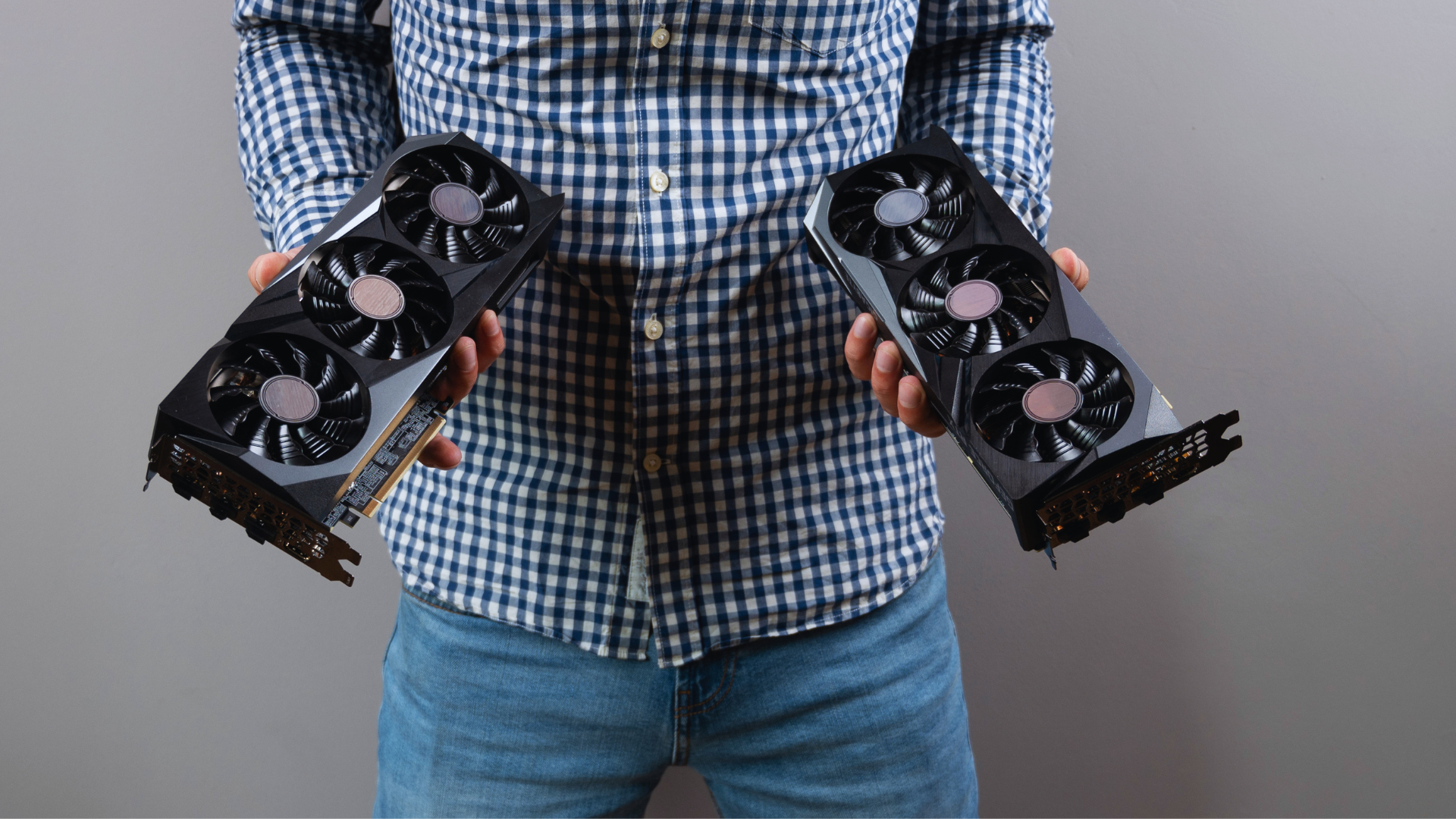
If you have a PCIe 4.0 motherboard and you are considering a PCIe 5.0 graphics card, you can stop worrying: for most gaming PCs, the slot is not a good reason to replace the motherboard. PCI Express is backward compatible, and a PCIe 5.0 card will run in a PCIe 4.0 slot. With a full x16 connection, the gaming-performance difference is generally negligible.
That answer needs one important qualification. The generation number is only half of the interface specification. Lane count matters just as much. A card designed for PCIe 5.0 x8 does not gain 16 lanes when you install it in a physically x16 PCIe 4.0 slot; it runs at PCIe 4.0 x8. Cards with only four or eight active lanes—and especially cards that are also short on VRAM—can be more sensitive to an older platform.
The short answer: PCIe 4.0 x16 is enough for current high-end graphics cards. PCIe 4.0 x8 is also usually fine, although individual games and memory-limited cards can show a measurable loss. PCIe 3.0 x8 and x4 configurations deserve closer scrutiny. Before buying anything, check the GPU’s electrical lane count and the motherboard’s actual slot wiring—not just the length of the connector.
PCIe 4.0 vs. 5.0: What changes for a graphics card?
PCI Express is the connection between the graphics card and the rest of the system. The CPU uses it to send commands and data to the GPU, and the GPU uses it when it needs to exchange data with system memory or other devices.
PCIe is not the connection between the GPU chip and the memory soldered onto the graphics card. That local connection has its own memory bus and far more bandwidth. Once a game’s textures, geometry, shaders, and render targets are in VRAM, the GPU can reuse them without sending everything across the PCIe link for every frame. This is the main reason doubling PCIe bandwidth rarely doubles frame rates—or produces anything close to it.
PCIe 5.0 transfers data at twice the rate of PCIe 4.0 per lane. PCIe 4.0, in turn, is twice as fast as PCIe 3.0. The useful payload bandwidth is approximately as follows:
| PCIe link | Bandwidth in each direction | Same raw bandwidth as | Practical reading |
|---|---|---|---|
| PCIe 5.0 x16 | About 63 GB/s | — | Maximum desktop GPU link |
| PCIe 5.0 x8 | About 31.5 GB/s | PCIe 4.0 x16 | Common reduced-lane Gen 5 link |
| PCIe 4.0 x16 | About 31.5 GB/s | PCIe 5.0 x8 | Plenty for current gaming GPUs |
| PCIe 4.0 x8 | About 15.8 GB/s | PCIe 3.0 x16 | Usually fine; workload matters |
| PCIe 4.0 x4 | About 7.9 GB/s | PCIe 3.0 x8 | Can restrict some cards and games |
| PCIe 3.0 x4 | About 3.9 GB/s | PCIe 2.0 x8 | A meaningful risk on x4 GPUs |
Those are theoretical payload figures for one direction. PCIe is full duplex, so it can transfer in both directions at the same time. This is why some specifications quote roughly 128 GB/s for PCIe 5.0 x16: they are adding both directions together. Either convention is valid, but the numbers should not be mixed in the same comparison. The PCI-SIG’s PCIe 5.0 FAQ confirms both the 32 GT/s signaling rate and backward compatibility with earlier generations.
The detail people miss: x16 size does not guarantee x16 bandwidth
A PCIe slot or graphics-card connector can be x16 in physical length without having 16 active lanes. The long connector makes the card fit and provides mechanical support; the electrical design determines how many lanes carry data.
This changes how a newer GPU behaves in an older system:
- A PCIe 5.0 x16 card in a PCIe 4.0 x16 slot runs at PCIe 4.0 x16.
- A PCIe 5.0 x8 card in a PCIe 4.0 x16 slot runs at PCIe 4.0 x8. The unused motherboard lanes cannot turn an x8 GPU into an x16 device.
- A PCIe 4.0 x4 card in a PCIe 3.0 x16 slot runs at PCIe 3.0 x4. This is the sort of configuration in which bandwidth can become a real limitation.
Current high-end cards generally use 16 lanes, while some mainstream cards—including GeForce RTX 5060 and RTX 5060 Ti models—use a PCIe 5.0 x8 interface. Older budget cards such as the Radeon RX 6400 and RX 6500 XT use only four lanes. Always check the specification for the exact GPU; do not infer the lane count from the metal connector or the card’s price.
The motherboard can create the same trap. Its second full-length slot may be wired for only x4, and the primary slot may drop from x16 to x8 when another CPU-connected expansion slot or a particular M.2 socket is occupied. The relevant information is usually buried in the expansion-slot footnotes or block diagram in the manual.
What current graphics-card benchmarks actually show
With enough VRAM and a full-width link, PCIe 4.0 versus 5.0 is mostly a specification-sheet difference in games. The clearest stress test is the GeForce RTX 5090: it is fast enough to expose a weak link if one exists, and it supports PCIe 5.0 x16. In GamersNexus testing, PCIe 4.0 x16 and 5.0 x16 performed about the same. Even the gap between PCIe 3.0 x16 and 5.0 x16 was generally only 1–4 percent in the tested games.
That does not mean PCIe bandwidth never matters. It means a game running normally from local VRAM does not saturate a modern x16 link. Reduced-lane, low-memory cards reveal the other side of the story. TechSpot’s RTX 5060 Ti testing found that the 16GB x8 card was largely insensitive to an older link while its working set fit in VRAM. The 8GB version could lose far more performance when its memory filled and it had to lean on system memory over PCIe. The size of the loss varied enormously by game and settings.
That is the pattern worth remembering:
- Data fits in VRAM: PCIe 4.0 x16 versus 5.0 x16 usually makes little practical difference in gaming.
- Data spills into system memory: PCIe bandwidth becomes more important, and an x8 or x4 link can amplify stutter and poor 1% lows.
- The GPU is in the wrong slot or sharing lanes: the accidental reduction in lane width can matter more than the advertised PCIe generation.
Do not turn one percentage into a universal rule. A benchmark average can hide an outlier, and an average frame rate can hide erratic frame delivery. Look for per-game results and 1% lows from a test using the same GPU, VRAM capacity, resolution, and settings you plan to use.
Why the performance difference changes from one test to another
1. VRAM capacity and asset streaming
VRAM is the biggest variable. When a game’s active data fits on the graphics card, PCIe mostly handles setup, commands, and asset transfers as needed. When the working set no longer fits, some data has to be evicted and fetched through system memory. That route is slower and depends more heavily on the PCIe link.
This is why a narrow interface and limited memory can be a particularly bad combination. More PCIe bandwidth may reduce the damage, but it does not turn system RAM into VRAM. If lowering texture quality fixes severe hitching, the underlying problem is probably memory capacity—not a missing PCIe 5.0 motherboard. See our guide to how much VRAM you need for gaming for current resolution and settings recommendations.
2. The game engine, scene, and frame rate
Games do not move assets in the same way. Open-world traversal, shader compilation, ray-tracing data structures, texture streaming, and frequent scene changes can all alter PCIe traffic. A title that barely reacts to a slower link tells you very little about a different engine.
Resolution adds another wrinkle. At 4K, the GPU often spends longer rendering each frame, which can reduce the relative importance of the host link. At lower settings and high frame rates, the CPU issues work more frequently. On the other hand, high-resolution textures and heavy ray tracing can increase memory pressure. There is no dependable rule that the PCIe gap must grow at either low or high resolution.
3. Resizable BAR
Resizable BAR lets the CPU map a larger portion of the graphics card’s memory instead of working through the traditional 256MB aperture. AMD calls its implementation Smart Access Memory. It does not add PCIe lanes or change PCIe 4.0 into 5.0, but it can improve how efficiently supported workloads use the link.
For a fair comparison, keep Resizable BAR status consistent. Some older systems need a firmware update plus “Above 4G Decoding” and “Resizable BAR” enabled in UEFI. Intel Arc cards are especially dependent on ReBAR for expected performance. If your motherboard needs new firmware for compatibility or ReBAR support, follow a careful BIOS/UEFI update process instead of updating solely because a newer file exists.
4. Workloads outside gaming
Gaming results are not a proxy for every GPU task. Video processing, 3D rendering, and compute jobs that upload a dataset once and then work within VRAM may show little sensitivity. Multi-GPU training, out-of-core rendering, local AI with layers offloaded between VRAM and system RAM, and other host-to-device-heavy workloads can care much more about link bandwidth.
If the graphics card is for professional work, find a benchmark for the exact application and dataset size. “Only a 1 percent difference in games” is not evidence that a PCIe-dependent compute workflow will behave the same way.
Will a PCIe 5.0 graphics card work in a PCIe 4.0 slot?
Yes, under normal circumstances. The card and motherboard negotiate the fastest generation both support and the lane width available to both devices. A PCIe 5.0 GPU in a PCIe 4.0 slot therefore operates at PCIe 4.0. The same backward-compatibility principle extends to PCIe 3.0 and earlier slots.
The slot version is only one part of compatibility. You still need:
- enough room in the case for the card’s length, height, and cooler thickness;
- a power supply with adequate capacity and the correct connectors;
- firmware that supports the GPU properly;
- a CPU fast enough for the performance level you expect; and
- the card installed in a suitable slot.
If you are replacing the card yourself, our graphics-card installation guide covers the physical process. One terminology warning: a “PCIe 5.0 graphics slot” and a “PCIe Gen 5 power cable” are unrelated specifications. One carries data through the motherboard; the other supplies power from the PSU.
How to check the connection your GPU is actually using
If performance seems wrong, verify the link before blaming PCIe 4.0. The following process catches most configuration problems:
- Check the GPU specification. Find both the PCIe generation and lane count. Look for “PCIe 5.0 x8” or “PCIe 4.0 x16,” not merely “PCIe 5.0.”
- Read the motherboard manual. Confirm which slot connects to the CPU, how it is wired, and whether any M.2 or expansion slots share its lanes.
- Use the primary graphics slot. On a standard desktop board, this is usually the uppermost full-length slot. A lower x16-length slot may run at x4 through the chipset.
- Check the negotiated link under load. Utilities such as GPU-Z or HWiNFO report the current generation and width. The link may drop to PCIe 1.1 at idle to save power; start the built-in render test or a game before reading the active value.
- Confirm Resizable BAR. Check the driver control panel or monitoring utility rather than assuming that enabling it in UEFI was sufficient.
- Investigate unexpected x8 or x4 operation. Reseat the card, inspect the slot, review lane-sharing settings, and test without other CPU-connected add-in cards if the manual indicates a conflict.
A readout such as “PCIe x16 5.0 @ x16 1.1” at idle is not automatically a problem. The first part describes what the device supports; the value after the “@” shows the negotiated connection at that moment. Under load, it should rise to the generation and width allowed by the card, CPU, board, and slot.
If the link is correct but the GPU still is not being fully used, work through our guide to diagnosing low GPU utilization. A CPU limit, frame cap, thermal problem, or game setting is more common than PCIe 4.0 saturation.
Riser cables and vertical GPU mounts are a separate concern
A riser adds another high-speed electrical path between the board and graphics card. A quality PCIe 4.0 riser can intentionally limit a PCIe 5.0 card to Gen 4 without costing meaningful gaming performance. The bigger concern is signal integrity: a marginal riser may cause link retraining, crashes, a black screen, or a failure to boot at the higher generation.
If a vertical mount becomes unstable after an upgrade, connect the card directly to the motherboard as a control test. If the problem disappears, set the slot manually to the riser’s rated generation or replace the riser with a verified model. Do not force Gen 5 simply to make a monitoring utility show a larger number.
Should you upgrade your motherboard for PCIe 5.0?
For a gaming PC already running PCIe 4.0 x16, no—not for the graphics slot alone. Spend that money where it changes the experience: a faster GPU, a CPU upgrade that raises your minimum frame rates, more suitable VRAM capacity, or a better display.
| Your situation | Recommendation | Why |
|---|---|---|
| PCIe 5.0 x16 GPU on PCIe 4.0 x16 | Keep the current board | The typical gaming loss is negligible. |
| PCIe 5.0 x8 GPU on PCIe 4.0 | Usually keep it; check exact tests | PCIe 4.0 x8 is normally sufficient, but VRAM-heavy outliers exist. |
| x8 GPU on PCIe 3.0 | Benchmark your games | PCIe 3.0 x8 can affect memory-sensitive titles and 1% lows. |
| x4 GPU on PCIe 3.0 | Treat bandwidth as a buying factor | The resulting PCIe 3.0 x4 link is restrictive enough to matter in some games. |
| Old CPU, no ReBAR, limited I/O | Consider a platform upgrade | The combined CPU, memory, firmware, and connectivity gains can justify it. |
| GPU unexpectedly running at x4 | Fix the configuration first | Wrong-slot placement or lane sharing is not a reason to replace the whole platform. |
A motherboard upgrade does make sense when it solves several problems at once: the existing CPU is holding back your target frame rate, the board lacks a feature you need, storage and expansion options are inadequate, or the platform cannot support ReBAR or a worthwhile processor upgrade. If you are comparing complete platforms, our guide to choosing a compatible motherboard explains the factors that matter beyond the PCIe label.
What to prioritize when buying a graphics card
Do not buy a slower card merely because it has a PCIe 5.0 interface, and do not reject a faster one because your motherboard is PCIe 4.0. GPU performance, VRAM capacity, price, power consumption, ray-tracing performance, upscaling support, and software compatibility all matter more in a typical gaming build.
When you compare the best graphics cards, note the interface and lane count as part of the complete specification. Give it extra weight if you are pairing an x4 or x8 card with a PCIe 3.0 system. Our guide on how to choose a graphics card covers the rest of the buying decision. Once you have chosen the GPU itself, cooler design and warranty are separate considerations; here is our breakdown of whether graphics-card brand matters.
For a new build, PCIe 5.0 support is still a reasonable longevity feature if it comes on the right board at little extra cost. It simply should not outweigh CPU support, sensible lane allocation, enough M.2 slots, good firmware, and the ports you will actually use.
Frequently asked questions
Does PCIe 5.0 improve FPS over PCIe 4.0?
Sometimes, but usually not by a noticeable amount when both connections use 16 lanes and the game fits comfortably in VRAM. Current high-end GPU testing generally puts PCIe 4.0 x16 and 5.0 x16 very close together. Narrow-lane cards and memory-heavy settings can produce larger differences.
Does an RTX 5090 need PCIe 5.0?
No. The RTX 5090 supports PCIe 5.0 x16, but it works in PCIe 4.0 x16 and typically gives up little to no perceptible gaming performance. A platform upgrade may still make sense if the current CPU limits the card, but matching the slot generation is not enough reason on its own.
Will a PCIe 5.0 GPU work in a PCIe 3.0 motherboard?
It normally will, provided the board’s firmware supports the card and the system meets the usual power and physical requirements. Performance depends heavily on lane count. PCIe 3.0 x16 offers the same theoretical bandwidth as PCIe 4.0 x8, while PCIe 3.0 x4 is far more restrictive. An old CPU and lack of ReBAR can also affect the result.
Is PCIe 4.0 x8 the same as PCIe 5.0 x8?
No. PCIe 5.0 x8 has twice the theoretical bandwidth of PCIe 4.0 x8. PCIe 5.0 x8 is equivalent in raw bandwidth to PCIe 4.0 x16; PCIe 4.0 x8 is equivalent to PCIe 3.0 x16.
Why does my x16 graphics card run at x8?
The GPU may be designed with only eight electrical lanes, or the motherboard may split the CPU’s 16 lanes between two slots. Some boards also change lane allocation when particular M.2 sockets are populated. Check the GPU specification and the motherboard manual before treating x8 as a fault.
Can an M.2 SSD reduce graphics-card performance?
On some motherboards, yes. A specific M.2 socket may share CPU lanes with the primary graphics slot and cause it to operate at x8. On many other boards, the main GPU and primary M.2 socket have dedicated CPU lanes and do not conflict. The chipset name alone cannot answer this; read the lane-sharing notes for the exact motherboard.
Is PCIe 5.0 worth paying extra for in a new gaming PC?
It can be worth a small premium as a platform feature, especially if you expect to keep the motherboard through a future GPU upgrade. It is not worth sacrificing a better CPU, a better-equipped board, or meaningful GPU performance today. Buy the motherboard for the complete platform, not one version number.
Bottom line
PCIe 5.0 doubles PCIe 4.0’s theoretical bandwidth, but the graphics card’s local memory does most of the heavy lifting during a game. That is why a PCIe 5.0 x16 GPU normally performs virtually the same in a PCIe 4.0 x16 slot.
The exceptions are understandable once you look past the headline generation: an x8 or x4 interface, overflowing VRAM, the wrong motherboard slot, shared lanes, a poor riser, or a workload that constantly moves data between the CPU and GPU. Check those details first. For most owners of a healthy PCIe 4.0 system, the right move is simple: install the new graphics card, verify the active link, enable Resizable BAR, and keep the motherboard.
