
Unsure of how much VRAM you need? In this guide, we cover how much VRAM you need for gaming at 1080p, 1440p, and 4K in 2026.
One question that a lot of PC gamers have when choosing a graphics card is, “how much VRAM do I need?”
Unfortunately, there isn’t one specific amount of VRAM that is right for every gamer.
The amount of VRAM (Video Random Access Memory) you need depends primarily on the games you play, the resolution you’re playing at, and the graphics settings you want to use.
And, in 2026, VRAM has become a more important consideration when buying a graphics card. While 8GB cards are still viable for 1080p gaming, newer AAA games, high-resolution texture packs, ray tracing, and higher resolutions can push beyond 8GB surprisingly quickly.
Below, we’ll explain what VRAM is, what uses it, and how much we recommend for gaming at 1080p, 1440p, and 4K.
VRAM Quick Guide by Resolution
✅ 1080p VRAM Recommendation
Practical floor: 8GB
Recommended for a new GPU: 12GB
Ultra textures / RT / extra headroom: 16GB
Tip: If you already own an 8GB graphics card and the games you play run well, there’s no reason to upgrade solely because of its VRAM capacity. However, we’d prefer 12GB or more when buying a new GPU for demanding 1080p gaming in 2026.
✅ 1440p VRAM Recommendation
Practical floor: 12GB
Recommended: 16GB
Ultra textures / RT / mods: 16GB+
Tip: 12GB is still perfectly usable at 1440p, but 16GB provides more room for newer AAA games, higher texture settings, ray tracing, and future releases.
✅ 4K VRAM Recommendation
Practical floor: 16GB
Recommended: 16GB+
Heavy RT / mods / maximum headroom: 20–24GB+
Tip: You don’t need 24GB of VRAM just to play games at 4K. However, additional capacity can help when combining 4K with maximum textures, ray tracing, path tracing, large texture mods, or other especially memory-heavy workloads.
Watch: What to Look for in A Graphics Card
What is VRAM?
Just like the RAM in your PC gives your CPU quick access to data it is actively using, VRAM gives your GPU local high-speed memory for graphics-related data.
This includes textures, frame buffers, render targets, geometry data, shaders, ray-tracing acceleration structures, and other resources the GPU needs while rendering a game.
Because dedicated VRAM sits directly on the graphics card and is connected to the GPU through its memory bus, accessing it is significantly faster than relying on system RAM over the PCIe connection.
Unlike normal system RAM, though, you generally can’t upgrade the VRAM on a graphics card. If your GPU comes with 8GB, 12GB, or 16GB of VRAM, that’s the capacity you’ll have for the life of the card.
It’s also important to understand that VRAM capacity isn’t the same thing as memory performance. Memory speed, memory bus width, memory bandwidth, and the GPU’s onboard cache all play a role in performance as well.
A graphics card with more VRAM isn’t automatically faster than a card with less.
What Factors Impact/Utilize VRAM?
There are a lot of things that can affect how much VRAM a game uses, but the three biggest factors are:
- Your monitor’s resolution
- The games you are playing
- The settings you are playing your games at
There are also some secondary factors, including ray tracing, high-resolution texture packs, mods, background GPU-accelerated applications, and the way an individual game’s engine manages memory.
How Monitor Resolution Impacts VRAM
Higher resolutions generally require more graphics memory because the GPU has to work with larger render targets and buffers.
A 1920×1080 image contains just over two million pixels. At 2560×1440, that jumps to roughly 3.7 million pixels. And 3840×2160, or 4K, contains more than eight million pixels.
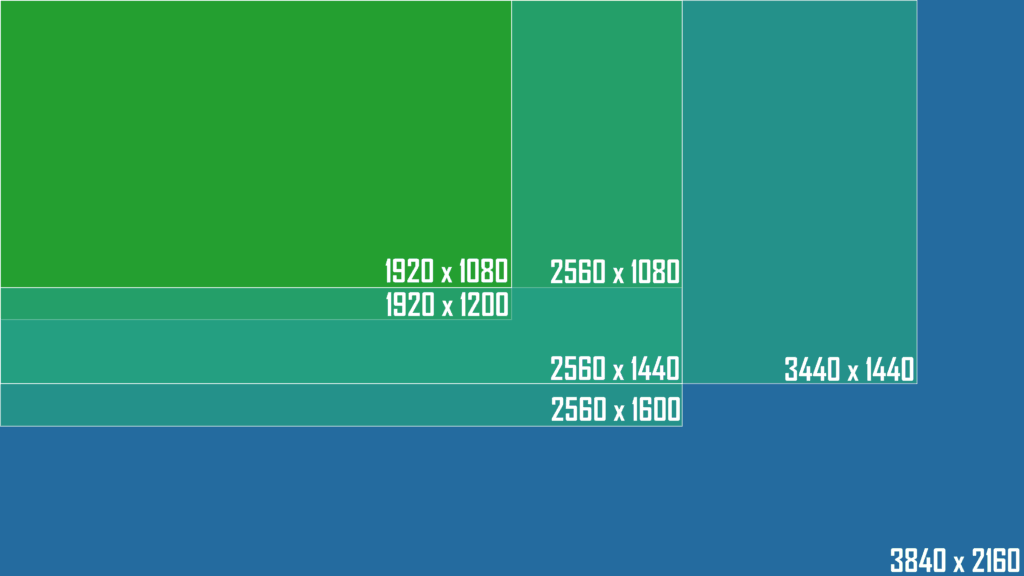
However, resolution by itself isn’t usually what consumes the majority of your graphics card’s VRAM.
Textures, geometry, ray-tracing data, and other assets often make up a much larger portion of a game’s memory footprint. This is why lowering your resolution doesn’t always dramatically reduce VRAM usage.
Still, all else being equal, VRAM requirements generally increase as you move from 1080p to 1440p and then to 4K.
How the Games You’re Playing Will Impact VRAM
The specific games you play can make an enormous difference.
Competitive games and lighter titles often require relatively little VRAM, even when played at high resolutions. More graphically intensive AAA games with huge environments, detailed character models, high-resolution assets, and ray tracing can require much more.

Game engines also handle graphics memory differently.
Some aggressively stream assets in and out of VRAM as they’re needed. Others cache as much data as possible when memory is available.
This also means that seeing a game using 14GB on a 16GB graphics card doesn’t necessarily mean the game requires 14GB to run properly. Some games will simply allocate or cache additional resources when that memory is available.
How Your Game’s Settings Will Impact VRAM
Your graphics settings can have just as much impact on VRAM requirements as your resolution.
Texture quality is usually one of the biggest factors.
High- and Ultra-resolution textures require significantly more memory than lower-resolution texture assets, and the visual difference between texture presets can sometimes be relatively small compared to the additional VRAM they consume.
This is why lowering texture quality is usually the first setting we recommend changing if you’re running into a VRAM limitation.
Other settings that can increase memory requirements include:
- Ray tracing and path tracing
- Shadow quality
- Geometry/detail quality
- Draw distance
- High-resolution texture packs
- Graphics mods
Ray tracing is particularly important because it requires additional acceleration structures and other data to be stored in memory.
Updated 2026 Recommendations: VRAM by Resolution & Target
| Resolution | Scenario | VRAM | Notes |
|---|---|---|---|
| 1080p | Esports / lighter games | 8 GB | Plenty for most lighter titles |
| 1080p | Modern AAA (High) | 8–12 GB | 12GB gives you more texture headroom |
| 1080p | Ultra textures / RT / mods | 12–16 GB | 16GB provides plenty of headroom |
| 1440p | Esports / lighter games | 8–12 GB | 8GB can still work in less demanding titles |
| 1440p | Modern AAA (High) | 12–16 GB | 12GB is viable; 16GB is preferable for a new GPU |
| 1440p | Ultra textures / RT / mods | 16 GB+ | Good target for demanding 1440p gaming |
| 4K | High settings | 16 GB | A strong target for modern 4K gaming |
| 4K | Ultra textures / heavy RT / mods | 16–24 GB+ | Extra capacity provides more headroom |
Tip: These aren’t hard requirements. Some games will run comfortably with less VRAM, while unusually demanding games, texture packs, or mods may use more.
One recent example of how VRAM requirements can scale with resolution is DOOM: The Dark Ages. Its official PC specifications call for an 8GB graphics card at minimum, at least 10GB for the recommended 1440p/60 FPS High configuration, and at least 16GB for its 4K/60 FPS Ultra configuration.
That doesn’t mean every game needs those exact amounts, but it illustrates why there isn’t one universal VRAM requirement.
What Current Graphics Cards Tell Us About VRAM in 2026
The current GPU market gives us another useful reference point.
NVIDIA’s GeForce RTX 5070 comes with 12GB of VRAM, while the RTX 5070 Ti and RTX 5080 have 16GB. AMD’s Radeon RX 9070 and RX 9070 XT also come with 16GB.
Meanwhile, both NVIDIA and AMD offer lower-tier cards with 8GB configurations, while some GPUs are available with higher-capacity 16GB alternatives.
At the extreme high end, the RTX 5090 includes 32GB.
That doesn’t mean you need 16GB or 32GB to play modern games. Instead, it shows how manufacturers are positioning different memory capacities across today’s performance tiers.
For someone buying a new card specifically for gaming, we’d roughly look at it this way:
- 8GB: Budget-oriented 1080p gaming
- 10–12GB: Good 1080p and viable 1440p gaming
- 16GB: Excellent target for 1440p and 4K gaming
- 20GB+: Enthusiast headroom for 4K, heavy RT, mods, and non-gaming GPU workloads
There’s nothing inherently wrong with an 8GB graphics card in 2026. The question is whether its price and performance make sense when compared to alternatives with more memory.
How to Check Your Own VRAM Usage
If you already have a graphics card and want to know whether VRAM is actually causing problems, there are a few easy ways to monitor it.
- Windows Task Manager: Open Task Manager and select Performance → GPU to monitor overall dedicated GPU memory usage. You can also use the Details tab, right-click a column header, choose Show columns, and enable Dedicated GPU memory to view usage by process.
- MSI Afterburner: Open Settings → Monitoring, enable GPU memory usage, and select Show in On-Screen Display to monitor VRAM while you’re playing.
There is one important caveat: VRAM allocation isn’t always the same as VRAM actually required.
A game may cache assets and consume most of the available memory simply because that memory is available. Seeing 15GB used on a 16GB card therefore doesn’t automatically mean the same game would perform poorly on a 12GB card.
Instead, combine the VRAM reading with what you’re actually experiencing while playing.
Signs of a genuine memory bottleneck can include sudden hitching while moving through the game world, textures loading slowly or appearing blurry, major reductions in 1% lows, or performance improving substantially after lowering texture quality.
What Happens When You Run Out of VRAM?
When the GPU’s working data can no longer fit comfortably in dedicated VRAM, resources may need to be moved between the graphics card and system memory.
Your GPU can use shared system memory as a fallback, but system RAM is not a replacement for dedicated VRAM. Accessing it through the PCIe connection is considerably slower than accessing memory directly on the graphics card.
Depending on the game, exceeding your comfortable VRAM limit can result in:
- Stuttering
- Poor 1% lows
- Texture pop-in
- Lower-resolution textures
- Longer asset-streaming delays
- Large performance drops
If you suspect you’re VRAM-limited, reduce texture quality first. That’s often the setting that frees the most memory with the smallest performance or visual penalty.
After that, try lowering ray-tracing settings, reducing other memory-heavy settings, or lowering your render resolution.
Ray Tracing, Path Tracing, Upscaling & VRAM
Ray tracing can increase graphics-memory requirements because the GPU must store additional information used to calculate lighting, reflections, shadows, and geometry intersections.
Path tracing takes this concept even further and can be especially demanding.
Upscaling technologies like NVIDIA DLSS, AMD FSR, and Intel XeSS can help reduce the GPU’s rendering workload by generating the final image from a lower internal resolution.
This can reduce some memory requirements associated with rendering at a higher resolution.
However, upscaling doesn’t magically eliminate VRAM limitations.
Texture resolution is largely independent of the game’s internal rendering resolution. If you’re using an Ultra-resolution texture pack, those textures still need somewhere to go.
So, if your card is running out of VRAM because of textures, simply turning on DLSS, FSR, or XeSS may not completely solve the problem.
VRAM Isn’t Everything: Bandwidth, Bus Width & Cache
It’s easy to look at graphics cards and assume the one with more VRAM is automatically better.
That’s not the case.
Consider two hypothetical GPUs:
- GPU A has 16GB of VRAM
- GPU B has 12GB of VRAM
GPU B could still be significantly faster if it has a more powerful GPU, faster memory, more memory bandwidth, a larger cache, or a more efficient architecture.
The amount of VRAM simply tells you how much graphics data the card can keep in its dedicated local memory. It doesn’t tell you how quickly the GPU can process that data.
That’s why you shouldn’t buy a substantially slower graphics card just because it has a larger amount of VRAM.
At the same time, memory bandwidth and cache don’t completely replace capacity either. If a game genuinely needs more memory than your graphics card can comfortably provide, having faster VRAM doesn’t suddenly create additional capacity.
The goal is to find a graphics card that offers both enough VRAM and enough GPU performance for your target resolution.
What About Neural Texture Compression?
One potentially important development for future VRAM requirements is neural rendering and neural texture compression.
Microsoft has continued expanding DirectX support for GPU-accelerated machine-learning operations, including Cooperative Vector support and newer DirectX linear-algebra capabilities.
One potential application is neural texture compression, where machine-learning techniques can allow developers to store graphical assets more efficiently while reconstructing them during rendering.
In theory, technologies like these could eventually reduce the amount of VRAM required for increasingly detailed game assets.
However, widespread adoption in shipping games is still developing.
So, if you’re buying a graphics card in 2026, we wouldn’t purchase a low-VRAM GPU based on the assumption that future compression technology will solve its memory limitations.
Buy for the games and workloads you use today, and consider future improvements a bonus.
VRAM FAQ
Here are some common questions about VRAM and how much you need for gaming in 2026.
1. Does more VRAM automatically increase FPS?
No.
If a game already fits comfortably within the available VRAM, increasing capacity by itself won’t significantly improve performance.
For example, a faster 12GB graphics card can easily outperform a slower card that has 16GB.
Extra VRAM becomes important when a game needs more memory than your card can comfortably provide. In those situations, additional capacity can improve frame-time consistency, reduce stuttering, and prevent texture-related compromises.
2. Can I add more VRAM to my GPU?
No, not under normal circumstances.
The VRAM on a consumer graphics card is soldered onto the card and configured specifically for that GPU. If your graphics card has 8GB of VRAM, you can’t simply install additional memory like you can with system RAM.
To get more VRAM, you’ll need to upgrade your graphics card.
3. What is shared GPU memory in Windows?
Shared GPU memory is system RAM that Windows can make available to the GPU.
If you open Task Manager, you might see something like 16GB of dedicated GPU memory plus a large amount of shared GPU memory.
That does not mean the shared amount is additional VRAM or that all of that system memory has been permanently reserved for your GPU.
Dedicated VRAM is the high-speed memory physically attached to your graphics card. Shared memory is normal system RAM that can be used by the graphics subsystem when necessary.
Because it is much slower for a discrete GPU to access than its onboard VRAM, you shouldn’t add the two numbers together when comparing graphics cards.
4. How can I tell if I’m running out of VRAM?
Common signs include repeatable stutters when moving into new areas, hitching when quickly rotating the camera, texture pop-in, blurry textures, and unusually poor 1% low frame rates.
Monitor dedicated GPU memory while playing, but remember that high reported usage alone doesn’t prove you’re VRAM-limited.
Some games will use extra available memory for caching.
A better test is to lower your texture quality by one or two levels. If the stuttering or other problems disappear while your average FPS remains relatively similar, there’s a good chance you were running into a graphics-memory limitation.
5. Which settings use the most VRAM?
Texture quality is usually the first setting to look at.
High-resolution textures can use several additional gigabytes of graphics memory without having a huge impact on your average FPS—as long as you have enough VRAM to hold them.
Ray tracing and path tracing can also increase memory usage, along with shadow quality, geometry/detail settings, large draw distances, texture packs, and graphics mods.
If you need to free VRAM quickly, lower your texture setting first.
6. Is 8GB of VRAM enough in 2026?
Yes, 8GB is still enough for a lot of gaming in 2026—especially at 1080p.
If you mostly play games like Fortnite, Valorant, Counter-Strike, Minecraft, Rocket League, League of Legends, or less demanding indie games, 8GB shouldn’t be a major concern.
The problem comes with newer AAA games at high or maximum settings.
An 8GB graphics card can still run many of these games, but you may need to reduce texture quality, ray tracing, or other settings to stay within the available memory.
If you’re buying a brand-new GPU in 2026 and want it to handle demanding AAA games for several years, we’d prefer 12GB or more if your budget allows it.
7. Is 12GB of VRAM enough for 1440p?
Yes.
12GB is still a very reasonable amount of VRAM for 1440p gaming in 2026, and it’s enough to run the vast majority of games at good settings.
That said, 16GB is our preferred target for a new 1440p graphics card if you’re buying for the long term.
The additional memory gives you more room for Ultra-quality textures, ray tracing, future games, and graphics mods without having to worry as much about memory limits.
8. Is 16GB of VRAM enough for 4K?
For gaming, yes.
16GB is a strong amount of VRAM for 4K gaming in 2026, and you shouldn’t assume that you need a 20GB, 24GB, or 32GB graphics card just because you’re using a 4K monitor.
Extra capacity becomes more useful when you’re combining 4K with maximum-resolution textures, heavy ray tracing or path tracing, large graphics mods, or other GPU-intensive workloads outside of gaming.
For most gamers shopping for a high-end 4K graphics card, 16GB is still a perfectly reasonable target.
The Bottom Line
If you’re buying a graphics card in 2026, here’s the easiest way to think about VRAM:
For 1080p: 8GB is still workable, but 12GB is a better target for a new graphics card—especially if you play modern AAA games.
For 1440p: 12GB is generally enough, while 16GB is our preferred target for maximum settings, ray tracing, and better long-term headroom.
For 4K: 16GB is a solid target for modern gaming. Cards with 20GB, 24GB, or 32GB provide additional headroom, but that much VRAM isn’t a requirement simply because you’re playing at 4K.
Most importantly, don’t choose a substantially slower graphics card just because it has more VRAM.
VRAM is only one piece of GPU performance. The GPU itself, memory bandwidth, cache, architecture, ray-tracing performance, and upscaling support all matter.
What to Remember
Because VRAM is built onto your graphics card, it’s much quicker for your GPU to access than system memory. And unlike system RAM, you can’t simply add more later.
Your resolution, the games you play, and the settings you use have the biggest effect on how much VRAM you’ll need.
For most gamers buying a new graphics card in 2026, 12GB is a comfortable starting point and 16GB is the sweet spot if your budget allows it. An 8GB card can still make sense for budget 1080p gaming, while more than 16GB is primarily useful for high-end gaming scenarios, heavy graphics mods, and workloads beyond gaming.
