
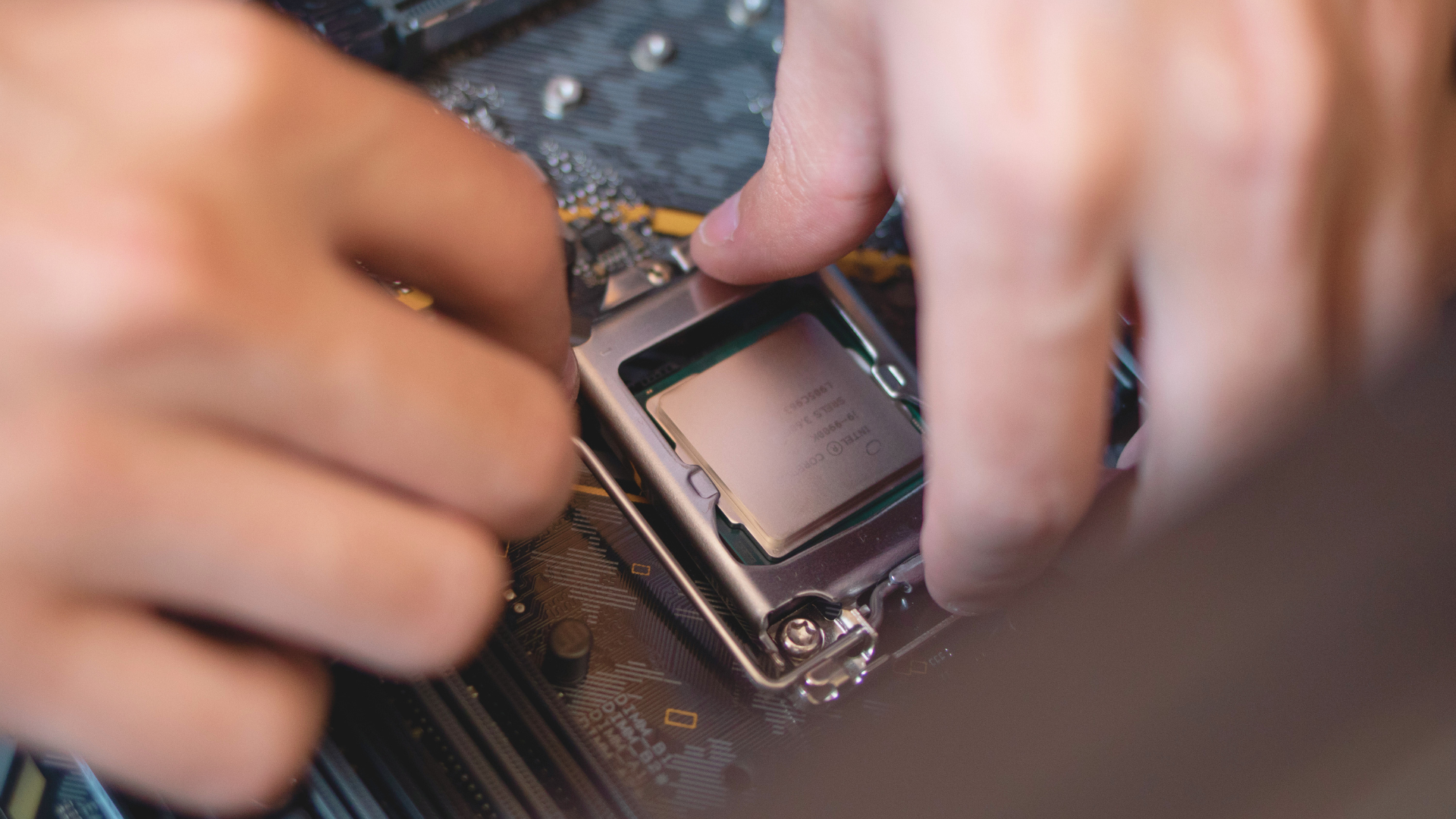
If one CPU core reaches 100% while you play a game, the most common explanation is that the game’s main thread has become the performance limit. Games can distribute audio, asset streaming, physics, and other work across several threads, but some tasks must still happen in order. The busiest thread can therefore fill one logical processor even while total CPU utilization looks low.
That pattern is not automatically harmful. It matters when the saturated core coincides with low GPU utilization, an FPS ceiling below your target, or uneven frame times. This guide shows how to read the numbers correctly, rule out easier causes, and decide whether faster hardware would make a meaningful difference.
Why games can be limited by one main thread
Each frame depends on a sequence of CPU-side work: process player input, update the game world, run scripts and physics, determine what should be rendered, and submit commands to the GPU. Some of that work can run in parallel. Other tasks depend on the result of an earlier task, so one coordinating thread remains especially important.
If that thread cannot finish faster, the graphics card waits for the next batch of work. Adding more unused cores does not automatically solve the dependency. Faster per-core performance, lower memory latency, more cache, or a newer game engine may help, depending on the workload.
Total CPU usage can hide the limit
Imagine an eight-core, 16-thread processor. One logical processor is fully occupied, three others average 40%, and the remaining threads hover near 10%. The overall number may be around 20–30%, yet the game cannot move forward until its busiest thread completes.
| Metric | Example reading | Interpretation |
|---|---|---|
| Total CPU utilization | 28% | Does not rule out a CPU limit |
| Busiest logical processor | 95–100% | Possible main-thread saturation |
| GPU utilization | 65–80% | GPU may be waiting for CPU work |
| FPS after lowering resolution | Almost unchanged | Supports a CPU-side limit |
| Frame-time graph | Repeated spikes | Investigate CPU, memory, and background tasks |
Windows can move the main thread between logical processors, so the “full core” may change. Sampling intervals can also smooth brief peaks. Focus on whether one or more threads repeatedly approach full utilization at the same moment the GPU load and frame rate fall.
How to confirm a single-thread bottleneck
- Choose a repeatable scene. A built-in benchmark is ideal. Otherwise, use the same route, replay, or save point.
- Display per-core utilization. Add GPU usage, frame rate, frame time, CPU clock speed, and CPU temperature to the overlay.
- Run a baseline. Record the average FPS, 1% low, and the behavior of the busiest cores.
- Lower resolution substantially. If FPS barely changes while the GPU becomes less busy, the GPU was probably not the limit.
- Lower CPU-heavy settings. Reduce crowd density, simulation, view distance, or object detail one setting at a time.
No single metric proves the diagnosis. A consistent combination—busy main thread, underused GPU, unchanged FPS at lower resolution, and improvement from CPU-heavy settings—is much stronger. Our guide to identifying a PC bottleneck explains the broader method.
Check clock speed and thermal behavior
A core can be fully utilized at an abnormally low frequency. Watch effective clock speed during the problem and compare it with typical behavior for that processor under a gaming load. Sustained low clocks may come from thermal throttling, an incorrectly mounted cooler, a quiet laptop profile, motherboard power limits, or a power-saving setting.
Brief temperature or clock changes are normal. Look for a repeatable relationship: temperature reaches a limit, clocks fall, frame times worsen, and performance returns after the system cools. Fixing airflow or cooler contact can restore lost performance, but do not assume that a higher clock is always safe to force manually.
Rule out background processes
A browser, antivirus scan, game launcher, RGB suite, recording tool, or overlay can compete for the same CPU time. Sort Task Manager by CPU usage immediately after a slowdown and test with nonessential applications closed. Keep security software enabled for normal use; the goal is a brief controlled comparison, not a permanently stripped-down Windows installation.
Also check whether the game is compiling shaders or streaming assets after an update. Those temporary tasks can create high usage and stutter, then settle after the cache is built. Limited RAM or storage activity can produce similar symptoms without a permanently saturated game thread.
Which game settings reduce CPU load?
CPU-heavy options vary by engine, but common examples include crowd or traffic density, simulation quality, physics, view distance, foliage distance, object detail, destruction, and the number of AI opponents. Reducing texture quality or resolution generally helps the graphics card more than the processor.
A frame-rate cap can be an effective solution when the CPU cannot deliver an unstable peak consistently. A steady 120 or 141 FPS may feel better than frequent swings between 110 and 180 FPS. The best cap depends on the monitor’s refresh rate, adaptive-sync range, and the game’s latency behavior. See our explanation of how CPUs affect gaming FPS for more context.
Why CPU affinity tweaks rarely fix it
Online advice sometimes recommends disabling cores or assigning the game to selected logical processors. That can occasionally work around an unusual scheduling bug, but it does not make the main thread perform more work per second. It may remove resources that background threads need and make frame times worse.
Leave affinity at its default unless you are testing a documented issue for that exact game and CPU. Similarly, disabling simultaneous multithreading is not a universal gaming optimization. Benchmark the actual title before keeping any low-level change, and note the default so you can restore it.
Can overclocking fix a single-core bottleneck?
A modest, stable increase in effective clock speed can improve a true CPU-limited frame rate, but the gain usually resembles the clock increase rather than transforming the system. Modern boost algorithms already use available thermal and power headroom. Manual tuning adds heat and stability risk, and an unstable overclock can cause worse stutter than the original limitation.
Memory tuning or a larger-cache processor can also help certain games. The effect varies widely, so use repeatable frame-time measurements instead of assuming a universal result.
When a CPU upgrade helps
An upgrade is most useful when several games show the same CPU-limited pattern, your target is substantially above current performance, and the graphics card has unused capacity. Competitive players pursuing 200–240 FPS are more likely to benefit than someone playing a graphically demanding single-player game at 4K.
Compare both average FPS and CPU performance and 1% lows. Better minimum performance can make an upgrade worthwhile even when the average changes modestly. If your goal is a very high refresh rate, our guide to CPUs for 240Hz gaming explains the appropriate tiers. For broader options, see the current best CPUs for gaming.
Frequently asked questions
Is one core at 100% bad?
Not by itself. It becomes relevant when performance is below target, the GPU is underused, or frame times spike. Some games will heavily load a main thread even on a correctly functioning system.
Why does GPU usage drop when one core is full?
The GPU needs commands prepared by the CPU. If the main game thread cannot prepare them quickly enough, the GPU finishes its current work and waits, so utilization falls.
Is six or eight total cores enough?
Core count alone does not answer the question. Architecture, clock behavior, cache, memory latency, and the game’s ability to use threads all matter. A modern six- or eight-core CPU can outperform an older processor with more cores.
Bottom line
One CPU core at 100% while gaming usually indicates a busy main thread, but it is only a concern when it limits real performance. Confirm the pattern with per-core monitoring, GPU utilization, frame times, clock speed, and controlled settings tests. Fix throttling or background interference first; upgrade only when repeated evidence shows that per-core CPU performance is the constraint.
