
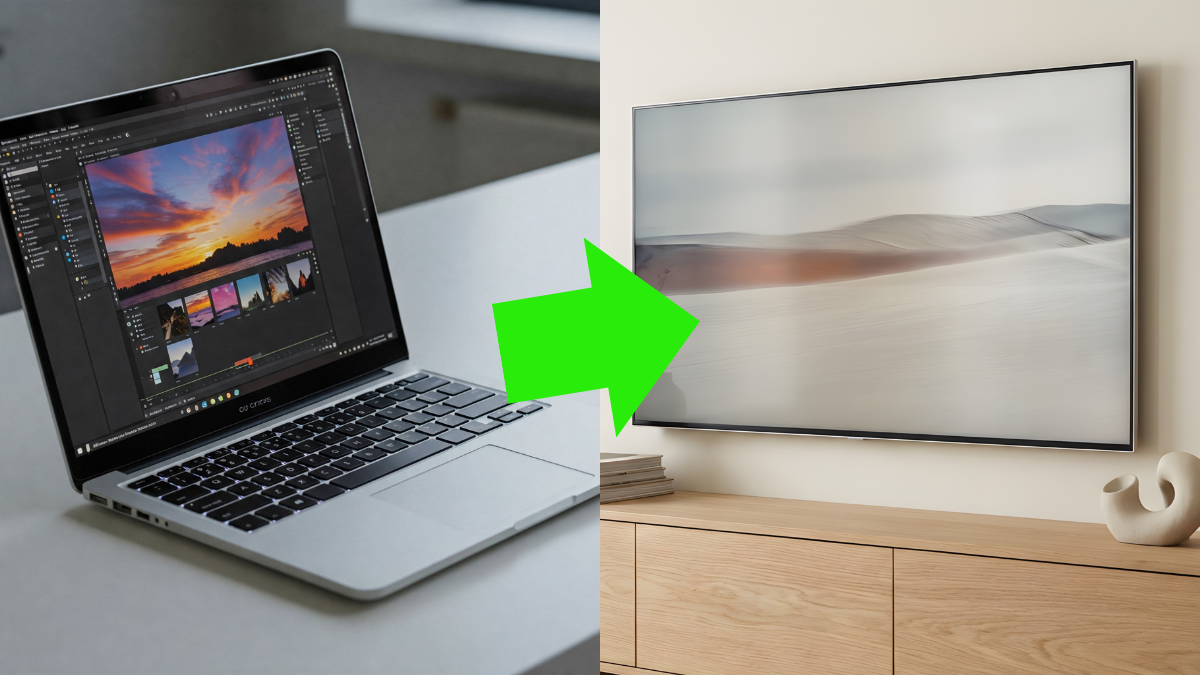
 If you’re looking for the best way to connect your laptop to a TV, this updated guide walks through the most reliable wired and wireless options in 2026—plus quick setup steps and troubleshooting tips.
Whether you’re giving a presentation, watching movies, or trying to game on a bigger screen, connecting a laptop to a TV is a lot easier (and higher quality) than it used to be. Years ago, you often needed a dedicated converter box and a VGA connection just to get an image on your TV—and the results were usually soft, stretched, or low resolution.
Today, most modern TVs and laptops can connect in a few different ways. The “best” method depends on what you care about most:
- Best quality + lowest lag: a direct wired connection (HDMI, USB-C/Thunderbolt)
- Convenience: wireless casting (great for video and slides, not always ideal for gaming)
- Older laptops/ports: simple adapters (HDMI-to-DisplayPort, USB-C-to-HDMI, etc.)
5 Ways to Connect Your Laptop to a TV (Updated for 2026)
Below are five reliable methods. Start with the simplest one you have the ports for, then move down the list if needed.
1) HDMI (Best All-Around Option)
For most people, HDMI is still the easiest and most reliable method. It’s wired (so it’s stable), it carries video and audio, and it works with almost every TV made in the last decade.
What you need: An HDMI cable (and an HDMI port on your laptop—full-size or micro/mini with an adapter)
How to set it up:
- Plug one end of the HDMI cable into your laptop and the other end into the TV.
- On the TV remote, press Input/Source and select the HDMI port you used (HDMI 1, HDMI 2, etc.).
- On Windows, press Windows + P and choose:
- Duplicate (mirror your screen)
- Extend (use TV as a second display)
- Second screen only (TV only)
- On macOS, go to System Settings → Displays and choose mirroring or extended display.
Quality tip: If you’re aiming for 4K and/or high refresh rates (like 120Hz), make sure you’re using the right cable and ports. Some TVs have one or two “high bandwidth” HDMI ports (often labeled for 4K120, gaming, or eARC). Using the wrong port can cap you at 30Hz or 60Hz.
2) USB-C / Thunderbolt to HDMI (Modern Laptop Favorite)
A lot of newer laptops—especially thin-and-light models—don’t include full-size HDMI anymore. Instead, they output video through USB-C or Thunderbolt (often called “DisplayPort Alt Mode”).
What you need: A USB-C to HDMI adapter or USB-C to HDMI cable (and a USB-C/Thunderbolt port on your laptop that supports video output)
How to tell if your USB-C port supports video:
- Look for a small DisplayPort icon (DP) or a lightning bolt (Thunderbolt) near the USB-C port.
- If you’re unsure, check your laptop’s specs page—some USB-C ports are data-only.
Why this method is great: It’s basically HDMI quality with the convenience of modern ports, and it’s often the cleanest solution for newer laptops.
Pro tip for 4K TVs: If you want 4K at 60Hz (or higher on supported setups), don’t buy the cheapest adapter you see. Look for an adapter/cable that explicitly supports the resolution/refresh rate you want (and ideally HDR if you use it).
3) Wireless Casting (Convenient, but Not Always Great for Gaming)
Wireless casting is perfect when you want convenience—no cables, no desk juggling—especially for YouTube, Netflix, slides, or showing photos/videos.
However, wireless methods can introduce latency (delay) and sometimes lower image quality, depending on your Wi-Fi network and TV hardware. That’s why it’s usually not the best choice for fast-paced gaming.
Common wireless options:
- Windows wireless display / Miracast (built into many Windows laptops and smart TVs)
- AirPlay (MacBooks/iPhones to Apple TV or AirPlay-compatible TVs)
- Chromecast (cast from Chrome or supported apps)
- Roku / Fire TV (casting and screen mirroring options vary by device)
Quick setup tips:
- Windows: Open Quick Settings and look for Cast, or search “Connect to a wireless display.”
- macOS: Use Control Center → Screen Mirroring (AirPlay) and select your TV/Apple TV.
- Chromecast: In Chrome, use the menu and choose Cast, then select the device.
Best results: Use a strong Wi-Fi connection (5GHz or Wi-Fi 6/6E if possible) and keep the laptop and TV on the same network.
4) DisplayPort to HDMI (Or HDMI to DisplayPort) Adapters
If your laptop has DisplayPort (less common on modern laptops, more common on desktops and docks) you can still connect to a TV using an adapter.
There are two “directions” people mix up:
- DisplayPort (laptop) → HDMI (TV): very common and usually easy.
- HDMI (laptop) → DisplayPort (monitor): requires an active adapter and can be trickier.
What you need: The correct adapter for your direction of conversion.
When to use this: If your laptop connects through a dock, or if you’re using a laptop/workstation that has DisplayPort outputs available.
5) Legacy Options (DVI/VGA) — Only If You Have No Other Choice
Older laptops (and some business projectors/TVs) may still involve DVI or VGA. These can work, but they’re generally not ideal in 2026.
- DVI → HDMI can still deliver a clean picture, but audio typically won’t carry over DVI (you may need separate audio).
- VGA is analog and often looks soft or blurry on modern HDTVs, especially at higher resolutions.
If you must use VGA: Keep cable runs short, set a native resolution that your TV supports, and don’t expect “crystal clear” output like HDMI/USB-C provides.
How to Get the Best Picture and Sound Quality
If your laptop is connected but the image looks off (blurry, washed out, wrong size, or no audio), it usually comes down to settings.
1) Set the Correct Resolution and Refresh Rate
- Windows: Settings → System → Display → choose the TV → set Display resolution and Advanced display refresh rate.
- macOS: System Settings → Displays → choose the TV → set resolution/scaling.
Tip: If you’re using a 4K TV, 3840×2160 should be available. If you only see 1080p, the cable/adapter/port may be limiting you.
2) Fix Overscan or “Cut Off” Edges
If the TV cuts off the edges of your desktop, that’s usually TV overscan.
- Check your TV picture settings for Screen Fit, Just Scan, 1:1, or Full Pixel.
- If your TV has a “PC mode,” enabling it often fixes scaling and reduces input lag.
3) Make Sure Audio Is Going to the TV
Sometimes video works but sound stays on your laptop speakers.
- Windows: Click the speaker icon → select your TV/HDMI output device.
- macOS: System Settings → Sound → Output → select the TV/HDMI device.
4) For Gaming: Reduce Input Lag
If you’re gaming on the TV, do these:
- Enable Game Mode on the TV (reduces processing and lowers input lag).
- Prefer a wired connection over wireless casting.
- If available, use the TV’s HDMI port labeled for high refresh or 4K120.
Quick Troubleshooting (If It’s Not Working)
If the TV isn’t showing anything, try these fast fixes:
- Confirm the TV is set to the correct Input/Source.
- Unplug/replug the cable and try a different HDMI port on the TV.
- Restart the laptop (seriously—this fixes more handshake issues than it should).
- Press Windows + P and select Duplicate or Extend.
- On laptops with both integrated and dedicated graphics, try updating graphics drivers.
- If using an adapter, test another adapter/cable (cheap adapters are common failure points).
- For wireless casting, ensure both devices are on the same Wi-Fi network and restart the TV.
Conclusion
There are more ways than ever to connect a laptop to a TV, but the best method is usually the simplest:
- If your laptop has HDMI, use HDMI.
- If your laptop is modern and lacks HDMI, use USB-C/Thunderbolt to HDMI.
- If convenience matters most (presentations, video, photos), use wireless casting.
- If you’re stuck with older ports, adapters like DisplayPort-to-HDMI or DVI-to-HDMI can still get the job done.
Remember: every link in the chain matters—your port type, adapter quality, cable quality, and TV settings all affect the final image. Once you dial in the correct resolution, refresh rate, and audio output, you’ll be able to enjoy your content on the big screen with clear picture and sound.
