
These are the best programs to control your PC’s fans.
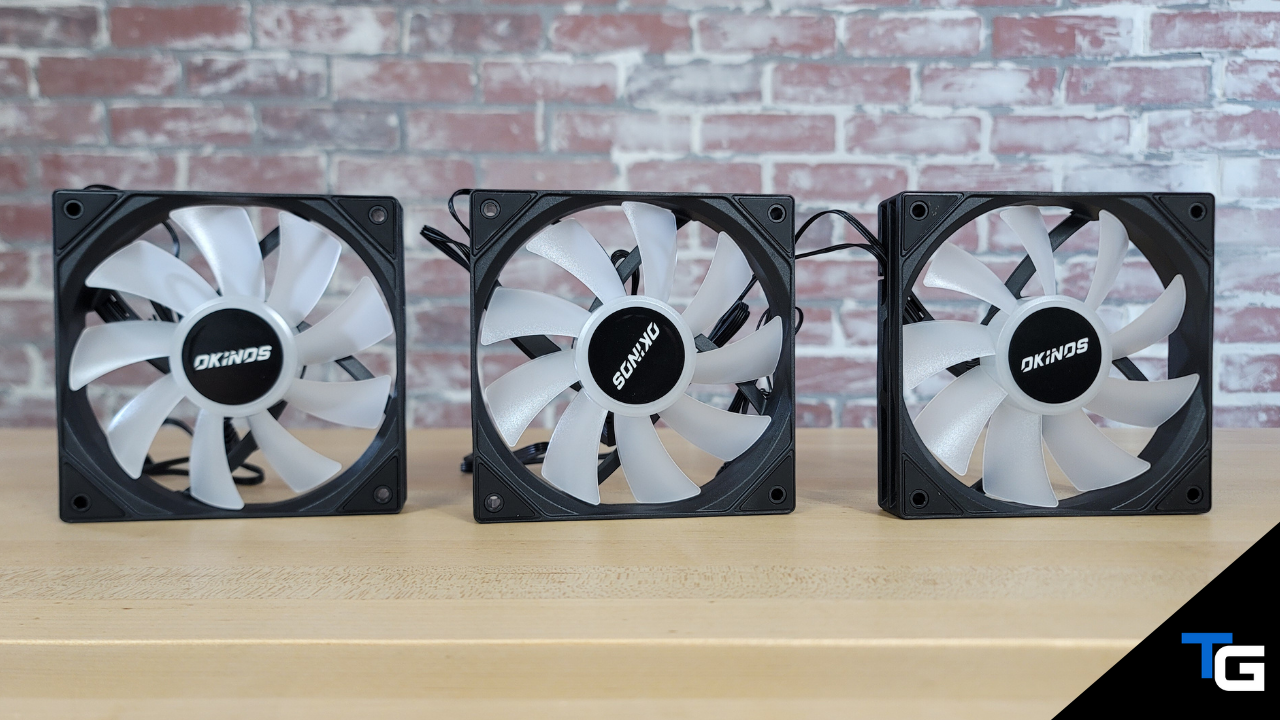
Whether you’ve just built a new PC and want an easy way to set custom fan curves, or you have an existing system and need to quiet down noisy fans or improve your CPU and GPU temperatures, there are a number of Windows-based programs that can help.
And while you can usually control your CPU and case fans through your motherboard’s BIOS, Windows fan control software gives you the ability to make changes without restarting your system. Some programs can also react to multiple temperature sources, allowing you to ramp up your case fans when either your CPU or graphics card gets hot.
In this guide, I’ve covered the best fan control software currently available for Windows. Some of these programs focus entirely on fan control, while others include additional features like hardware monitoring, GPU overclocking, RGB control, and drive-health monitoring.
1. Fan Control
If you’re looking for the best all-around fan control software for Windows, Fan Control is the first program I’d try.
Created by independent developer Rémi Mercier (Rem0o), Fan Control is a lightweight but extremely customizable program that can manage many CPU, case, GPU, AIO, and other cooling devices from a single interface.
One of Fan Control’s biggest advantages is that you aren’t limited to simply tying a fan to one temperature sensor. You can create multiple types of fan curves and even combine them.
For example, you could create one curve based on CPU temperature and another based on GPU temperature, then use Fan Control’s Mix feature to have your case fans react to whichever component is hotter.
Fan Control also offers features like:
- Custom fan curves
- CPU, GPU, and case fan control
- Multiple temperature sources
- Fan calibration
- RPM-based control
- Fan start/stop and 0-RPM configuration
- Hysteresis and response-time adjustments
- Multiple configurations
- Temperature tray icons
- Third-party plugins
The program’s hardware backend is primarily based on LibreHardwareMonitor, an open-source fork of OpenHardwareMonitor, and its plugin system can expand support for additional sensors and controllers.
Fan Control has also continued to receive frequent updates, which is important because motherboard controllers, GPUs, AIOs, and other cooling hardware are constantly changing.
AMD GPU support has improved significantly as well. Fan Control previously relied on a separate ADLX plugin for many Radeon graphics cards, but that functionality has since been integrated into the main application. Hardware compatibility can still vary, though, so don’t assume every fan or controller in every system will be supported.
Fan Control is completely free, although you can donate to support its development.
Overall, if you want one program to manage as much of your PC’s cooling system as possible, Fan Control is the option I’d start with.
2. Motherboard Utilities (Best for CPU & Case Fans)
If your main goal is simply to control the CPU cooler and case fans connected directly to your motherboard, your motherboard manufacturer’s own utility is another good option.
Because these programs are designed specifically for their manufacturers’ hardware, they can often communicate directly with the motherboard’s onboard fan controller and give you control over individual fan headers.
Some of the main options include:
- ASUS Fan Xpert — available through Armoury Crate on newer ASUS motherboards and capable of fan detection, calibration, per-header control, and custom fan curves.
- Gigabyte Control Center — provides fan control on supported Gigabyte motherboards, including access to the company’s Smart Fan functionality.
- MSI Center — offers cooling and fan-control functionality on supported MSI motherboards and systems.
The biggest advantage of an OEM utility is simplicity. If all of your fans are plugged into motherboard headers and you don’t need advanced controls based on GPU temperatures or multiple sensors, you may not need anything more complicated.
The downside is that motherboard utilities tend to be more limited than Fan Control when it comes to combining temperature sources and controlling hardware outside the motherboard ecosystem.
Learn more about ASUS Fan Xpert here.
You can get Gigabyte Control Center here.
NOTE: It’s generally best not to have multiple programs trying to control the same fans at the same time. If you’re testing Fan Control or Argus Monitor, close or disable fan control in your motherboard utility first to avoid conflicting commands.
3. Argus Monitor
If you want a powerful alternative to Fan Control and don’t mind paying for software, Argus Monitor is one of the best options available.
Argus Monitor can control fans connected to supported motherboard headers, fan controllers, AIO coolers, and GPUs. Fans can be tied to a wide range of temperature sources, including CPU, GPU, motherboard, SSD/HDD, and AIO temperature sensors.
It also supports more advanced fan-control features like temperature averaging, hysteresis, multiple fan-control profiles, and combining multiple controllers so that a fan responds to whichever temperature condition requires the most cooling.
Argus Monitor doubles as a fairly comprehensive hardware-monitoring utility as well. It can monitor CPU and GPU temperatures, motherboard sensors, memory temperatures, storage devices, and S.M.A.R.T. information from hard drives and SSDs.
That means it can also help identify potential warning signs from a failing storage drive.
Argus Monitor is not completely free, but it does offer a fully functional 30-day evaluation. As of 2026, a one-year license costs about $16.45, while a three-year license costs about $35.95.
It’s also worth pointing out that this isn’t a traditional subscription. When your license period ends, you can continue using versions released during your licensed period. You only need to renew if you want newer versions released afterward.
If you want something lightweight and powerful and don’t mind paying a small amount for it, Argus Monitor is an excellent option.
You can get Argus Monitor here.
4. Corsair iCUE & NZXT CAM (Best for Compatible Hardware)
If your PC uses a Corsair or NZXT fan controller, AIO cooler, or other compatible cooling hardware, the manufacturer’s own software may be the easiest way to manage it.
Corsair iCUE
Corsair iCUE allows you to control fans and pumps connected through compatible Corsair cooling hardware and controllers.
You can use predefined cooling profiles or create your own custom profiles based on a fixed percentage, RPM target, or temperature-based fan curve.
Depending on your hardware, you can also select the temperature source that controls the curve. This is especially useful with liquid coolers, where you may want radiator fans to respond to coolant temperature rather than rapidly changing CPU temperatures.
Of course, the downside is that iCUE isn’t a universal fan controller. Your fans need to be connected through compatible Corsair hardware for iCUE to control them.
You can get Corsair iCUE here.
NZXT CAM
NZXT CAM offers similar functionality for compatible NZXT cooling devices and fan controllers.
From CAM’s Cooling section, you can choose between fixed, silent, performance, and custom fan profiles. Custom curves can use supported temperature sources such as your CPU, GPU, or liquid temperature.
CAM can control fans connected through supported hardware such as certain Kraken coolers, NZXT fan controllers, Control Hubs, and NZXT motherboards.
However, like iCUE, it isn’t a universal solution. If your fans aren’t connected to a CAM-compatible NZXT controller, CAM won’t be able to adjust their speeds.
5. GPU-Only Fan Control Tools
If the only fans you want to adjust are the ones on your graphics card, you don’t necessarily need a system-wide fan controller.
There are several GPU utilities that let you create custom graphics card fan curves.
MSI Afterburner
MSI Afterburner remains one of the most popular graphics card tuning utilities available.
Along with hardware monitoring and GPU overclocking tools, Afterburner lets you create a custom fan speed curve that changes your graphics card’s fan speed based on GPU temperature.
And despite the MSI name, Afterburner works with graphics cards from a variety of manufacturers.
The downside is that Afterburner is specifically focused on your graphics card. It won’t control normal CPU or case fans connected to your motherboard.
So, if you’re looking for one program to control your entire PC, Fan Control or Argus Monitor makes more sense. But if your only concern is your graphics card’s cooling profile, Afterburner is a great option.
You can grab MSI Afterburner here.
AMD Software: Adrenalin Edition
If you have a compatible AMD Radeon graphics card, you may not need an additional program at all.
AMD Software: Adrenalin Edition includes built-in Fan Tuning controls. You can enable Advanced Control to create a temperature-based fan curve and adjust fan speeds at different GPU temperature points.
You can also control options such as Zero RPM and maximum fan speed on supported Radeon graphics cards.
For Radeon users who only want to adjust their graphics card’s fans, Adrenalin is probably the simplest solution since it’s already part of AMD’s graphics software.
You can get AMD Software: Adrenalin Edition here.
ZOTAC FIRESTORM
ZOTAC FIRESTORM is another GPU tuning utility, although it’s specifically intended for supported ZOTAC graphics cards.
With FIRESTORM, you can adjust GPU clock settings, monitor your graphics card, control compatible RGB lighting, and create custom GPU fan curves.
On supported cards, FIRESTORM can also offer individual fan control through ZOTAC’s Active Fan Control functionality.
Keep in mind that GPU firmware can enforce minimum fan-speed limits, and custom fan settings may change how a card’s default fan-stop behavior operates.
You can get ZOTAC FIRESTORM here.
For Laptops: Read This First
Fan control is much more complicated on laptops than it is on desktop PCs.
Laptop manufacturers frequently control cooling through proprietary firmware and embedded controllers. As a result, a third-party fan utility that works perfectly on a desktop motherboard may not detect a laptop’s fans at all.
Your laptop manufacturer’s own utility should generally be the first place you look. Gaming laptops from companies like ASUS, MSI, Dell/Alienware, Lenovo, Acer, and others often include their own performance modes or fan controls.
Fan Control and other third-party programs may work with certain laptop models, but compatibility varies significantly.
HWiNFO has also offered limited fan control on certain systems—most notably some Dell and Alienware models—but this functionality is highly hardware-specific. HWiNFO should primarily be thought of as a hardware-monitoring tool rather than a universal laptop fan controller.
Before trying to override laptop fan behavior, check what software and fan-control functionality the manufacturer provides for your exact model.
FAQs
What is the best fan control software for Windows?
For most desktop PCs, Fan Control is the program I’d try first. It’s free, highly customizable, actively developed, and can control many CPU, GPU, case, AIO, and other cooling devices from the same interface.
If Fan Control doesn’t support your hardware, your motherboard manufacturer’s utility or Argus Monitor would be the next options I’d consider.
Can Fan Control manage both case fans and GPU fans?
Yes, on supported hardware. Fan Control can manage CPU, case, GPU, and other fans from the same program.
However, compatibility depends on the motherboard, GPU, fan controller, and other hardware in your system. So, it’s possible that Fan Control will detect some of your fans but not others.
Should I control my fans through the BIOS or Windows?
Either option can work.
BIOS fan control has the advantage of working independently of Windows and doesn’t require additional software to run in the background.
Windows fan-control programs are generally more convenient and can offer more advanced controls. For example, Fan Control can have your case fans react to both CPU and GPU temperatures instead of relying on a single motherboard temperature sensor.
If your BIOS already gives you all of the control you need, though, there’s nothing wrong with using it instead.
Why isn’t my fan showing up in fan control software?
The software needs access to the controller that is actually powering the fan.
For example, a fan connected directly to a motherboard header may be controllable through motherboard software or Fan Control. A fan connected to a proprietary USB controller may require software from that controller’s manufacturer.
Some laptops and prebuilt PCs also use proprietary embedded controllers that third-party software cannot access.
Is SpeedFan still viable?
SpeedFan was one of the most popular fan-control utilities for many years, but its most recent official version is still SpeedFan 4.52.
Because it hasn’t kept pace with modern motherboards and hardware controllers, I wouldn’t recommend it for a new Windows 11 gaming PC. Fan Control, Argus Monitor, or your motherboard manufacturer’s utility will generally be better options.
Will a custom GPU fan curve disable zero-RPM mode?
It can.
How zero-RPM or “fan stop” functionality behaves depends on your GPU, its firmware, and the software you’re using.
Some utilities let you retain zero-RPM behavior with a custom curve, while other graphics cards enforce a minimum fan speed once manual fan control is enabled.
Is HWMonitor a fan controller?
No. HWMonitor is primarily a hardware-monitoring program. It can display information like temperatures, voltages, power consumption, and fan RPM, but it isn’t intended to be a general-purpose fan-control utility.
Use programs like Fan Control, Argus Monitor, or your motherboard manufacturer’s software to actually change CPU and case fan speeds. For graphics card fans, programs like MSI Afterburner, AMD Adrenalin, and ZOTAC FIRESTORM can also be used.
While there are a ton of different CPU temperature monitor programs and other hardware-monitoring applications available, there aren’t nearly as many good universal fan-control programs.
Fortunately, Fan Control has become a particularly strong option for modern Windows PCs, while utilities like Argus Monitor, motherboard software, iCUE, CAM, Afterburner, Adrenalin, and FIRESTORM provide good alternatives for specific hardware and use cases.
Ultimately, the right program will depend on how your fans are connected and what hardware you have, but the options above should give most users a way to reduce system noise, improve cooling, and gain more control over how their PC’s fans behave.
